# Rights import

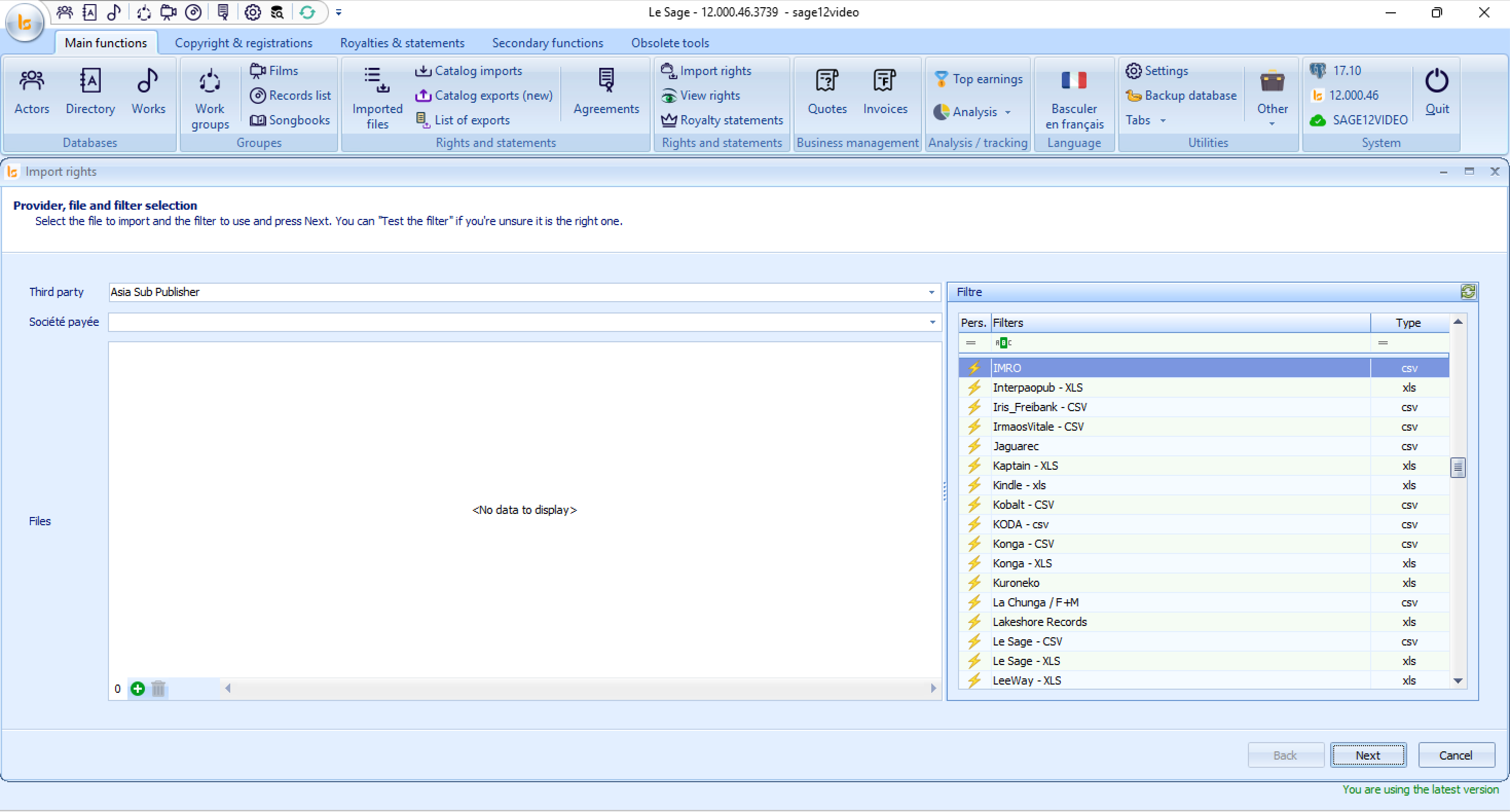
[![image.png](https://docs.improvize.eu/uploads/images/gallery/2026-07/scaled-1680-/image.png)](https://docs.improvize.eu/uploads/images/gallery/2026-07/image.png)

## "Import rights" Menu

The **Import rights** module allows you to import royalty statements and sales reports (such as CSV or Excel files) into Le Sage to calculate and distribute royalties.

### Step-by-Step Instructions

#### 1. Select the Provider &amp; Payee

<div _ngcontent-ng-c3276048225="" class="container" id="bkmrk-third-party%3A-click-t"><div _ngcontent-ng-c3914605736="" aria-busy="false" aria-live="off" class="markdown markdown-main-panel enable-luminous-fast-follows enable-updated-hr-color" dir="ltr" inline-copy-host="" style="--animation-duration: 400ms; --fade-animation-function: ease-out;">- **Third party:** Click the dropdown menu and select the entity or partner that sent you the rights/royalty report (e.g., *Asia Sub Publisher*). If it is a new provider you ust go to Settings - Third Party and add a new one.
- **Paid Company:** Select the internal entity or sub-label in your system that has received the money.

</div></div>#### 2. Select the Data File(s)

<div _ngcontent-ng-c3276048225="" class="container" id="bkmrk-at-the-bottom-left-o"><div _ngcontent-ng-c3914605736="" aria-busy="false" aria-live="off" class="markdown markdown-main-panel enable-luminous-fast-follows enable-updated-hr-color" dir="ltr" inline-copy-host="" style="--animation-duration: 400ms; --fade-animation-function: ease-out;">- At the bottom-left of the main central panel, click the green **Plus (`+`)** icon.
- Browse your computer to locate and upload the raw statement/report file(s) provided by the third party.

</div></div>#### 3. Select the Matching Filter

<div _ngcontent-ng-c3276048225="" class="container" id="bkmrk-in-the-filter-panel-"><div _ngcontent-ng-c3914605736="" aria-busy="false" aria-live="off" class="markdown markdown-main-panel enable-luminous-fast-follows enable-updated-hr-color" dir="ltr" inline-copy-host="" style="--animation-duration: 400ms; --fade-animation-function: ease-out;">- In the **Filter** panel on the right side:
    
    
    - Browse or search for the matching parser filter corresponding to the report format you are importing (e.g., matching the third-party name, such as *IMRO*, *Kobalt*, *KODA*, etc.).
    - Pay close attention to the file format column (**Type**: `csv`, `xls`, etc.) to ensure it matches your source file format.

</div></div>This filter will be automatically selected if you add in the settings of the Third Party - in Settings - the filter.

#### 4. Proceed

<div _ngcontent-ng-c3276048225="" class="container" id="bkmrk-click-next-at-the-bo"><div _ngcontent-ng-c3914605736="" aria-busy="false" aria-live="off" class="markdown markdown-main-panel enable-luminous-fast-follows enable-updated-hr-color" dir="ltr" id="bkmrk-click-next-at-the-bo-1" inline-copy-host="" style="--animation-duration: 400ms; --fade-animation-function: ease-out;">- Click **Next** at the bottom-right corner to process the file mapping and proceed to the next stage of the import process.

</div></div>
[![image.png](https://docs.improvize.eu/uploads/images/gallery/2026-07/scaled-1680-/IAkimage.png)](https://docs.improvize.eu/uploads/images/gallery/2026-07/IAkimage.png)

## Step 2: Options

This screen allows you to configure specific parameters, exchange rates, and filters before processing the rights data.

### Step-by-Step Instructions

#### 1. Configure the Rights &amp; Financial Settings

- **Rights date:** Select or enter the effective period/date for the statement you are importing (e.g., the statement period or accounting date).
- **Currency:** Specify the original currency of the incoming file (e.g., `EUR`, `USD`, `GBP`). By default it will be the one entered in Settings.

If the file has a currency information, the filter should add the information directly in the rights

- **Share to keep:** Set the percentage of income/royalties retained by default (preset to `100,00 %`). Adjust this if a specific commission or share rule applies globally to this import batch.
- **Counter value:** Enter the total converted value if you are converting foreign currency amounts into your base accounting currency.

#### 2. Apply Optional Import Filters &amp; Tags

- **Filter on a condition:** Select a predefined condition from the dropdown to filter out specific lines from the file during import (e.g., importing only specific territory codes or work types).
- **Force a rights tag:** Apply a global tag to all imported lines in this batch for paying out particularly, easier tracking, reporting, or grouping later.

#### 3. Debug Section *(Optional / Advanced) - For improvize team exclusively*

- Expand the **Debug** panel at the bottom only if you are testing a new import filter or troubleshooting file errors.
- Check the **Debug** box and specify a **Max nb. lines** value (e.g., `100`) to process only a sample of the file instead of the entire dataset.

#### 4. Proceed

- Click **Next** in the bottom-right corner to run the file parsing and move to the final validation step.

[![image.png](https://docs.improvize.eu/uploads/images/gallery/2026-07/scaled-1680-/Tvdimage.png)](https://docs.improvize.eu/uploads/images/gallery/2026-07/Tvdimage.png)

## Step 3: Import Summary

This screen displays the pre-import results, summary metrics, and any warnings or errors detected in your input file before final database insertion.

### Understanding the Summary View

- **Overview Table:**
    
    
    - **File name:** Path to the imported file (e.g., `C:\LeSage12\Exemples\SimpleSage5.xls`).
    - **Message / Last error:** Highlights issues found during parsing (e.g., `"Headers not found"`).
    - **Nb lines:** Total number of parsed data rows (e.g., `3`).
    - **Amount / Amount in currency:** Calculates the sum total of royalties parsed from the file (`1 507,56`).
- **Detailed Sheet Breakdown:**
    
    
    - Expanding the row reveals individual sheets (e.g., `Feuil1`, `Help`).
    - In your example, sheet `Feuil1` processed successfully with an amount of `1 507,56`, while the sheet named `Help` produced the error **"Headers not found"** because it contains instructions rather than structured rights data.

### Step-by-Step Instructions

#### 1. Inspect File Details or Errors

- **Double-click on a row** to open a detailed breakdown of the selected file or worksheet.
- Click the **Logs** button at the bottom-right to open a full system log file for granular error tracking. - exclusively for Improvize Team.

#### 2. Address Warnings (e.g., "Headers not found")

- **If the error is on a secondary sheet (like `Help`):** You can often click **Next** to proceed, as the main data sheet (`Feuil1`) was parsed correctly.
- **If the error affects your main data:** Click **Back**, fix the Excel column headers to match the expected filter format, or choose a different filter.

#### 3 . Finalize the Import

- Verify that the total **Amount** (`1 507,56`) matches the expected balance from your partner's statement.
- Click **Next** to commit the imported rights into the Le Sage database.

Or you could want to see more details before completing the import.

Double click on the line

[![image.png](https://docs.improvize.eu/uploads/images/gallery/2026-07/scaled-1680-/72zimage.png)](https://docs.improvize.eu/uploads/images/gallery/2026-07/72zimage.png)

This screen provides a granular, line-by-line preview of all parsed royalty records before they are officially saved to the database.

### Understanding the Preview Data Grid

The table displays every individual line item processed from your source file. Key columns include:

- **typeofrights\_text / familyofrights\_text:** The categorization of rights (e.g., *mech*, *Karaoké*, *songbook*, *TV*, *Songbooks*).
- **title &amp; authors:** The work information mapped from the file (e.g., *Just a song* by *Paul Lennon / John Mac Cartney*, *Le DVD du Karaoké*).
- **code &amp; codetype:** The identifier mapped for catalog matching (e.g., *A123456789*, *internal*).
- **amountpaid / amountpaidin:** Financial amounts mapped to each line item.
- **qty:** Quantities or units reported for each line item.
- etc.

### Step-by-Step Instructions

#### 1. Review &amp; Audit Lines

- Scroll horizontally to verify that all column data aligns with the correct fields.
- Check the bottom totals row to confirm that the aggregate amounts (`1 507,56`) and unit totals (`1254`) match your expectations.

#### 2. Grouping &amp; Sorting Data *(Optional)*

- You can **drag a column header into the light blue banner** above the table (labeled *"Drag a column header here to group by that column"*) to temporarily group records by categories such as `typeofrights_text` or `familyofrights_text` for easier auditing.

#### 3. Complete the Import

- Look for the notification message at the top left: **"All matches have been found, click 'Next' to validate the import"** (or the **Finish** button at the bottom right).
- Click **Finish** (or **Next**) to execute the final commit. Once clicked, the records will be permanently inserted into the Le Sage database under your selected third party.

[![image.png](https://docs.improvize.eu/uploads/images/gallery/2026-07/scaled-1680-/8ujimage.png)](https://docs.improvize.eu/uploads/images/gallery/2026-07/8ujimage.png)

## Step 5: Confirmation &amp; Completion

This final screen confirms that the data processing is complete and that all parsed records have been successfully added to your database.

### Step-by-Step Instructions

#### 1. Confirm Success Message

- The screen displays the confirmation message: **"Finished importing / Rights have been added"**.
- This indicates that all line items from the preview screen have been successfully written to the system database under the specified Third Party.

#### 2. Close 

- Click the **Finish** button in the bottom-right corner (or close the **Import rights X** tab at the top left) to exit the wizard.

### Recommended Next Steps

Once closed, you can:

- **Verify Imported Records:** Go to **View rights** under the **Rights and statements** tab in the main ribbon to inspect the newly imported entries.
- **Start the matching process going to Imports List.**