Le Sage
- First steps in Le Sage
- Actors
- Works
- Work groups
- Importing/exporting catalogues
- Royalty statements
- Configuration
- Royalties - Applying contracts
- MusicMark
- Conditions on rights - Specific deals to pay out royalties
- The Power of the catalog fixing workshop
- Type of Rights in Music Publishing
- Closing : step by step
- Catalog Import
- Rights import
- ROYALTIES - ABR
First steps in Le Sage
You have just purchased Le Sage and do not know where to start. Here are some key steps to get you started with the software.
First settings
Companies
We will not detail each tab here but mainly the first settings necessary to import your catalog.
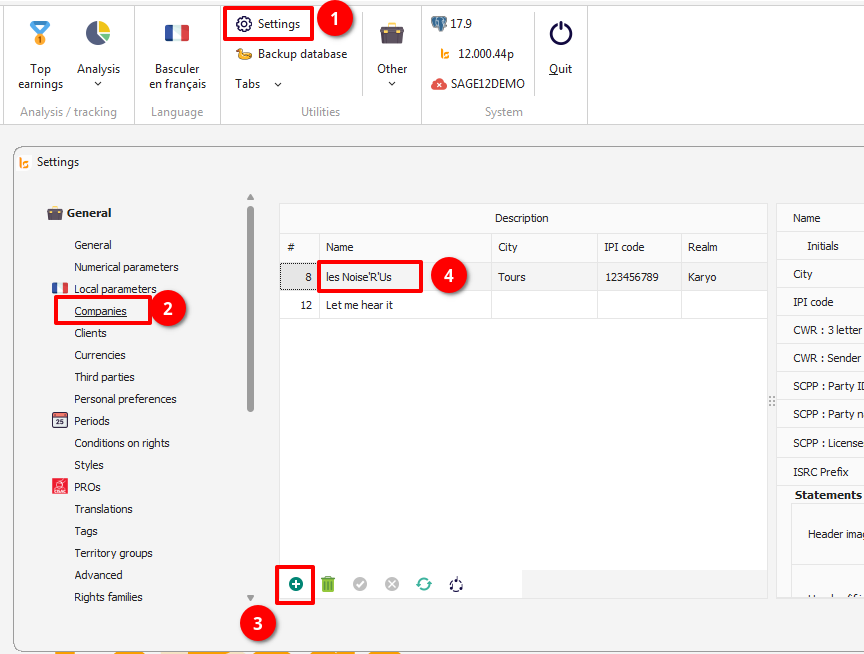
The configuration of the company is necessary to link your works to companies. If you only manage your catalog, and you only have one legal entity, you will only create your company name. To add a company, press the "+" symbol and enter the name of your company. It is not necessary to set all of the available fields right away. These will be used later on for the statements.
Third parties
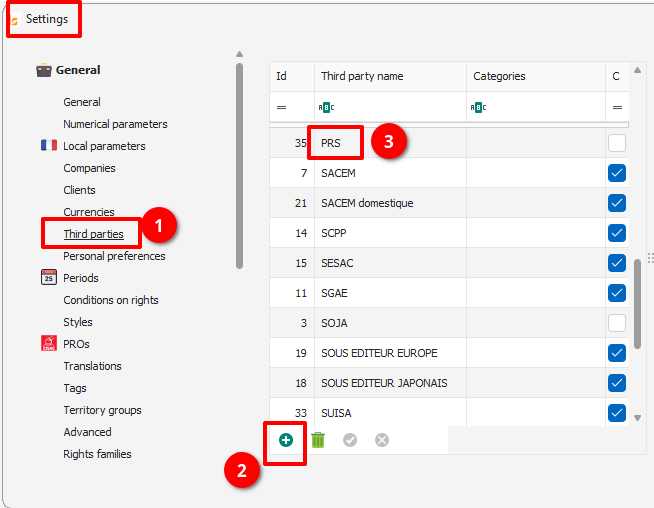
Third Parties are any entity with whom you will exchange data. You are going to want to integrate a first catalog into the database. You must therefore configure the third party that provided you with this catalog. As for the company, press "+" and type the name of the catalog supplier. The configurations on the right will be necessary when exporting your catalogs for this same Third Party.
These two basic settings will get you started.
Actors
List of actors
The list of actors is comprised of a search engine and the actual list of actors. To access the list and its functions, you have to launch the search (even empty).
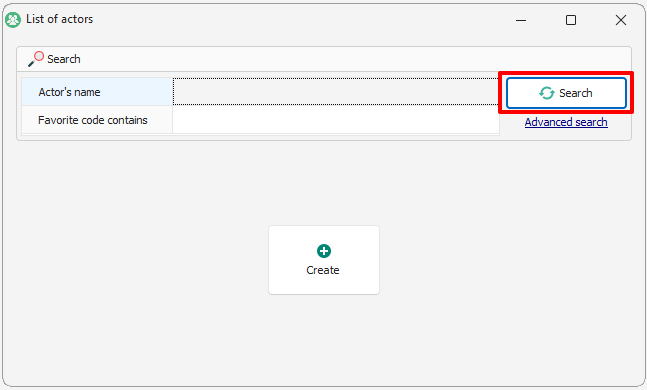
The default choice is by name, the search will bring up all the names beginning with what you key in. You can use * to say that the name contains instead of starts with.
An advanced search enables you to find an actor with specific information :
- Favourite code contains : the favourite code is the first code entered in Le Sage (via an import or manually). It can be personalised so it automatically chooses the IPI code for instance.
- IPI code contains : CISAC identification of an actor.
- Problems :
- Unused actors : lists the actors that are not linked to any works nor contracts
- IPI codes duplicates : lists the actors that have IPIs in common
- Name duplicates : lists the actor that have the same name
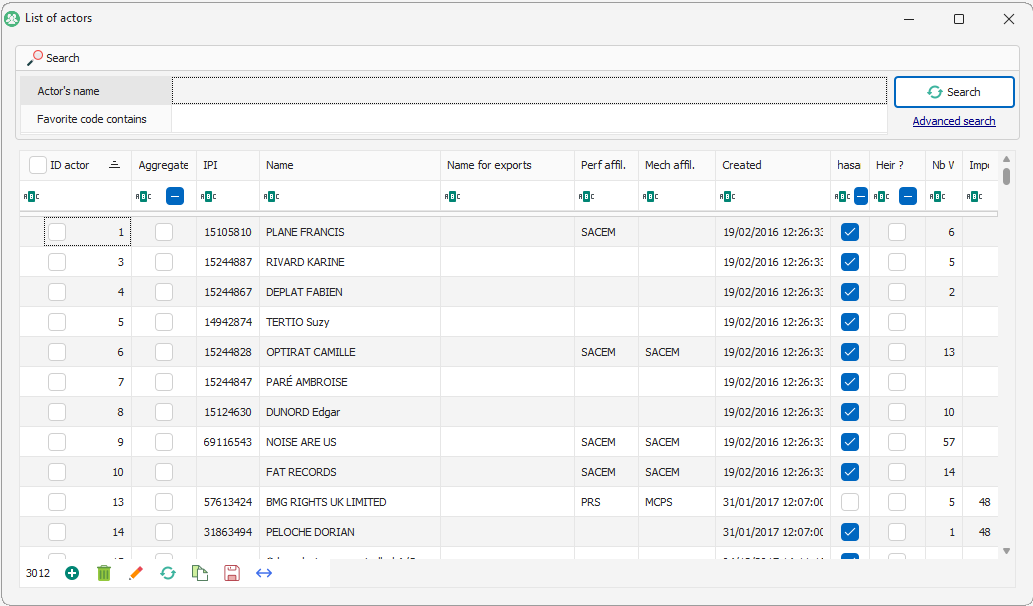
If you double-click on one actor you can open its form.
Editing an actor
The actors form is composed of several tabs:

General
The header with :
- the actor’s name : first name and last name
- the favourite code : first code imported or chosen.
Generic information concerning the actor
- Contact details : address, telephone number, email, social security number. This information will be
- Identity : Last name, first name, nickname. Last name and First name can be filled in via the catalogue fixing Workshop if the name in the header is properly entered. Groups - Catalogue fixing workshop
- Bank account ID
- Biography
Statements
You can define here through differents options/settings which way the statements of this artist are calculated (frame1) and edited (frame2)
You can fill here informative fields to personnalise the statements of this actor.
• Client : you can link here this actor with the client providing you the catalog. The client could be your own company. You can add new clients in « Settings » → « Clients ».
• Calculations :
- You must tick « No social insurance calculations (lives abroad) » if this artist is living abroad / in a foreign country.
- You must tick « Company » if this actor is a legal entity.
NB : Those two different options have the same result : the statement calculations will stop with the gross amount.
- If this actor is living abroad, the field « Witholding tax » has to be filled with the correct %. This % concerns all his rights.
• Statement layout :
- You must tick « Calculate statements » if you want this actor and his rights to be included in the statement calculation.
- You can tick « Statements in english » if you want it to be edited in english. The translation is automatic but you can still set it up in « Settings » → « Translations »
- You can also tick “View details” to make appear all the payout details about this actor (filled or imported) in his statement.
- If you tick “View summary by type of rights”, you will make appear a table for each work as a payout summary with each type of rights in the statements.
- The “View subtotal by source” box will allow you to see the payout details and subtotal by source in the statements.
- The “View subtotal by type of rights” box will allow you to see the payout details and subtotals by type of rights in the statements.
- The “compact mode”
NB : All those “View” options are changing the statement layout in the way of how payouts are edited/presented.
- “Don’t add automatic messages” box prevents all the LeSage preset messages to appear on the statements.
- “Always force a statement on this company” even if for this actor there is no rights you can decide to force the statements to be edited. In this way, you must indicate a company.
- “Force all statements on this company” allows you for a company to gather all the actor’s statements in one.
- “Can receive payments” to allow this actor to receive payments
Misc(ellaneous)
-
Citizenship : this field is purely informative
-
The publishing management frame allows you to link an actor to a territory and to a PRO he is affiliated to.
-
The perf society is the one paying to this actor the perfoming rights, choose it here
-
The mech society is the one paying to this actor the mechanical rights, choose it here
IMPORTANT : Those two fields must be filled to export CWR to a PRO as a sub-publisher
- IPI code =
- Controlled : tick this box if you’re in charge of representing this actor and you collect his rights. He will be automatically inicated as controlled in his works’ copyright.
- Is a major company :
- Legal description : business number, postal adress, etc used to generate/create contracts
- Business management
- Can receive invoice
- VAT rate
- Notes : internal notes for your own use
Codes
This tab shows you all the codes linked to the actor. Those codes could be attached to the actor automatically through importing catalogues but also manually.
You can see several informations here :
- code types : IPI, coad, etc...
- code itself
- the third party providing the code
An actor can have several code from the same type. If this actor has several IPI or Coad code, LeSage will export or fill your documents with the code that as been created in the first place (chronologically speaking). To avoid the wrong code to be chosen so used, you must define it as “main”.
Royalties
The fields of this tab will allow LeSage to fill automatically a work royalties when this actor is linked to this work. Those fields still remain manually editable.
Works
Here are listed all the works linked to this actor no matter the role he is having. The header frame provides you informations about :
At the bottom left, you find a tool bar allowing you to :
- Open and modify with the pencil
- Refresh the tab to see the modifications
- Create a temporary group with all the selected works ( cf workgroups)
- Save the column settings
- Maximize the column size for a better view
In the Copyright section, you can see the role of this actor in each work.
In the Royalties section, you can see every works on which this actor received rights and so payouts. You can double-click on a work to see more details.
The amount generated column indicates the collected publisher share.
In the Contracts section, you see the list of every contracts this actors is involved/part of.
Balances
This tab shows the actors account payouts statement.
In the frame n° 1 you can see :
- the company who has paid or will pay
- the closure date
- the gross total master being postponed to the next statement/payout
- the net balance paid or to be paid
In the frame n°2 :
- Previous balance : summary of the previous balance. If showing 0, meaning the actor was paid. If the payout was postponed to the next statement, the amount will be indicated
- Calculation date : date when the statement was calculated
- Statement subtitle : period name of the statement
- Closure date : indicated date on the statement for the previous period which is also considered for the next statement calculation.
- Date on statement : actual date present on the statement
- Period date min & max of the selected period (Settings -- > Periods)
- Rights : gross total amount of the rights
- Special credits : shows the advance payments or special payouts
- Gross total (masters rights) : previous gross rights amount being postponed
- Net balance (obsolete) : just forget about it, to be canceled
- Net balance : net total amount to be paid through the next statement
- Email sent : if the statement was sent by mail directly from LeSage. Not active yet !
- Notes : informations for your personnal own use
- Statement number : not active yet !
- Amount earned elsewhere :
Payments
Here is the list of the rights, advance and others payouts already paid to this actor.
Payments are done through :
- statements
- adding payments manually here /!\ THIS INDICATED AMOUNT IS NET /!\
IMPORTANT : If you want a manual payment to be postponed/integrated to the next statement calculation you must date it from the 1st day of the next statements calculation period
Credits
Here are the amounts positive or negative (but not rights) you would like to make appear on the statement.
IMPORTANT : To integrate those special credits the date (in period) must be the 1st day of the next statement calculation period.
Succession
In case of a dead actor, you must fill the beneficiary heir detailed information here :
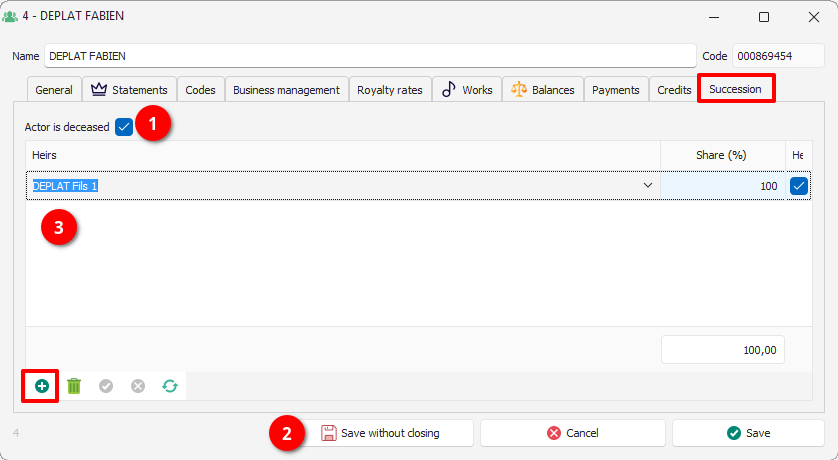
- Tick the "Actor is deceased" box
- Save
- Create and add the actor(s) being the heir and new beneficiary of this actor's rights
IMPORTANT : The deceased actor will still have a statement on his behalf and his heir(s) will have a different one with their share(s).
Aggregate
Grouping or gathering actors allows you to calculate and edit aggregated statements. Concerning mostly the sub-publishers to edit and calculate specific statements for each catalog but also a global or aggregate one.
To define a grouping of actors :
- Create a new basic standard actor
- Go to this tab
- Tick here the "This is an aggregating actor : statements produced under this name will aggregate the rights of all its members" box
- The right hand list is filling up automatically with all the actors and you choose the one you want to put in this gathering
Special actors
General principle
Whether in a work or in a contract, we could indicate to Le Sage payments to be applied "blindly": we created a group of works for a catalog, we associated a contract which defined that we kept 10% and that 90% was paid to our client and the trick was (more or less) played. This system works very well for sub-publishing but obviously is a big problem for local works, in particular because, depending on the number and the shares of authors, composers and publishers present in each work, this “blind” distribution is unusable.
It is possible to create “virtual” rights holder who will be responsible for distributing the shares according to the copyright data.
Let's take an example :
We create an actor to whom we give an explicit name (this name will be visible only to you) and, in the "Royalties" tab, we ask him to distribute the rights between all the controlled actors. We take the opportunity to give it 100% on all types of rights because, in most cases, that's what you want.
Now, let's fill in a work. We need two lines in the "royalties" part:
- One for the rights which come from your local PRO and which are exclusively intended for you since the other beneficiaries have already been paid on their side ...
- ... and one for direct rights
We do not specify a supplier (in fact this rule will apply regardless of the supplier), we delete the DEP, DRM and Phono parts and we indicate, in the “Copyright sharing key”, that we wish to use the “Mechanical owned” shares in the copyright.
Here is the "Copyright" content of this work: I create a line of direct rights of 1000 € in miscellaneous rights and Le Sage calculates: He did note that the total share of actors checked is 50% and therefore that each person's share is respectively ¼, ¼ and ½. Let's change the copyright to indicate that we control almost everyone (remember that we chose to use the "Mechanical owned" part for our calculations):
And let's recalculate the count: The Sage still distributes the same amount, but this time giving ⅓ to the publisher (25% out of 75% in total) and ⅙ to each of the authors / composers (12.5% out of 75% in total). Of course, at the scale of a work it's not very interesting but it also works on contracts, of course.
We've seen the easiest way to share here, but there are other cool things you can do. You have seen that we can create rights holders capable of distributing rights especially between authors / composers or only between publishers. Let's go back to the "Copyright" configuration from the beginning: We create two rights holders responsible respectively for distributing the rights between the A / C and between the Publishers. Next, let's modify our “Royalties” area as follows: The distribution "All actors" is empty for the various rights but distributed at 10/90 between the A / C and the Publishers (one can imagine, for example, that for the Songbooks, the publishers keep a majority of the sums to amortize the costs. Manufacturing) : The publisher keeps 90% of the sum and the A / C split the remaining 10% in proportion to their "Mechanical" shares.
Special actor setting
We are going to create 3 actors: 1 for the sharing to take place:
- between controlled songwriters
- between controlled actors (regardless of their role)
- between controlled publishers
All the actors will not be useful perhaps but know that it is possible to create them. In the list of actors, click on "Create". Give it the name you want: here: * split between A/C controlled (the asterisk will allow you to have the actor at the very beginning of the list of actors). Go to the Royalties tab and check "Share between controlled authors/composers.
Your actor allowing you to split between the songwriters (arrangers and adapters also) according to one of the sharing keys issued by copyright is finished. The operation must be repeated to create the other two, by checking the special sharing according to the name you give it.
Works
List of works
Two options here :
- searching bar
- create a work
The searching bar function is having an advanced (detailed) mode to target a specific kind of work :
If you start the search with no content (empty field), you will find the list of all the works from the database :
Here you find :
- The Title of the work
- The Favorite Code (ISWC) of the work
- The creation date of the work in LeSage
- The Registration Date
- The Company representing the work
- The Actors within the work's copyright
- The SACEM code : CoCv ?
And with the bottom left tool bar (or right click anywhere on the list) you can do some actions about :
- Add/create a new work with +
- Delete a work with the green bin
- Modify a work (you can also double click on a work to open an edit work) with the pencil
- Refresh the list two cycled arrows
- Duplicate a work
- Save the column size settings with the small disk
- Maximize the columns double blue arrow
If you right click on the work list you can access to a scroll menu with secondary options of actions :
- Merge works : after selecting 2 works, merging will only keep the 1st one and delete the 2nd one. All the 2nd work's information not yet present will be transferred on the 1st one at the same time. The remaining work (1st one) will keep and obtain all the missing rights, and royalties copyrights information as group, tags, and movie songbook links. You could decide to swap, to change the work remaining and the one deleted. You could also decide (ticking the proper box) to not copy the royalties and/or copyright information.
IMPORTANT : This action could generate duplication (for example copyrights information of the 2 merged works). In this way, we highly recommend to check remaining work's information /!\
- Use work as template : allows you to copy a work's information to other works within a group. After picking the template work and right click on it, choose "use work as a template" and then select a group (1) and the information you would to copy (2).
- Create a static work with the selected work(s) : creation of a temporary group with selected works
- Search for lost works : search and/or recreate works which CoCv exists already in the sales imports but not yet in the works' list (database?)
- Check payouts : ?
- List templates : allows you to customize the header columns you would like to see inside this list :
If you double-click on one work you open its edit in a new tab to consult and/or modify it.
Editing a work
General
You find here 3 different but important zones :
- a small window (1) with general information :
- Subtitle : to dissociate/distinguish 2 similar works
- Company : the publisher, you or the one you represent on a specific territory. This field is important for the statement export to be clear and the actors paid on the correct company behalf. The company concept inside a contract or royalties (« controlled by ») settings will be priority over this field information.
- Performer : (optional) You can add one (or several) actor (s) in the copyright zone with this specific role.
- Author : optional here because it is already filled in the copyright section. This field could be used to force the auhtor’s name appearing in the statement
- Territories : the territory in which you represent the work.
- ISWC : international standard work code (add/modify in the “code” tab).
- idimport : allows you to know through which import this work was created in your database.
- Protected : protected work from the massive changes in the workshop.
- Do not export : this work will be not exported in the catalog (CR / Chrono).
- Already submitted : meaning this work was already submitted to a PRO through a catalog.
- Submit comment : if the works was accepted or rejected
- Genre : type of music
- duration : work duration
In the same window, you can also check the chain of right (= hierarchy) to check the copyright according to a third party in order to export the work :
Still in the same section, you can click on menu button to :
- Verify payouts of this work
- Generate documents (contract in english)
- Export the work
-
another window (2) with copyright information about this work and its actors :
-
Actor : click on the eye to open an edit actor
-
IPI code : standard unique code for copyright actor
-
Role : A = author, C = composer, AC = author & composer, E = original publisher, SE = sub-publisher, CE = co-publisher, ADM = administrator,
-
Chain : to separate rights' chains according to publishers/sub-publishers representations
-
which publisher or sub-publisher is managing the co-publishing
-
the performance & mechanic shares (owned & collectable), IMPORTANT : the shares total must be 100%
-
the Third party (who provides you the work and its information)
-
if the actor is controlled
You can customize the header columns (so information) you would like to see clicking on the settings button.
You can also open/generate a copyright preview according to the third party you would to export this work to, clicking on the yellow file button.
This preview will be visible in another tab :
You find here the same information as in the copyright section but in the way it will appear within the CWR/Chrono export according to the PRO you are sending to.
- a last window (3) with royalties/contract information attached to this work :
You can read this section according two ways :
- horizontally
- vertically : this way could be hidden clicking on the blue arrow situated on the top right of the royalties zone.
This section is proposing two ways of setting royalties up :
- the contract mode
- the work mode
In both mode, you must define one (or several) actor(s) and the payout shares (%) according to the type of rights (mech or perf).
Within the contract mode, you must create a contract with the payouts conditions (royalties) beside.
Then you attach the contract to a group so to all the works in the group.
This mode is highly recommended because :
- it’s working efficiently whether there is one ore a thousand work in the group
- if there is a payout mistake, you just need to change the contract and all the works are impacted
- if you create new works, you just need to add them in the group and they will be automatically attached to the contract thanks to the dynamic group concept
Within the work mode, royalties are set directly in the edit work (this section).
IMPORTANT : this mode and this way to inform royalties will always be priority over the contract mode to calculate the statements. This mode is recommended only to deal with specific situations.
Codes
You find here all the codes attached to this work.
Those codes could be attached to a work automatically with catalogue and/or rights import or even manually.
- # : internal number automatically generated by LeSage when creation
- Code type : ISWC, CoCv, etc…
- Main : tick this box to determine which code is the favorite, main attached to this work
- Code : the code in itself
- Third Party : the entity providing the information
- Title : work title
- Author : author/composer present in the work copyright
- Album ref : commercial reference of album where the work is attached
- Album title :
- Track num :
- Duration :
- Label :
- Release :
- Artist : performer present in the work copyright
- Created : creation date in LeSage
- Import # : Import number generating/providing the work code
A work could have several but same type code attached.
If so, LeSage will consider a code as main one according to its creation date (the oldest, the first created).
To define a correct work code as main and avoid a sale to be assign to a wrong one, you must tick this correct code as main.
Notes
Those notes are for your own personal use in LeSage and will have NO impact/effect on statements.
Those useful and complementary information are recommended to organize your database management.
Rights
You find here all the rights imported attached to this work.
- Rights # : internal number automatically generated by LeSage after importing rights
- amountpaid : amount to pay in the rights' file imported
- amountpaidincurrency : amount to pay converted in the correct currency
- % collected : from the total copyright shares
- TypeOfRights : type of rights from the rights' file imported
- Title : of the work imported
- Authors : present in the copyright from the rights' file imported
- date_paid :
- typeofrights_text : way to broadcast the work, provenance from the rights' file imported
- Source : way to broadcast the work, provenance translated for LeSage
Groups and tags
This tab shows all the groups and tags attached to this work.
Exports
You find here all the exports where this work is present.
- idExport
- Date
- Format
- File name
- Description
Subtitles
Creating new works
Once your catalog has already been placed in the system, you will maybe want to manually add new works. Several solutions are possible, depending on the diversity of the copyright that you will want to integrate.
From the list of works
- Create a new work
The option to create a new work appears directly when opening the list of works. By clicking on create a work file will open and you can add your copyright.
From an existing work
If you wish to use the copyright of a work already present in the database, after having searched for this work in the list of works, right-click on the work concerned, and click on clone this work or use the "Clone this work" button at the bottom of the screen. You will be able to create one or more works (by putting the titles on the line) having the same characteristics.
The works will be put in a group.
Be careful with this solution all the data in details will be duplicated in addition to the copyright.
From an Excel file
If you are more comfortable filling out an Excel file and importing it into the system as your catalog of deposited works, we provide a template in c:\LeSage12\Examples to import a catalog of new works. Just follow the steps of the catalog import using the "Excel All on one line" filter to import it.
Work groups
General
Work groups are one of the most powerful features of Le Sage. As their name implies, they enable you to regroup works into logical sets that you may use for different purposes:
Once the import of your catalog is finished, you can find the works in "Groups of works". A group integrating all the works was created automatically. It has the name "ImportCat + the name of the filter + the name of your file" unless you named it at the time of import. From this list of groups you can see the number of works that the group contains (here 2 works), the type will be "Import" because it was created at the time of an import and other characteristics related to the Group.
To « enter » (edit) a group, just double click on its line or press the pencil icon at the top.
The group of works opens on the works contained in the group.
The icons at the bottom left allow:
- delete a work from the group: delete the work from the group, delete its membership in the group and not its presence as a work in the database. You can still attach it to the group if you made a mistake in deleting it.
- to edit the work: this will open the work file so that you can modify any information that is specific to it.
- update: if you have made changes to a work but the group was already open.
- to deploy or reduce the information visible by work
- to filter on certain properties of works
- to create a contract
- save column changes
- optimize columns
The secondary list model on the right allows you to choose what information you want to see when you deploy the works: copyright, royalties present in the work or messages (CWR ACK).
Find the chapter dedicated to group actions here:
Catalog fixing workhop
Importing/exporting catalogues
Importing a catalogue
If you are affiliated with an author's society, which will be called later PRO, you can request or download your catalog of deposited works on its platform.
Steps of a first catalog import
The import takes place in 4 phases:
- File and filter selection
- Pre-import
- Choice of validation options
- Import validation
Only the last step really does anything to your database. You can therefore use the pre-import at any time (to check the content of a catalog that has been sent to you).
File / filter selection
Choose the file to import by clicking on the yellow folder button on the right.
Choose the filter to use. The choice of filter will depend on the source of the file. In the case of a PRO, the filter bears the name of the latter. If it is a foreign publisher, either the filter will be named after the publisher or the tool he uses. Do not hesitate to send the file by email with the name of the publisher to emily@improvize.eu if you do not know which filter to choose, or simply because the filter does not yet exist.
Click on "Next" to proceed to the second step.
Pre-import
During the pre-import, Le Sage informs you of the progress of his work. If it stops along the way, it will give you an error message. Usually this will be "Headers Not Found". This means that your supplier has changed its format and it is necessary to adapt the filter accordingly. Send the file to technical support, remembering to specify the name of the filter used.
At the end of the pre-import, Le Sage presents a screen divided into four areas:
- (1) contains the work titles, codes, duration, etc.
- (2) contains the beneficiaries, their owned shares, roles, affiliation, etc.
- (3) contains phonographic data
- (4) contains additional information for rights holders: the collection shares.
The data will depend on the file sent by the supplier (with more or less detail). Le Sage's filters automatically adjust to the richness (or poverty) of the information provided and it is absolutely normal that you do not see all of these columns filled in. In addition, the areas containing codes (workcode or code) do not always contain the same type of information: for SACEM, we will generally have a CoCv (or IDE12) and an ISWC. Some files have no code at all (that is a problem, but we just do with what we have). The area (3) is only very rarely present (mainly in files for musical illustration). When you browse the works (zone (1)), zones (2), (3) and (4) are updated accordingly. Likewise, when you navigate in the actors, the zone (4) is updated.
If the data you see looks correct, click next to choose the validation options.
Validation options
Company
Choose to which society the works will be attached. The system will suggest the companies you created in "Settings".
Provider
Indicate where the catalog you are importing came from. If you had not yet created this provider, do not close the window, open the settings of Sage, create a data provider, validate the configuration and, on the validation options screen, press the button with the 2 blue arrows: your new supplier will appear.
Place the works in a group
The Sage places new works in a group so that you can easily view / rework them. You can choose to place all the works of the imported file in this group (not just the new ones). By leaving the group name empty, Le Sage will automatically assign one.
Add a tag to the works
Likewise, Le Sage can automatically add a tag to imported works in order to constitute / complete catalogs. If the tag is empty, Le Sage will not add a tag. If the tag is unknown, Le Sage will ask you to create it.
Choose the fields to keep
By clicking on this button you will see the available information appear, which may or may not be of interest to you. You choose to keep only the data that is important to you.
Press Next
Matching options
When Le Sage analyzes a work to import, it seeks to know if this work is already present in your database or if it is new. If the import file contains a primary key (for example a PRScode) or a unique key (for example an ISWC code), Le Sage scans the database to find out whether or not this code is already present. If it is present, the work is unambiguously identified and will match automatically without creating a duplicate.
If this code is not found or if the import file does not contain any key, Le Sage offers to search by title, but the question of disambiguation arises. It is therefore necessary to give it a matching strategy in case of absence of common codes between the file and the data base.
For the import of your first catalog there is no question to ask. The database is empty so you will not want to match. All you have to do is select "NO" and click next.
But here are some explanations for your future imports.
Try to match on titles
The Sage offers 5 choices:
- Yes, with all the works
Le Sage searches for an identical title throughout your database.
- Yes, with the works of a particular company
You have to choose a company. Le Sage then searches for an identical title in all the works related to this company.
- Yes, with the works of the group
You must choose a group. The Sage then searches for an identical title in all the works that are members of this group.
- Yes, with the works bearing the tag
You must choose an artwork tag. The Sage then searches for an identical title in all the works with this tag.
- No Le Sage does not search by title and considers all the works to be unknown (therefore new).
Manual Matching
But this search by title may not be enough: nothing says that you do not have, in a given catalog, two homonym works. The Sage then offers you to manually control these homonymies.
Always
Le Sage will always ask you to establish the matching manually (even if he has not found a homonym). Use if you know that some works already exist in the database but there is a good chance that the titles do not match perfectly.
Only if title match
This is the best choice: Le Sage will only ask you questions if he is about to establish a match. If he does not find an identical title, he will treat the work as new.
Never
You consider that there is no homonymy and that in the event that a work is presented with a title already known to the Sage, it is the same work. This is very dangereous.
Works
This option determines what Le Sage will do on the "general" part of the works when it meets existing works:
Leave the identified works as they are : Le Sage will do nothing.
Fill in only empty fields : If the import has, for example, the filing date and this date is missing from the work in Le Sage, the latter will inform it; the work will be completed, no data will be overwritten.
Overwrite pre-existing data : All the information contained in the import file will replace any information that may have been in Le Sage previously: if a filing date is present in the imported file, it will be entered in Le Sage, the title contained in the imported file will replace the one that was there until then.
Actors
Do not touch the beneficiaries : the system won't take under account the copyright information in the file.
Replace the data coming from this third party : If data from this third party is already attached to this work, Le Sage erases them to replace them with the imported info. Other copyright data (from third parties or entered manually) will not be affected.
Replace all copyright data : Any copyright data that may have existed on the work is erased (even those entered manually or from other third parties) and the data contained in the imported file will be added.
Add if the work does not yet have any actors : When the work was created following an import of a statement /direct rights, it has no related rights holder. In this case, Le Sage completes the form. On the contrary, if the work already contains any copyright line, the work is ignored (as in the first choice).
If no match was found
Do not create new works: by checking this box you prohibit the creation of all new works, present in the file absent in your database.
Tap Next.
Territories and sharing keys
Ignore the territories
Theoretically, the collective shares (perfcoll and mechcoll) of the rights holders are linked to a territory (since they are likely to be different from one territory to another, depending on what each PRO allows. ). We will therefore have several lines for each actor: one with its shares owned and one or more with its collectable shares by territory, which can turn out to be relatively illegible. Today, only files in CWR format sometimes offer to import "international" data. Checking the “ignore territories” box allows you to place the collectable and owned shares on the same line, which makes the worksheets much more readable.
Split keys
Click on Next.
Your catalog import is complete.
Importing CWR ACKs
After you exported catalog to a PRO, you can, sometimes, receive a status feedback about this same catalog.
Most of the time, it is even 2 feedbacks :
- ACK 1 : a preview reporting to let you know if the catalog works are accepted (RA) for treatment or not (RJ)
IMPORTANT : this preview reporting is only providing you information, no works in the imported groups !
- ACK 2 : final reporting file indicating if works were registered and so with a PRO code attached and ready for payment.
Those feedback are assigning each work an internal and specific PRO code and so ACK-CWR import are crucial to incorporate in order to complete and update your database works information.
- To do so :
- Click on Catalog imports
- Choose the File to import
- Select the CWR-ACK filter
- Click on Next
- An ACK-CWR import preview indicates you the ACK result (1) , the number of works concerned (2) , and the PRO message and explanation for acceptation or reject (3) :
- The next step allows you to inform the third party providing you the reporting (PRO). This reporting containing only informations and the works already existing if you want to create a group with that report you must untick "Only to new works" and fill the "Name" field up.
You could also choose to assign this reporting a Group type and/or a tag in order to organize your database.
- You could now choose matching options :
IMPORTANT : LeSage matches automatically with internal workcodes. In this way, in the works matching strategy and especially in the field "Try to match on titles" , you must choose "No" let untick "Do NOT create new works"
- Make sure you tick "Ignore territories" and do NOT fill any shares fields :
- To check the works status up :
Click on Imported Files
Right click on the ACK CWR import and then choose Create a group
A new tab is opening with works in the group, in the field "Work list template" make sure you choose "default" and in the field "Secondary list template" make sure you choose "messages". This way, you can open with the + situated on the left side of each work and so consult the PRO assigned message/status.
Clicking on the blue funnel in the tool bar (bottom left of the tab), you can then filter the works of the group according to the status/message :
This way, you can target the rejeceted works (for example) to correct its copyright and export it again to the PRO but without affecting the accepted with codes works.
Royalty statements
The royalties in Le Sage are the way to pay the rights that enter the system. These royalties can be attached to a work specifically if it is to be treated in isolation, but they can apply to a whole bunch of works at the same time.
Importing rights
The Import rights module allows you to ingest royalty statements, sales reports, and digital performance distribution files. This data is linked directly to a specific third party or collection society to process income data across your catalog.
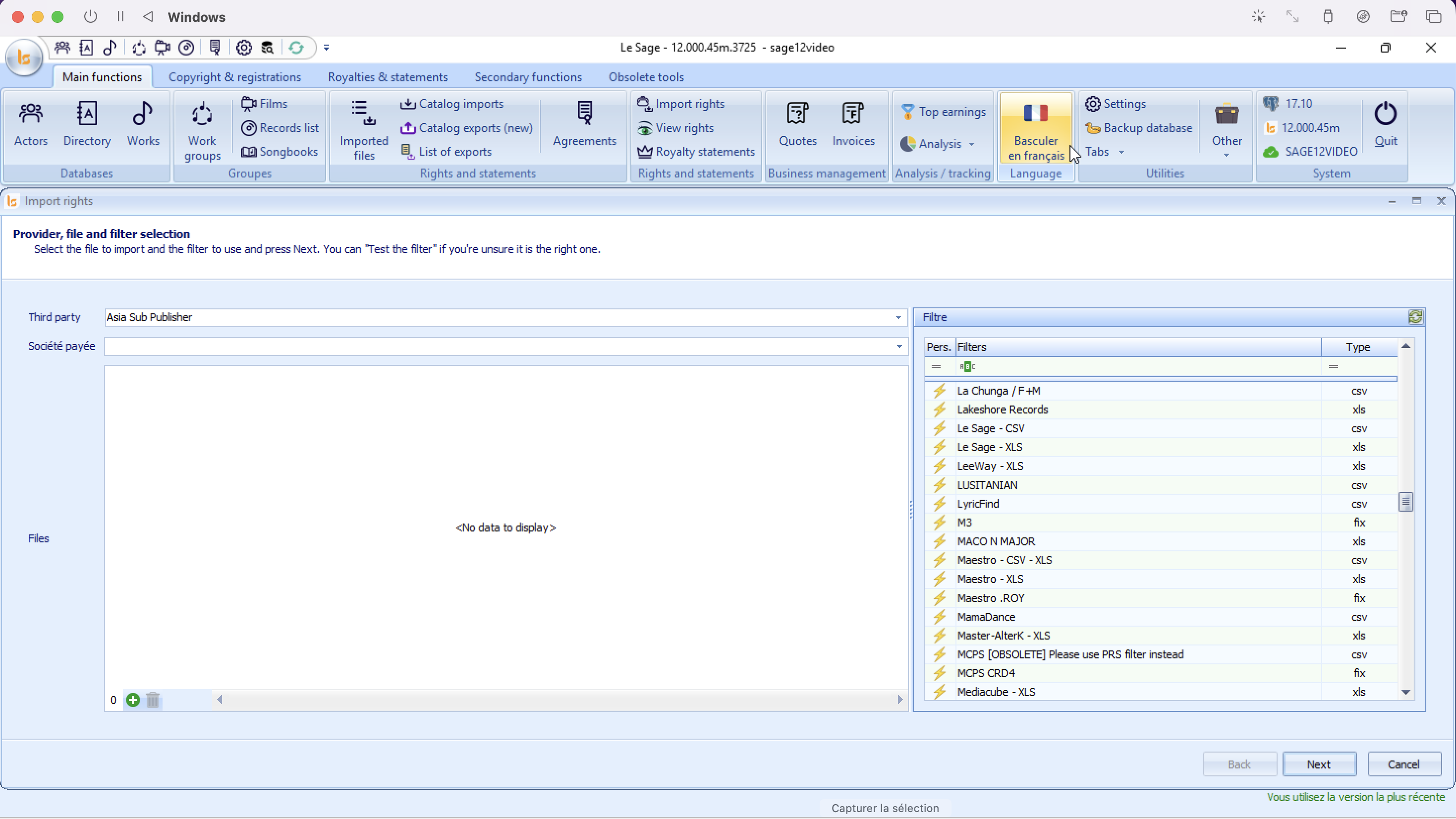
1. Interface Overview
The interface requires you to specify accountability links alongside your file and parsing filter selections:
-
Left Section (Accountability & Files): Dropdowns to assign who sent the money/data, and the file uploader tool.
-
Right Section (Filtre): The template list specifically calibrated for rights and financial data structures (e.g., LyricFind, MCPS, Maestro).
2. Step-by-Step Configuration
Step 1: Define Accountabilities (Third Party & Company paid)
Before choosing files, you must tell the system how to assign the incoming funds:
-
Third party: Click the dropdown and select the external client, publisher, or sub-publisher who provided the statement (e.g., Asia Sub Publisher).
-
Company paid : Select your internal company that received the payment described in the statement.
Step 2: Upload Royalty Files
-
Find the Files section below the dropdowns.
-
Click the + icon at the bottom left to browse your computer and upload your statement files (CSV, XLS, TXT, etc.).
-
Note: Multiple files from the same provider can be added at once if they share the identical file structure. Use the Trash bin icon to clear accidental selections.
Step 3: Map the Royalty Structure (Filter)
-
Scroll or search through the Filter column on the right side.
-
Select the filter matching the source organization or format layout (e.g., choose MCPS CRD4 if processing an MCPS statement).
When importing the file, you must know the sender in order to indicate it in Third Party, as well as choose the appropriate filter. The filter is named after the rights provider. A Third Party may have more than one file type. This is how we have four filters for SACEM, for example, as they can send several different formats. If you do not find a filter corresponding to your rights provider, please send us the file with the name of the provider.
3. Action Buttons & Navigation
| Button | Action |
| Back | Returns to the previous menu dashboard (disabled during initial step). |
| Next | Starts parsing the financial values and advances to the preview and calculation step. |
| Cancel | Wipes the current setup selections and closes the Import rights module. |
Options
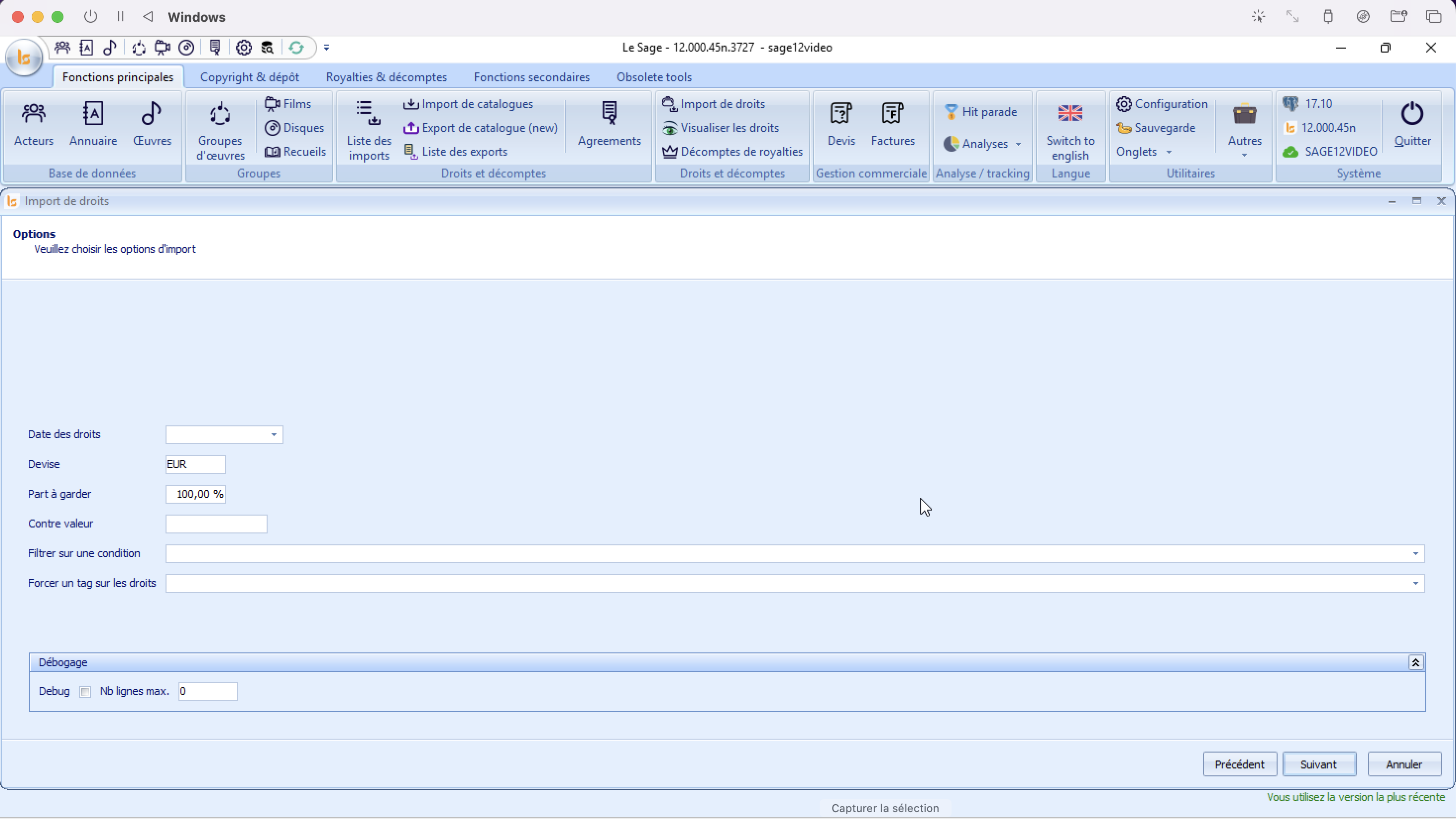
After selecting your statement file, third party, and parsing filter, clicking "Next" opens the Options page. This screen allows you to configure financial variables, apply currency conversions, and set up metadata rules for the incoming royalty entries.
1. Setting Up Financial and Administrative Options
Configure the parameters to align with your distribution rules:
-
Rights date: input the accounting/distribution period relevant to this statement (e.g., Q1 2026, H2 2025). This ensures royalties are allocated to the correct financial period.
-
Currency: Defines the base currency of the incoming document. By default, it is configured to currency defined as the default one in the Stettings. Modify this code if your statement uses a different source currency (e.g., USD, GBP).
-
Share to keep: Determines what percentage of the incoming money is retained by your company before sub-distribution. By default, it is set to 100,00% (meaning your company retains the entire gross amount, or commission calculations will follow default contract rules).
-
Counter value: If the statement currency differs from your system's main accounting currency, enter equivalent value in your currency accurately.
-
Filter on a condition: Use this dropdown to apply a specific logical rule to the import, parsing only the line items that meet a custom set criteria.
-
Force a rights tag: Allows you to automatically apply a specific tag to apply a special rule to the payout of the rights.
Debug: Located at the bottom of the window. Exclusively for us.
Statement Summary
Once the software finishes parsing your rights or royalty statement file, it advances to the Compte rendu screen. This stage provides a breakdown of the imported sheets, data volume, extracted financial sums, and parsing warnings before committing the records to your live ledger.
1. Interface & Grid Layout
The main table acts as a structured tree menu. Clicking the small Minus ($-$) or Plus ($+$) square icon on the far left expands or collapses individual sheets found inside your uploaded file.
Main File Attributes
-
File name: Displays the path of the processed spreadsheet (e.g.,
Z:\Downloads\GRANDS DROITS V2.xlsx). -
Nb lines: The total count of data rows successfully scanned (e.g.,
70lines). -
Amount / Amount in currency: The total aggregate financial royalty sum extracted from the document (e.g.,
184 214,37).
2. Reading Error Messages and Workbook Sheets
When expanding a multi-sheet spreadsheet workbook (e.g., Excel files with several tabs), Le Sage evaluates each tab independently:
-
Successful Tabs (e.g., Feuil1): * Displays the subtotal financial Amount parsed specifically from that single sheet.
-
The Active zones column indicates which named script or data layout template successfully mapped the rows.
-
-
Tabs with Errors/Warnings (e.g., Feuil2):
-
Message / Last error: Displays parsing flags such as
Headers not found. -
What this means: This alert indicates that a specific sheet inside your Excel file (like Feuil2) does not contain the expected data columns or is an empty layout tab. If the financial totals on the successful sheets match your physical statement statement balance, this warning can safely be ignored.
-
3. Investigating Logs & Interactive Details
💡 Pro-Tip: As noted in the subtitle instruction, you can double-click directly on any row or sheet line item to trigger a drill-down window displaying a detailed row-by-row view of the data.
Matching rights
The import of the rights at this stage is not complete. You cannot analyze them, output your statements, or simply view them as they are. It is necessary to establish the correspondences between the imported rights and lLe Sage database. To do so, you have to go to the list of imports.
1/ The import we just made is red. It indicates that the rights collected are not usable by the system for the moment. The system does not know yet how to read the information from the file.
2/ The status indicated summarizes the matching lines that are to be made for this file in order to be able to payout, analyze and extract the rights collected.
In the example: 2/2/2/2 should be read as follows: 2 types of rights / 2 families of rights / 2 lines of rights concerning territories / 2lines of rights concerning works without correspondence. In order to get a precise information on how many works and territories have to matches you can click on "Detailed status".
To start the matching, double click on the import line.
The matches are always made as follows:
- The 1st column being the information from the file
- the 2nd: the application of the new correspondence column. It materializes the effectiveness of the correspondence once you press apply.
- New match : choice in Le Sage of the how the system has to read the file information.
- The act of applying transforms the choice of a new match into a match found, remembering it for the newt file coming from that third party.
The tabs "types of rights", "Matched works" and "Songbooks" must be matched in order to use the information from the file. The "families of rights" and "territories" tabs allow you to give a more precise information to your beneficiaries on their statement but are not mandatory.
The Matched Works Tab
In this example there is only one work in the distribution file.
Start by establishing the already known correspondences : Le Sage will analyze the codes linked to the works: if the codes in the file match with the codes in Le Sage, the rights will be automatically associated with the works.
If works did not find matches after the first analysis, you will :
- "Create all unknown works" if you know that they are only works not present in your database
- "Start the match » : If you think you have these works but the codes present in the system are different from the ones in the file you are importing (or maybe the file doesn't give any codes). This phase allows you to match, create new works or postpone the match until later while waiting for more information from your supplier on the title on which it is perceived.
The information in the first box-1- is the information contained in the file. Depending on the files you will have more or less details.
Box 2 is your database. It will be a question of identifying if the work which arrives via the file is to be compared or not to a work within your database.
If it is :
- a new work: Create the work
- a new work that you want to complete immediately with copyright: Create and modify the work. This can be done in a second step. It is not necessary to modify this new work at the time of matching.
- a work that you do not know and that you want to ask your provider before incorporating it into your system: Skip. The work will remain as unmatched, and the import line will remain red.
- the same work as the one selected in box 2. OK. This will match the incoming work with a work in your database, associating it with codes if the file had any, and the rights associated with it.
- Cancel: you can cancel the matching session if you want to resume later. The works created or already matched will be kept in memory, and you will finish matching later.
All works matched manually will be listed in the "Matched works" tab. If you made a mistake in a match, all you have to do is select the line with the wrong match and click "Delete" (trash can icon). It will be necessary to start again "Start works match" to match it with the good work or to create new one. All created works will be listed in "Created works". This will allow you to create a group to process them.
The songbook tab
The songbooks must be created within the Sage in "Songbooks" to then establish the matching.
Viewing rights
Once the rights have been integrated into the system, you will be able to view them in "View rights".
View rights is a menu that allows to read, analyze, and extract data of collected rights. The quantity of rights imported or entered manually in the system rarely makes it possible makes it possible to visualize all of them. It is therefore important to restrict the search by:
- import number: the number to be indicated is in the list of imports.
- group: group of works for which we want to analyze the rights
- Period: period listed in the settings of Le Sage
- Condition: conditions on rights listed in the settings of Le Sage
- SACEM.CodeFilm: information imported through SACEM distributions
- Title begins with:
- Code starts with:
- Third party: third party informed when importing rights
Viewing tools
List templates
It is interesting to establish different list templates depending on the rights analysis to be performed. A lot of columns are available, depending on the information available in the files you have imported. List templates are displayed and adjusted by right-clicking on the list of rights. Once the columns have been chosen, each can be filtered to keep only certain information: origins, types of rights, etc.
Sum of rights
The sum of the rights is displayed by right-clicking on the bar at the bottom of the list at the level of "amount paid pressing "Add".
It is also possible to set up subtotal bars to group the rights according to certain characteristics (Right click on the column headers). You will select the column on which you want subtotals and place it above on "Drag a column".
Export
An export of the rights wiewing in xlsx format is available by right-clicking on the column headings.
Associate a tag
Tagging rights allows you to isolate certain lines of rights to treat them differently from traditional payments.
Example: you have obtained a new catalog. A work is paid to you, whereas it should be paid to the previous sub-publisher given the start date of your contract. You can tag these rights lines to say that those with this tag must be, regardless of the type of rights paid, paid to the previous sub-publisher. We will see that for this same example, it will not necessarily be useful to tag the rights but to explain in the contract that before a certain date we do not pay for the rights received and the date we pay the actors.
Royalties
Pay out the rights received
One of the primary functions of Le Sage is to allow to pay out the rights collected. In order to give you maximum flexibility in the way you manage these payments, Le Sage offers two complementary operating levels: the “contract” mode and the “work” mode. In both modes, the definition of payouts is done in the same way: you define one or more beneficiaries and the splits (percentages) that will be paid to them according to different criteria.
In the "contract" mode, you create a contract and indicate the payout information (the "royalties"). You attach this contract to a group and all the works of this group will be subject to the payout provided for in the contract.
This mode is to be preferred because:
- it works just as well whether the group contains one or several thousand works,
- if you made a mistake in your payout splits, you simply correct the contract and all the works benefit instantly from the correction,
- if new works are created and you need to apply the same payout to them, just add them to the group; in some cases, this addition can even be automatic (dynamic groups)
In the "works" mode, the royalties (payouts) are defined directly in the work. The payout information defined in the work takes priority over that of the contracts. If you modify the percentages in a contract and your statements do not change, it is likely that the rates taken into account are those defined directly in the work. This operation makes it possible to define a general case and exceptions: if a work in a group must be subject to special payments, it is not necessary to remove it from the group (and this group can continue to be used for other treatments - such as analyzes).
Agreements
Payout agreements allow you to create payment rules, royalties, and apply them to a group of works.
They are created from "Agreements" in the "Main Menu".
From this screen, you can:
- add
- delete
- update changes
- duplicate an existing contract.
The agreement form
- Description : agreement name
- Subtitle : specification to help differentiate two agreements
- Type of agreement: For royalties, this is "Payout"
- Territory: territory to which the contract applies
- Signature date: date on which the contract was concluded (only if you want to keep the info here - it isn't useful in the software)
- Expiration date: contract end date (only if you want to keep the info here - it isn't useful in the software)
- Floor: when several contracts are attached to a work (because it is part of several groups), the floors allow you to know in what order these contracts apply. The Sage will apply the top floor.
- Company: Company to which the contract is attached (will condition the header of the statement)
- Manager entitled:?
- Notes: personal notes regarding the contract. Purely internal use.
- Royalties
To have access to the royalties box, you must fill in a description and a type of agreement and press Create (2)
You can then enter how you want the contract to work.
Style
Styles make it easier to read royalties when they are complex. Different repayments for the same types of rights under certain conditions can be easily red through the colors and styles of text. Styles are set in Le Sage Settings (Styles).
Actors
Royalty basis
The royalty base (by default at 100%) makes it possible to adjust the amount received. For example, if you collect the share of two co-publishers and you need to pay 90% of the rights to each, you should indicate a payout of 45% to each (50% of 90%). Your customers may not understand the reason for this fancy rate. By indicating a royalty base of 50% and a repayment of 90%, the amount collected will be divided by 2 and the accounts will show 90%. The amounts will be the same, of course.
Conditions on rights
Selection of a condition on rights, among those created in the Settings of Le Sage.
Distribution key
The payout key uses a column in the copyrights to pay out the royalties. The key is associated with the special actors described in Special Actors. The "Special sharing" column makes it possible not to use the statutory distributions.
Controlled by
This field allows you to force the headers and footers of a different company from the one listed in the work or in the contract. This is often useful for catalogs in management. The called field is a company. The companies are to be added in Settings of Le Sage (Companies).
Payments by type of rights
Use of contracts
A royalty contract applies to a group of works. Once the contract has been entered in the list of contracts:
- Create a group of works (or use one already created)
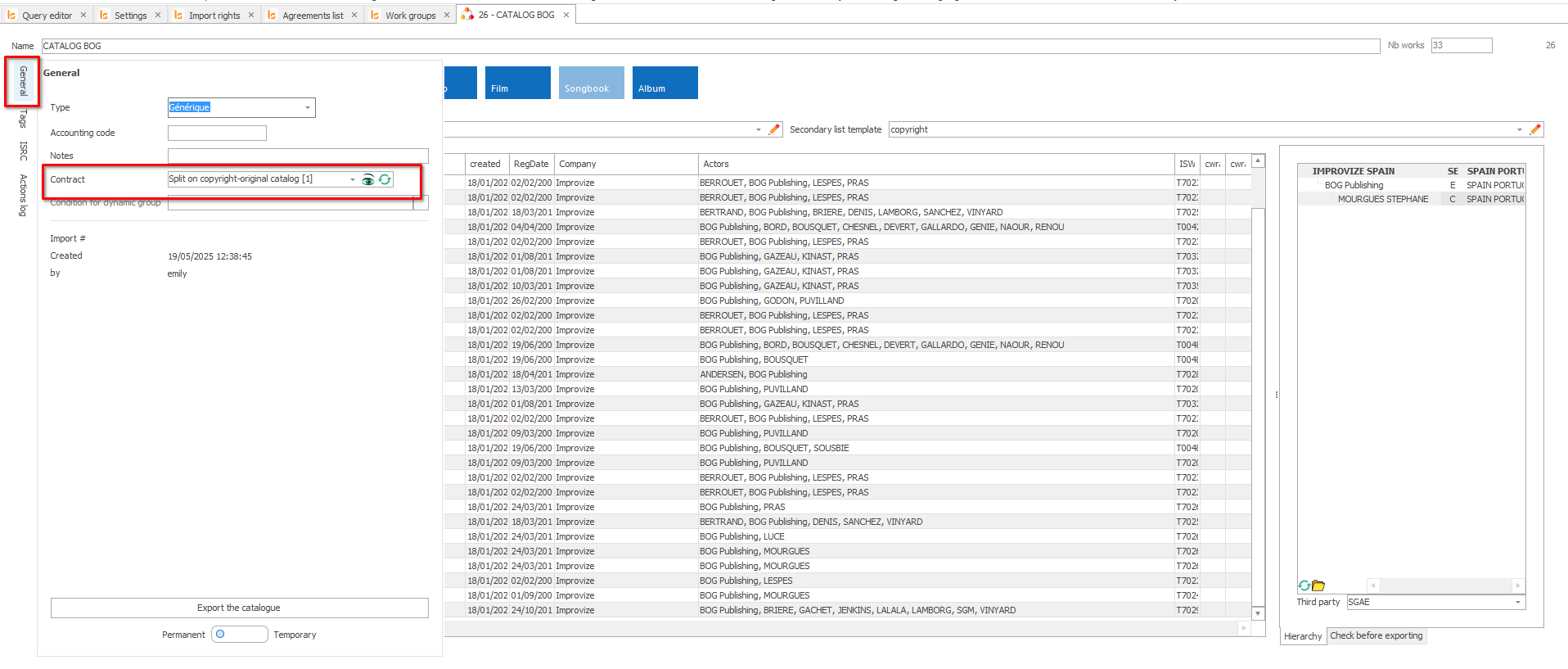
- In the group file, "General": Choose the name of the created contract from the drop-down menu of the "Contract".
- Check within a work of the group that the royalties are now well displayed. * Be careful if you have defined royalties within a work, the contract will not apply even if the work is within the group to which the contract applies.
The statements
The "Royalty Statements" screen allows you to calculate and print the royalties statements. Before going to the"Royalty Statements" tab, you will need to go back to "Settings" to define one or more periods that you want to calculate.
You can create as many periods as you want. Once your periods have been created, you can go to the "Royalties statements" menu.
Choose the period and press "Calculate". You will be redirected to the estimate tab which shows you the actors for whom there are payments over the period.
The columns
- N °: internal Le Sage number of the actor
- Name: actor name
- Group: indicates if this is a group of actors
- Last closing:
- Date of last closing
- Gross balance: if the last period was closed in gross, this sum will be carried over to this account.
- Net balance: if the last period was closed net, a payment must have been entered to settle the amount due
- Payments: payment that settles the Net balance of the previous period
- Gross
- Weighted collected: total amount collected for the works of this actor (weighted by the royalty base in the royalties)
- Rights of period : amount due for this period
- Exceptional credits: sum of gross exceptional credits for the period. This can be amounts that you wish to pay him such as an advance for which you wish to recoup contributions to him.
- Net
- Amount due: amount you owe him after deduction of advances and other deductions (withholding tax, social security contributions, etc.)
- Advances: amount indicated net in exceptional credits
- Deductions: amount of charges/taxes
- Currency: currency in which the statement is calculated
- Check mark: selection of the statement lines
- Banknote: Checking this box indicates the intention to pay the actor. This action is automatic when the amount to be paid is greater than the payment threshold. The net amount is calculated as soon as this box is checked. If it is not, the gross amount will be carry out to the next statement when you will proceed to closure.
- Amount paid: the amount is displayed once the banknote column is checked. The amount takes into account social contributions or specific taxes.
- Folder / Magnifier: Opens the actor's statement in PDF so you can check it.
The actions
- Print the estimate: prints the estimate page(s) : One excel sheet with the detail for all of your actors.
- Export estimate: exports the estimate in Excel format. One excel sheet with the detail for all of your actors.
- Pay: after having selected the statements to be paid, the button allows you to enter an effective date of payment of the statements. The payment are taken into account in the next statement.
- Export: exports the selected accounts according to the "export options" formats selected.
- Closure: closes the selected statements. The closing moves the balances forward. Allows the amounts to be carried over to the next statement.
- Export and close: exports and closes the selected accounts.
Closing and payment
The closing of the accounts moves the balances. This allows gross balances to be carried out to the next statement and transform into a net balance if necessary.
Two options: select the account (s) to close it (them) or to close it (them) by exporting it. If you do not close a statement, on the next statement, the unpaid gross balance will not carry out and you will lose visibility of the status of pending payments for the actor.
The payment will be automatically checked if the sum exceeds the payment threshold you have indicated for the company. The latter can also be forced. This checkbox shows the net balance payable on the statement that you send to your actors.
To enter the actual payment for the amount due, click on Pay:
- note the date of the actual payment (optional)
- the date in the period: this is the first date of the next statement period, so that this payment can be taken into account when calculating the statement for the next period. You will find this information in balances and payments in the actor file: Balances and Payments tabs.
To resume :
- if you have payed your actor you close the period in Net and you add the payment
- if you haven't payed your actor you close the period in Gross so that the amount is carried out in gross to the next period.
Verification
The verification's tab reports all works for which there are payment errors. This will enable you to analyse the rights paid and going back to the work to check the rules that apply.
We have a work for which we have received money (1253 €) but for which the payment rule defined does not add up to 100% (Min rate 55% and Max rate at 55%). To understand why this work is not paid out correctly, you can start by clicking on see the detail
We see that we have received rights, whose entitlement type is ETDEP for an amount of € 1,253 and for which there is 55% payed out. It is therefore a question of closing this verification and double clicking on the problematic work. By opening it we see that there is a contract attached to the work. But if we look closely, there is only 5% instead of 50% in the foreign performing splits.
To modify the contract you can double click on the name of the contract attached, modify the split and save.
The work will disappear from the verification tab after recalculating the statements.
Configuration
Connection to a hosted database
Certificates
If we host your database, you will need to get a certificate so that our servers know who is connecting.
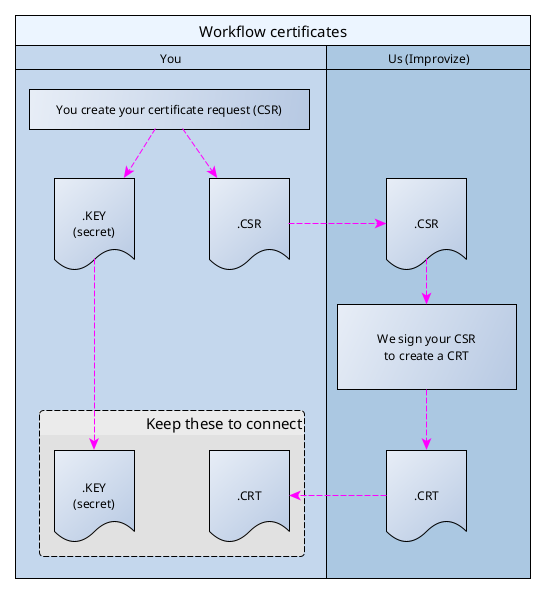
Creating a Certificate Signing Request (CSR)
A tool is delivered in the folder "LeSage12", named "MakeCSR".
The CSR (Certificate Signing Request) is a file that you will generate and send us so we can sign it and provide you with a CRT file. The second file created .key is to be put into the folder c:\LeSage12 without sending it to us. Once both files in the folder each time you will want to access your database your password will have to be entered.
How does it works ?
From Windows access c:\LeSage12. Double click on MakeCSR.exe : this will pop up :
1/ Le dossier de destination is the folder where both files will be saved : .csr et .key. If you don't specify anything it will go on your Desktop.
2/ Société : company name
3/ Vos Prénom et nom : Name Surname
4/ Email
5/ Password : this password will be asked each time you connect to Le Sage. You can leave it empty but it won't be GDPR compliant. We won't have any access to this password.
6/ Generated file : name used in the generated file. You won't need to modify this name. It is the one that will be present in your shortcut properties ssl=xxxx
Press Générer : both files (CSR and KEY) are created.
Send the .csr file to cat@improvize.eu (only that file). Keep the .key and place it in c:\LeSage12.
We will send you the .crt file and you will save it in c:\LeSage12.
Royalties - Applying contracts
Royalties
How to organize the database to payout
The idea is to explain in a contract how you want to pay out several works.
The first thing to think about is how to create the groups so you can correctly pay them out - to your fellow publisher clients - to your authors/composer - or to other third parties.
Creating groups using the copyright
The idea is to organise your database, separating your works, where you are original publisher, the copublished works, where you would have money for you and the copublisher, the administrated catalogues and the subpublished works.
List of actors
The idea is to look for the publishers, right click on them to create groups - them having specific roles or not.
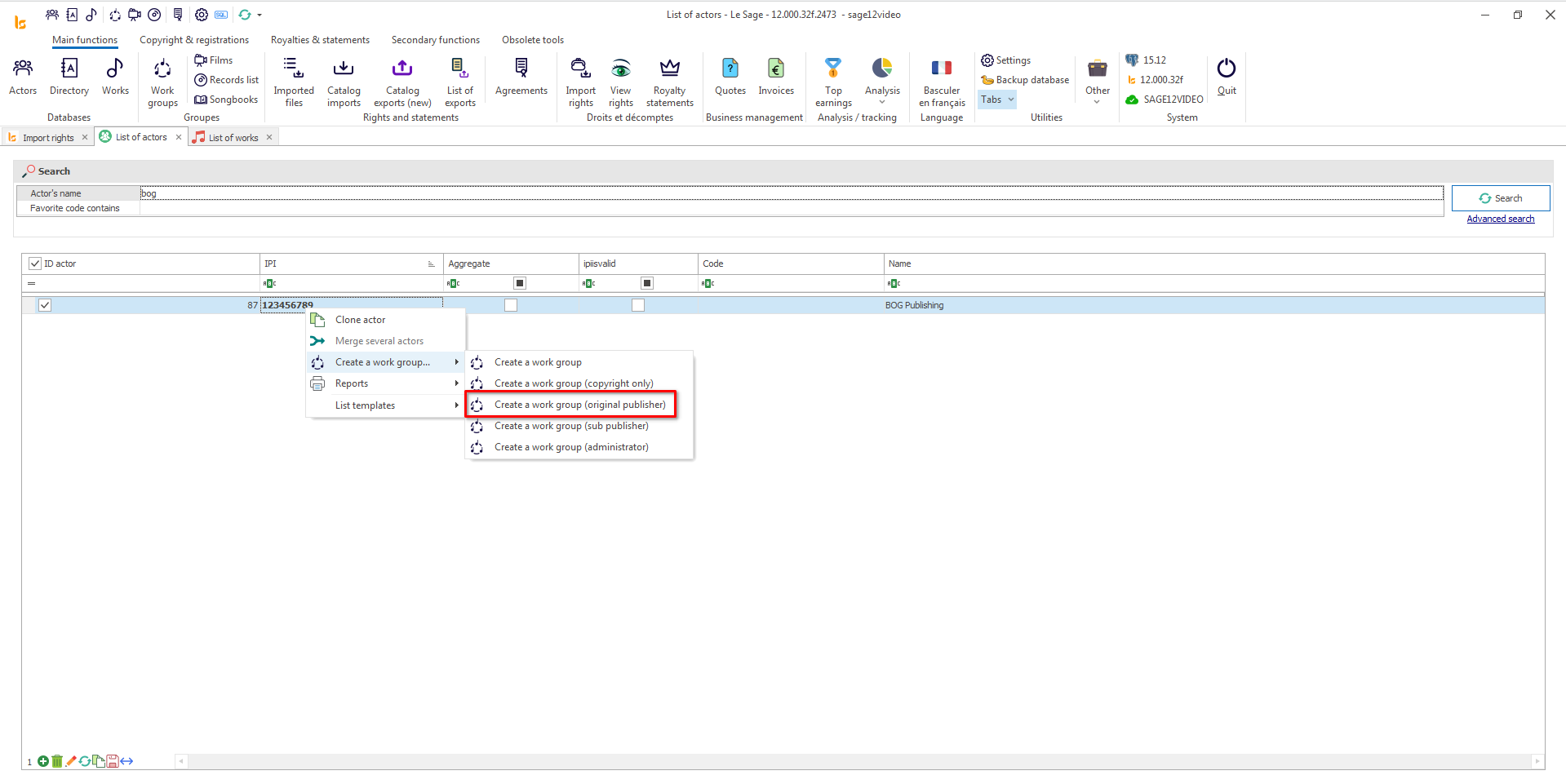
The idea is to have a group where you are the original publisher : find yourself in List of groups - Right click - Create a group where Original Publisher :
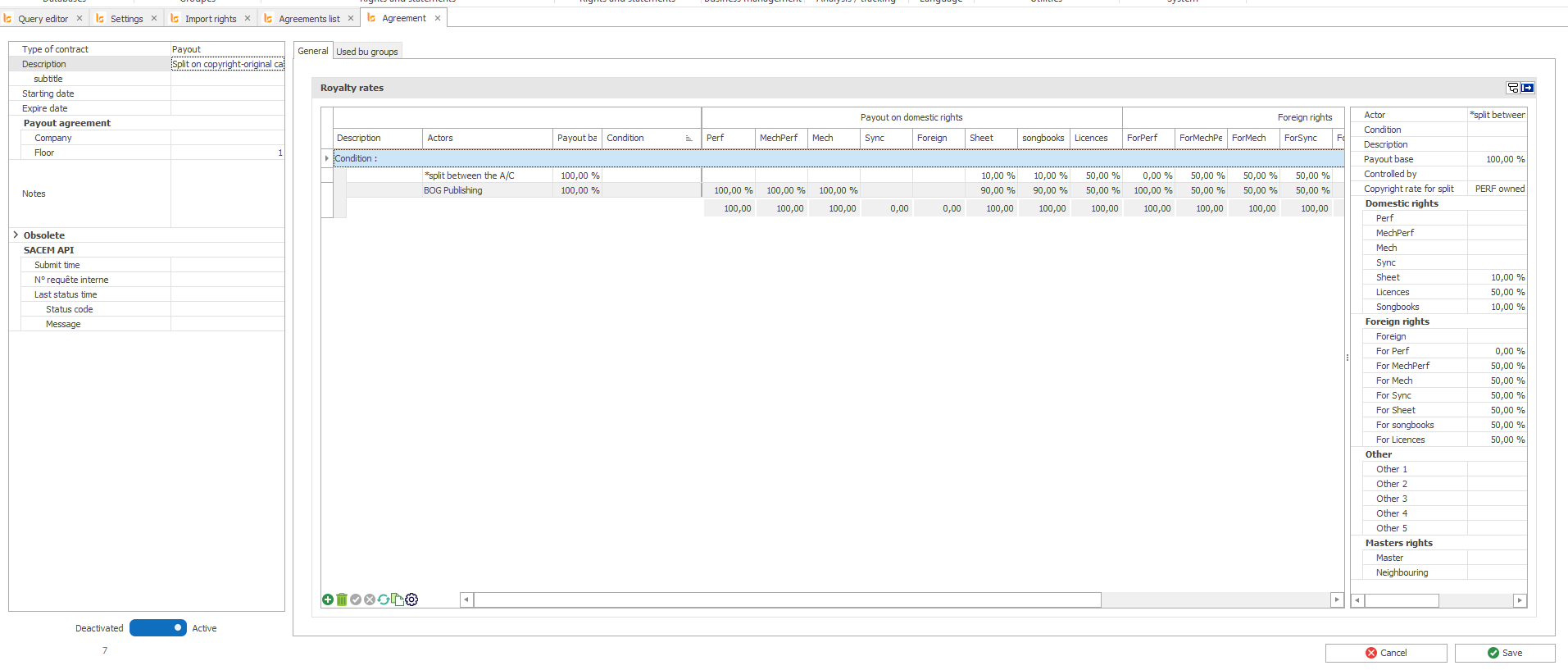
On this group you will be able to apply a contract that splits out on the copyright to pay your A/C and keep a 100% when you only receive your share :
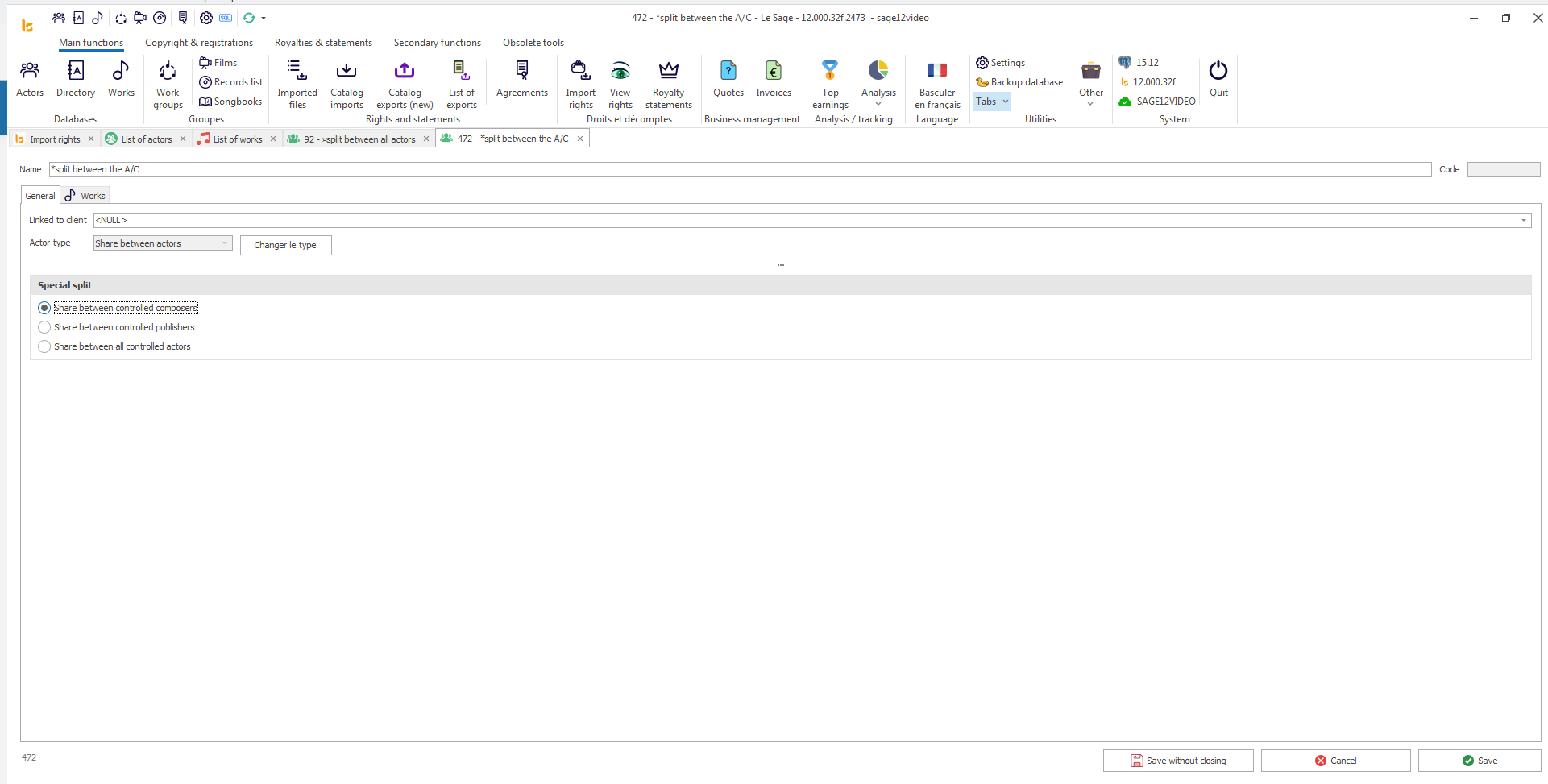
We have used a special actor that splits between all the A/C that we control in the copyright.
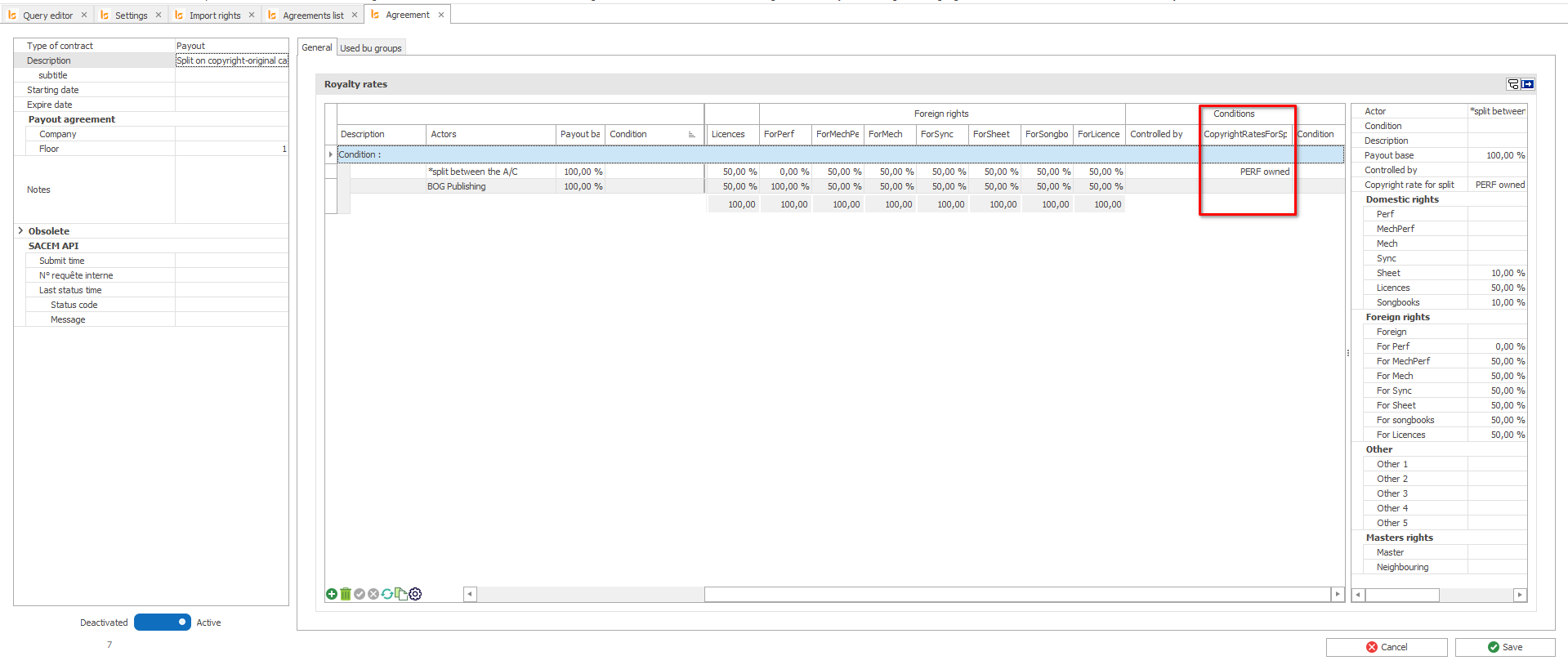
When using special actors, it is mandatory to indicate on which Copyright Rate of the works the split has to be done.
Once you have explained for each type of right how the money had to be split you can attached that contract to the group.
Open the dynamic group and add the contract :
Exceptions - very specific ways of paying out
The idea is to have clean groups, where you don't have to extract works of general catalogues just because the generic contract doesn't apply.
You will keep all the works in one dynamic group that represents your catalogue and you will have smaller group.s for dealing with different ways of paying out for that catalogue on certain works.
1/ If only one work works differently
If one work has to be delt with differently you can define a specific way of paying out in the royalties of the work.
The fact of writing the royalties in the work, will have for consequence that the contract linked to it - or the contract.s linked to it, won't be seen.
You can write royalties from scratch -1- or copy the generic contract and modify the lines according the specific way of paying out-2-.
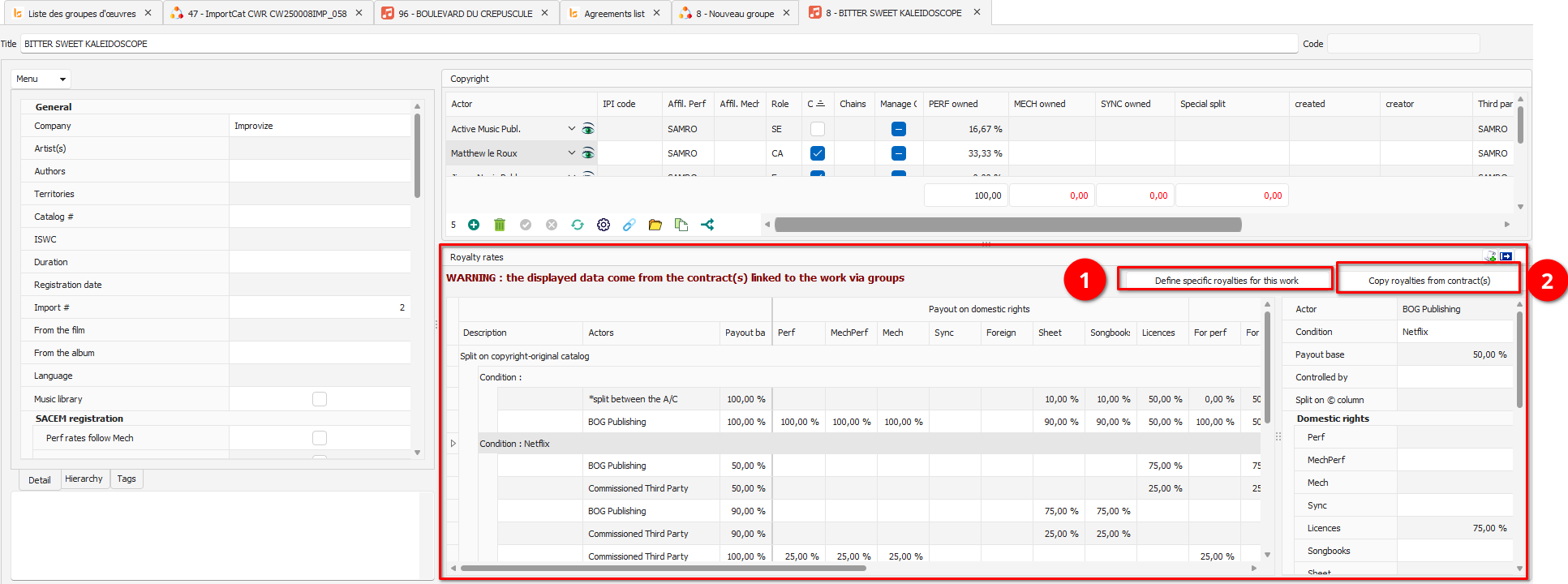
Once you have defined specific royalties the "Warning" will disappear.
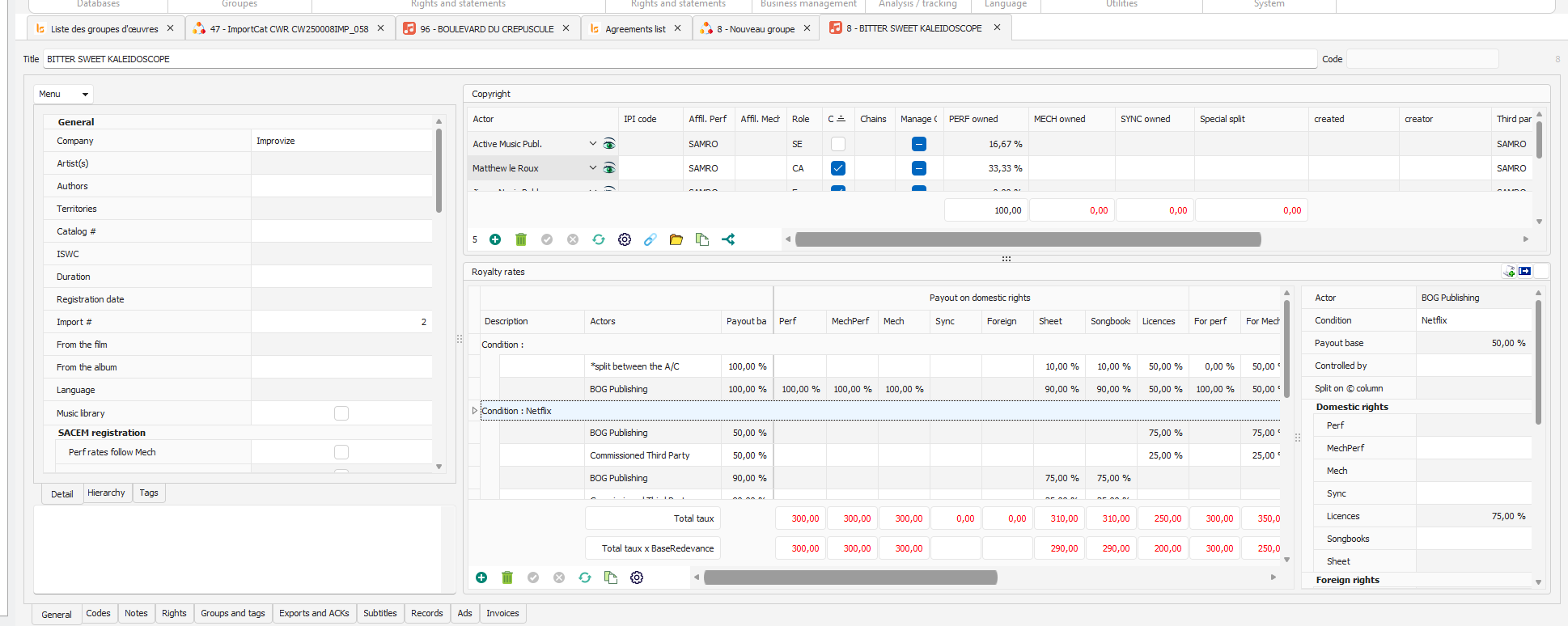
The work remains in the group where the contract applies.
2/ If several works work specifically
Isolate in as many groups you need the works that have to work differently to the generic contract.
Create "Payout" agreements that explain how to payout - you can duplicate the generic contract if you don't want to work from scratch :
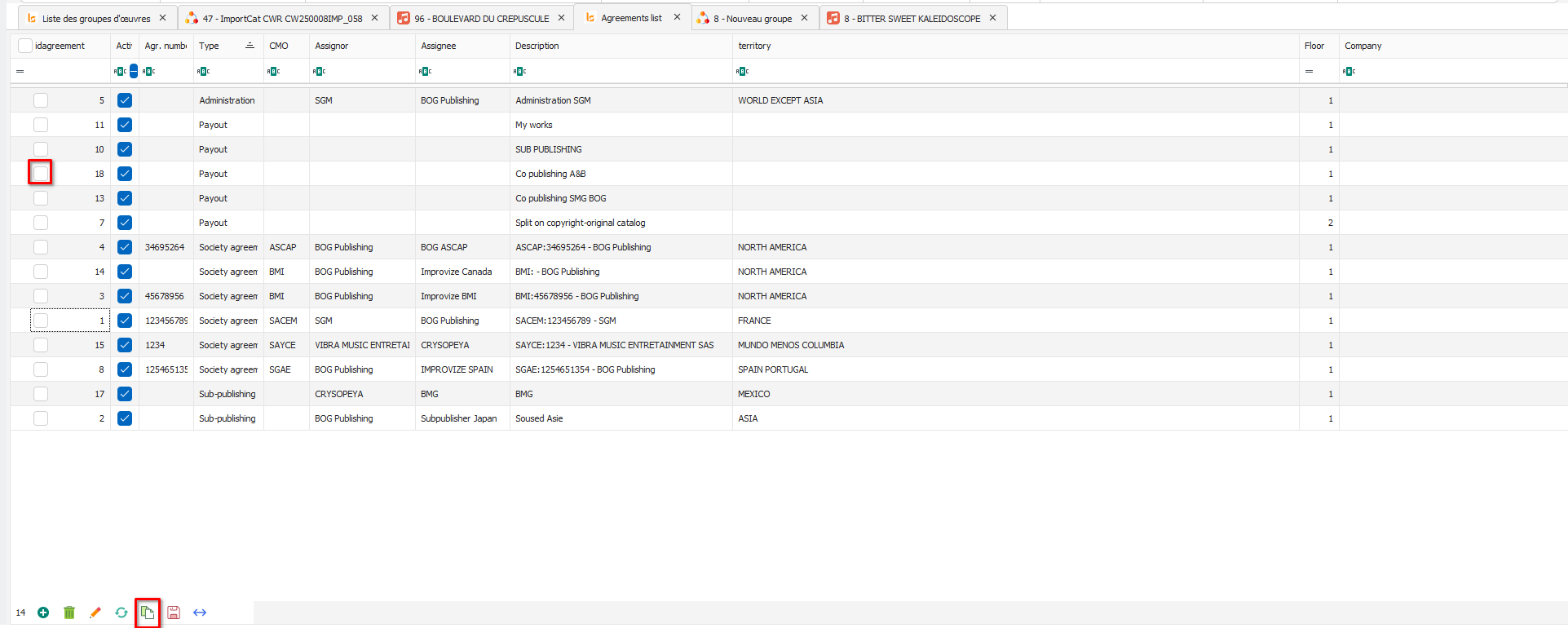
Define the rules and most importantly put a higher floor to the specific contract so that the system knows he has to applys this one not looking at the one.s on the lower floor.
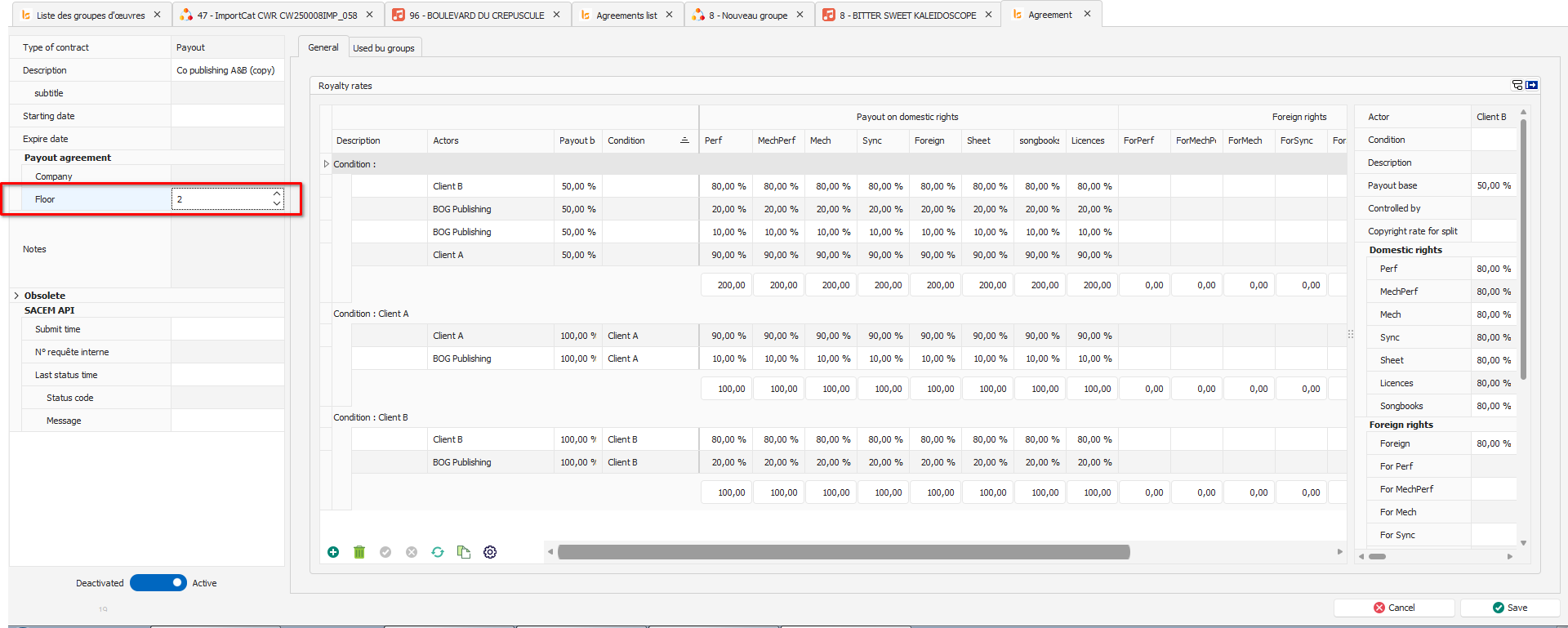
Apply your specific contract to your smaller group.
MusicMark
CWR for MusicMark
MusicMark is a collaboration between ASCAP, BMI and SOCAN. Through MusicMark, publishers can submit a single registration file to all three performing rights organizations (PROs) simultaneously, even if the work was co-written by members of different societies. Each PRO will then integrate the registration data into its respective repertory of works. MusicMark is currently available to publishers that register music through Common Works Registration or Electronic Batch Registration.
The specificity of MusicMark :
Settings in Le Sage
1/ The affiliations
When importing catalogues or creating the works directly in the system you have to make sure you have the information if you want the system to understand how he is supposed to send out the CWR.
Each actor can be affiliated to one PROs for performing rights and one for mechanical rights

If you put NS for mechanical rights the system will automatically say that you collect the authors/composers shares.
2/ The agreements
The agreements explain wich publisher gives the right to collect to an other publisher on certain territories.
In the case of MusicMark you can have 3 different publishers to register to ASCAP/BMI/SOCAN.
Between ASCAP/ BMI and SOCAN there are no problem of territories, ASCAP/BMI taking care of US and SOCAN of Canada, but you will have to explainb what you want the system to do if you have a work with A/C or even publishers that you control and that have no affiliation to ASCAP nor BMI. Do you prefer registering the work to ASCAP or BMI?
In this example we choose to say that BMI is the principal PRO.
I am myself affiliated to all of these PROs I just have different IPIs and names to deal with registration.
Entering the agreements :
ASCAP agreement
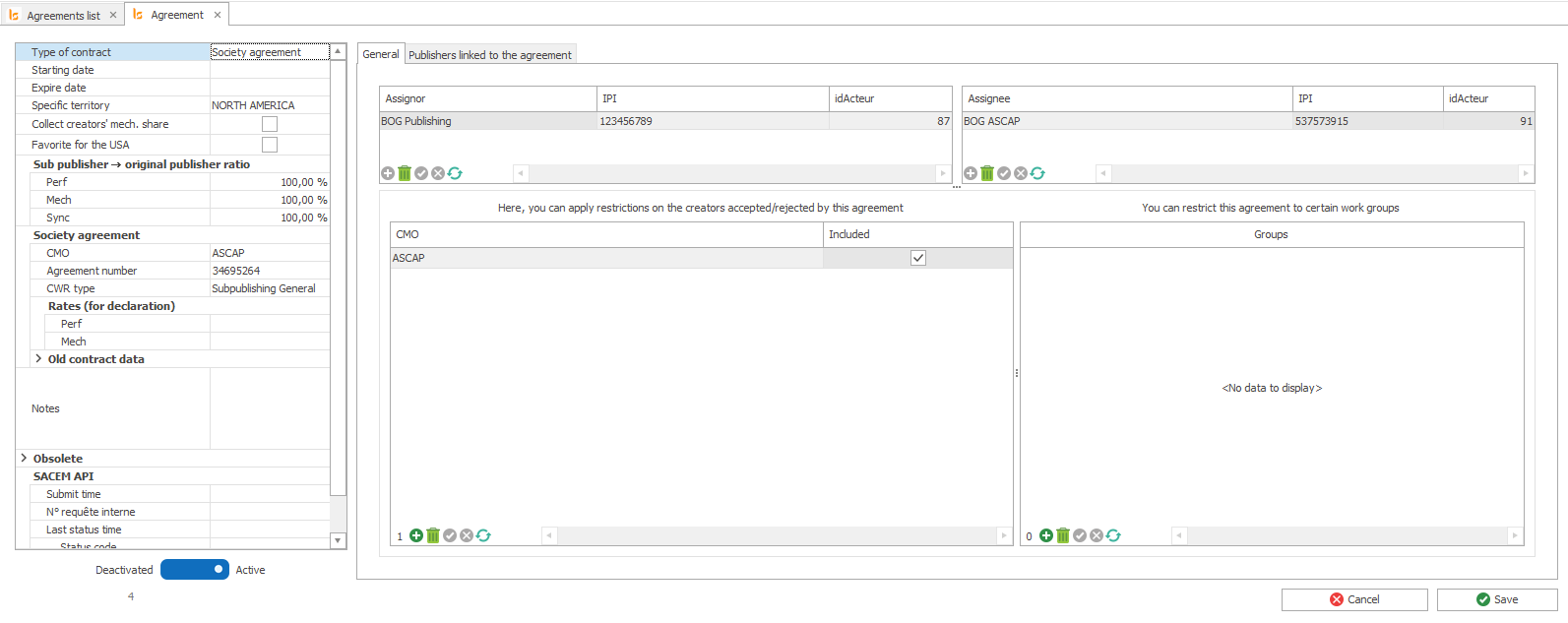
Inside this agreement we explain
- which publisher - actor - give the right to claim the collection shares for ASCAP.
- on what territory we ask ASCAP to collect the rights
- a number of Agreement if the society gives you one - it is a number given once the representation is registered.
- and what is important for MusicMark - as we are going to have two contracts that can apply for one same territory, is to explain that this co,tracts applies only if the creators in the copyrights are affiliated to ASCAP.
BMI agreement
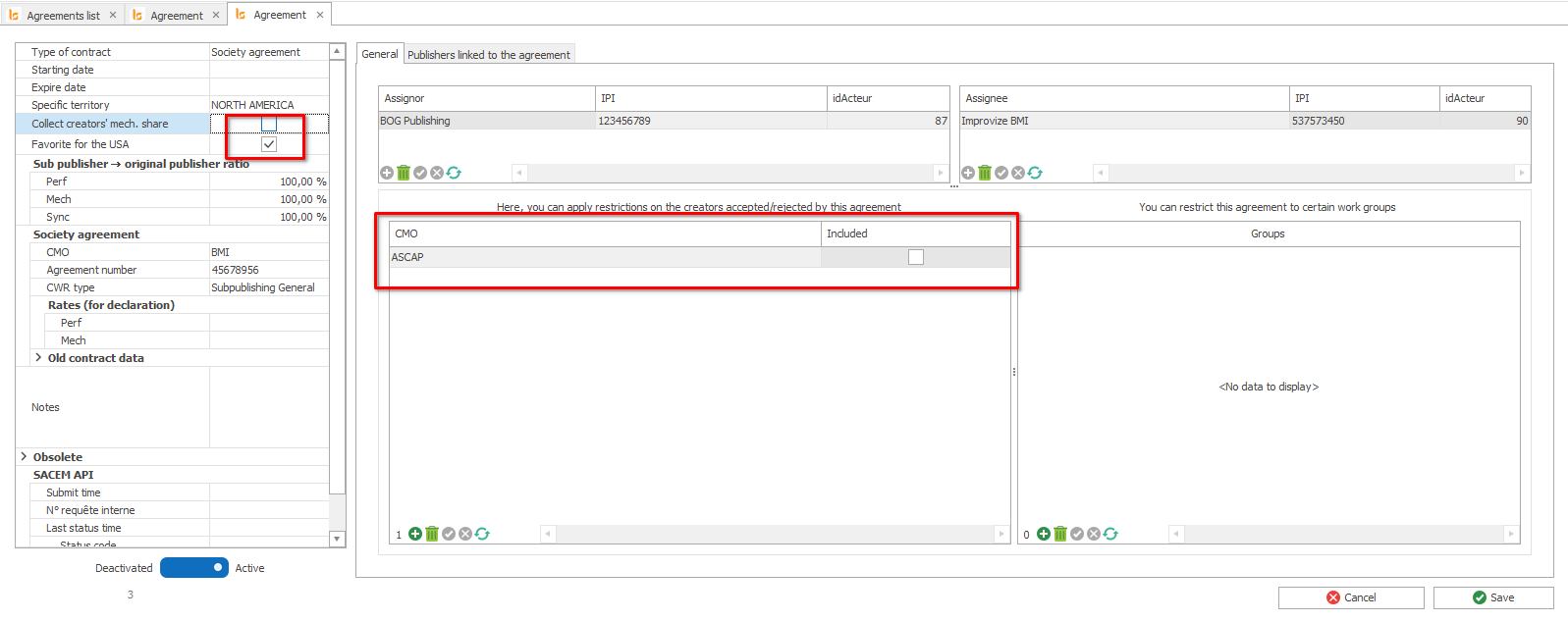
As BMI is our principal contract for US we have to add the choice of this contact in "Favorite for the USA". This contract will apply in case of both BMI or ASCAP should apply.
You have to specify that this contract doesn't apply to creators that are ASCAP.
SOCAN agreement
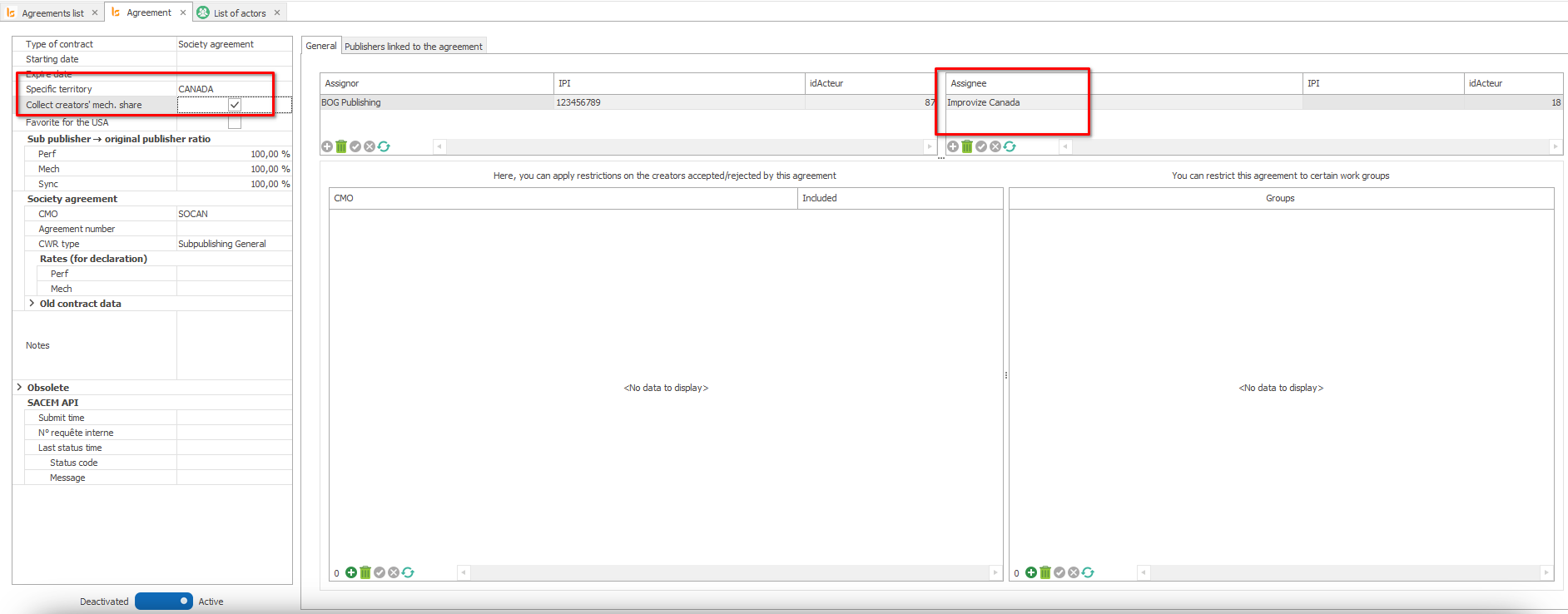
Same as the above, select the assignor and assignee, but this time for the territory Canada and ask for the collection shares of the mechanicals if you want to collect them to payout the A/C.
3/ The Third Party MusicMark
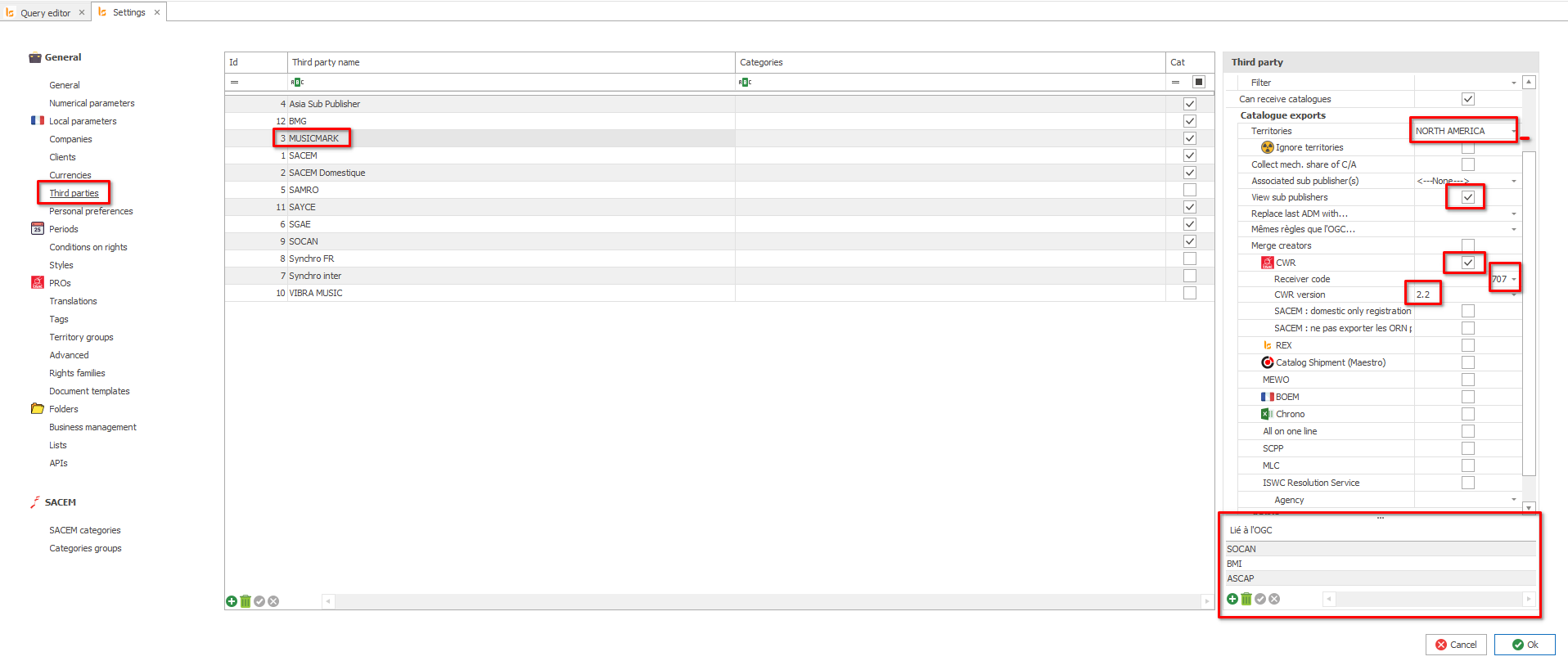
The Third party defines what copyright does the entity want to receive.
MusicMark needs to receive the copyright for the 3 PRO's : SOCAN, BMI & ASCAP and then spreads it to the three. The CWR file will detail the copyright for the three PRO's following the contracts entered.
1/ Territory : MusicMark takes care of North America and further if you want one of the PRO's to collect for a vaster territory.
2/ You have to ask the system to View the subpublishers, so that the system adds the correct Subpublisher affiliated to the correct PRO depending on the territory/pro where the copyright has to be registered.
3/ If SOCAN collects the mechanical shares for the authors and composers you have to indicate it in the Third Party as well as in the contract. And in the ASACP and BMI contracts you will say you don't collect the mechanical shares as they don't take care of mechanical rights.
4/MusicMark wants a CWR format in 2.2 with her receiver code : 707.
5/You have to link the Third Party to the different PRO so that your PRO contracts apply : BMI ASCAP & SOCAN.
Conditions on rights - Specific deals to pay out royalties
Deals with your clients are not always simple to apply, certain works have very specific copyright, or can be shared by different clients making things complicated when you have to calculate statements.
To payout these specific terms the system has - Conditions on rights-.
You can create as many as you need and they can rely on any information that you receive in your statements.
Example : when you have a copublished work where you pay both clients, you will make a condition on the information of the account paid.
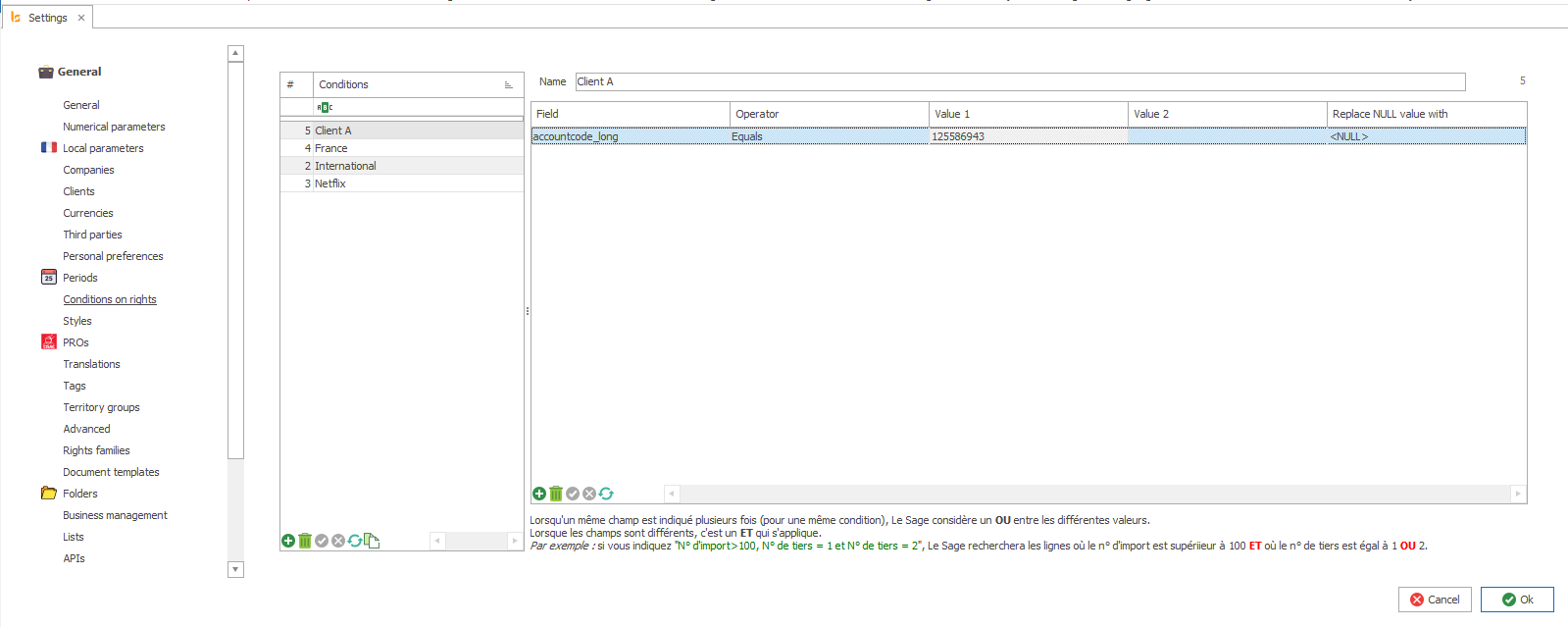
If the account paid concerns Clients A you will pay him taking your commission and if it's client B you will do the same. In case you don't have that information you will split in half and pay each of them as followed.

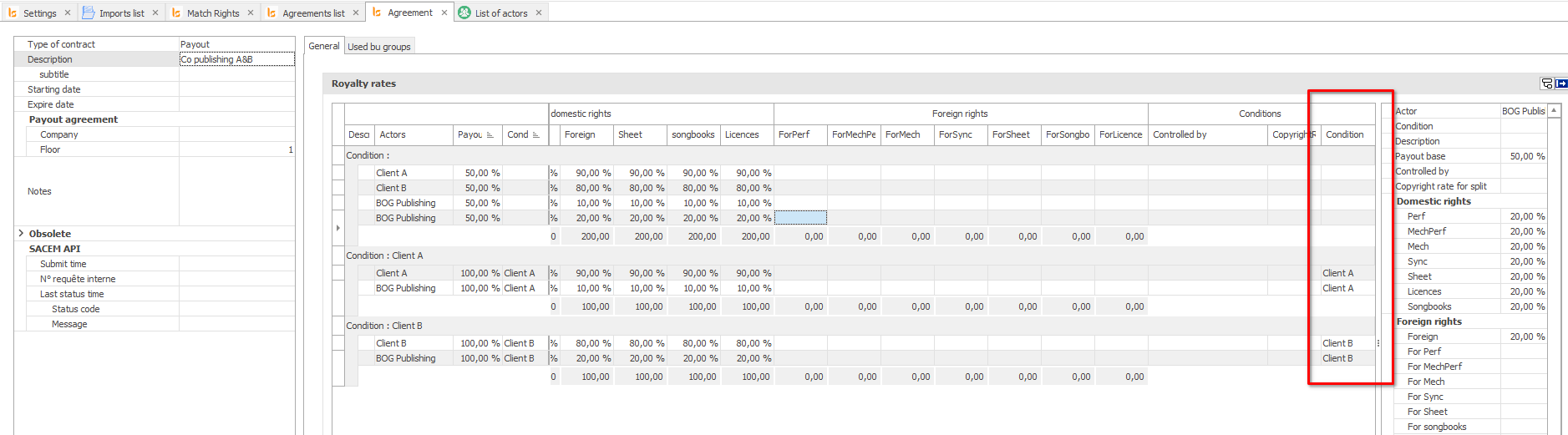
The conditions are called in the last column. The contract will follow the conditions, looking at the account paid, and if no information is given in the file, you have a fallback solution to split the money in half to pay both cients.
An other example can be taken on a specific deal with a third party that claims a share if the rights come from a concert in a certain country or from the broadcasting channel :
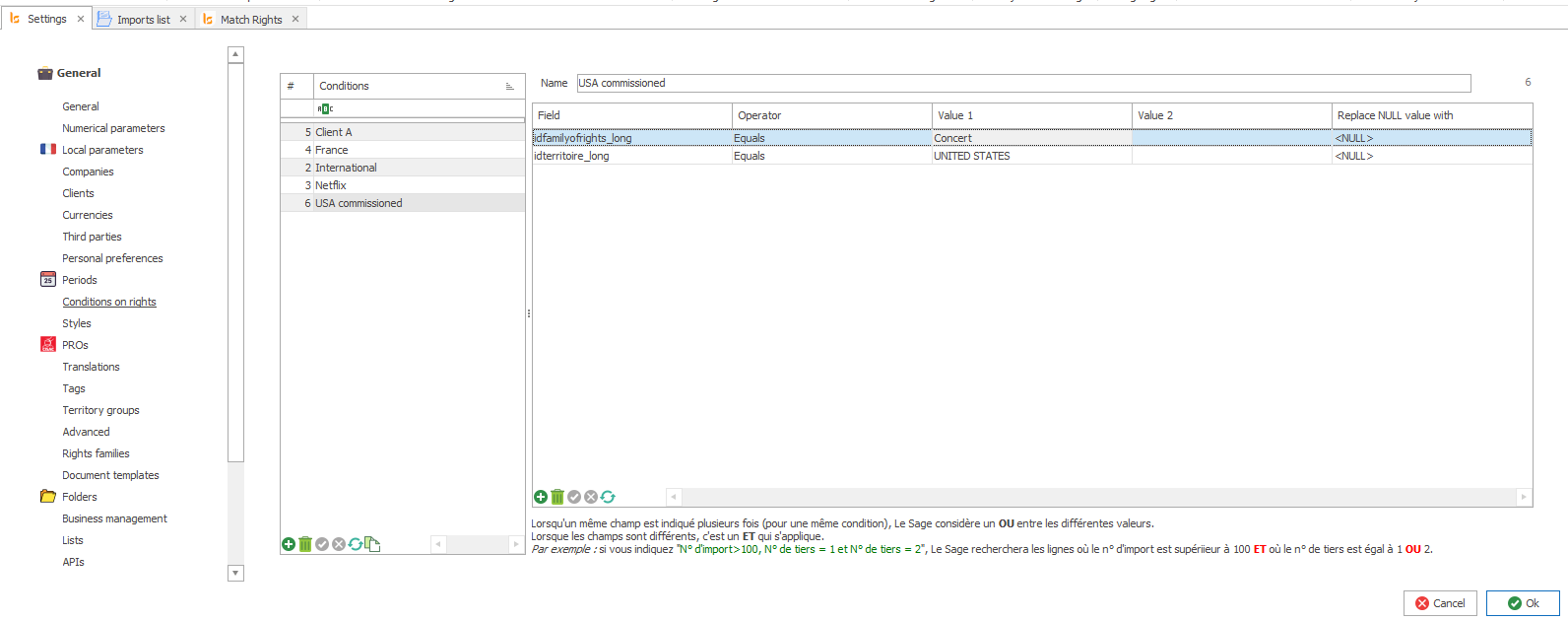
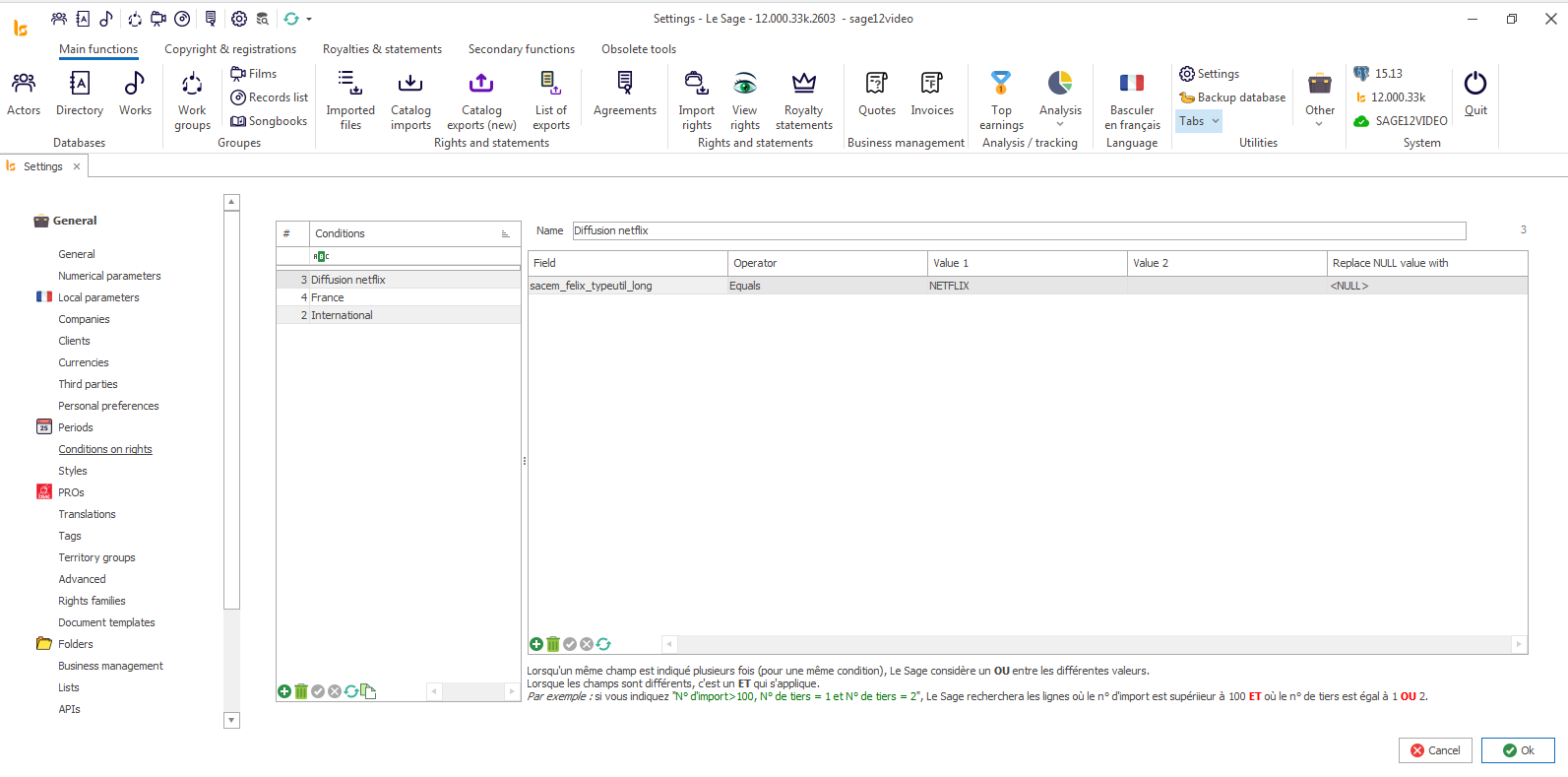
In this case you would always keep your own publisher's shares except if one of these conditions is true, in which case you would give out part of your share.
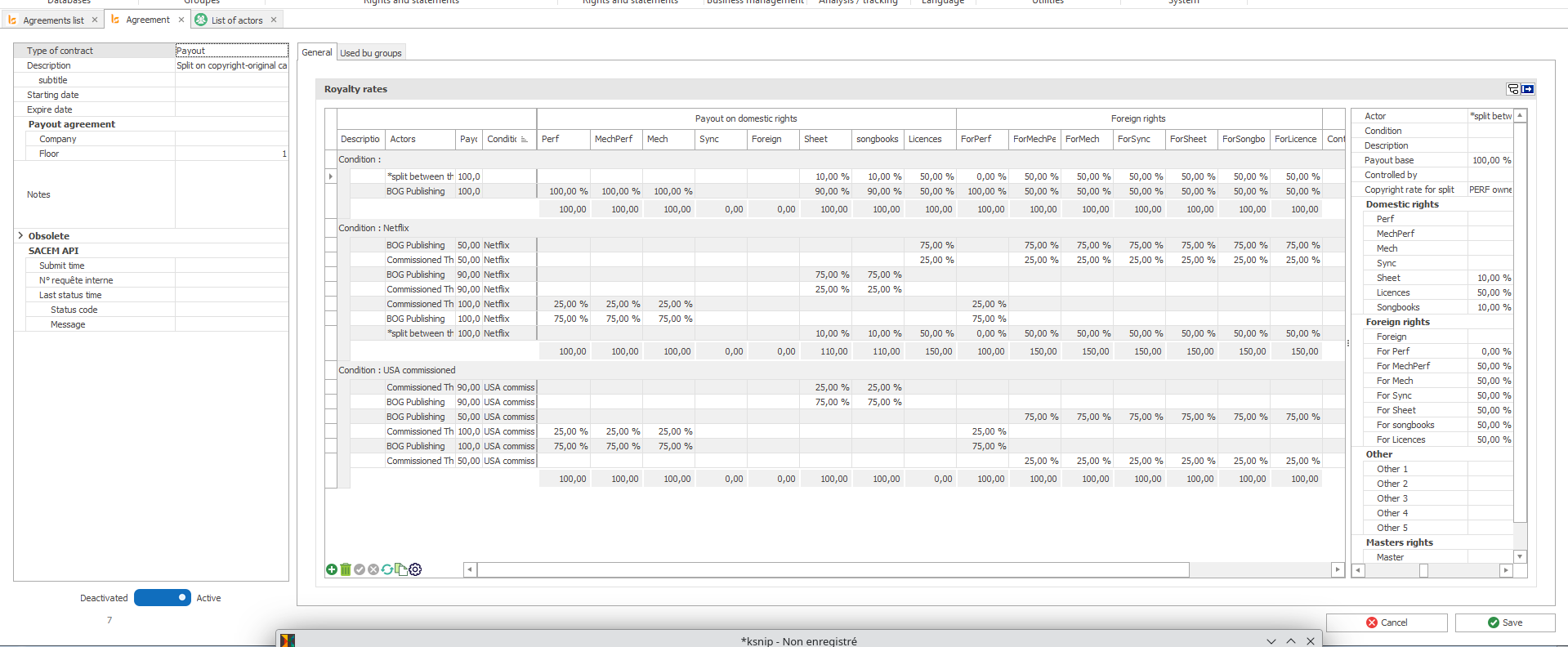
The Power of the catalog fixing workshop
You can import in Le Sage all catalogs you received from your clients, CMO's, distributors, etc. You won't always get the same amount of information, the same point of view in the copyright , the right information for you to be able to send out and register the songs.
Therefore you will have tools in the Catalog fixing workshop to help you clean the data and shape it to fit CWR requirements and the way you are supposed to see and send out the copyright.
The catalogue fixing workshop is a toolbox and can massively makes changes on the copyright of several songs at the same time. All the tools we have have been added after specific needs from our clients.
To illustrate the use of this toolbox we will take an example of catalog imported and show the modifications that have to be done on it to be able to send it out.
It is extremely important to analyse and understand what the copyright needs to be clean and ready for registration. The catalogue fiwing workshops gives you the keys to understand and modify the copyright according to you needs.
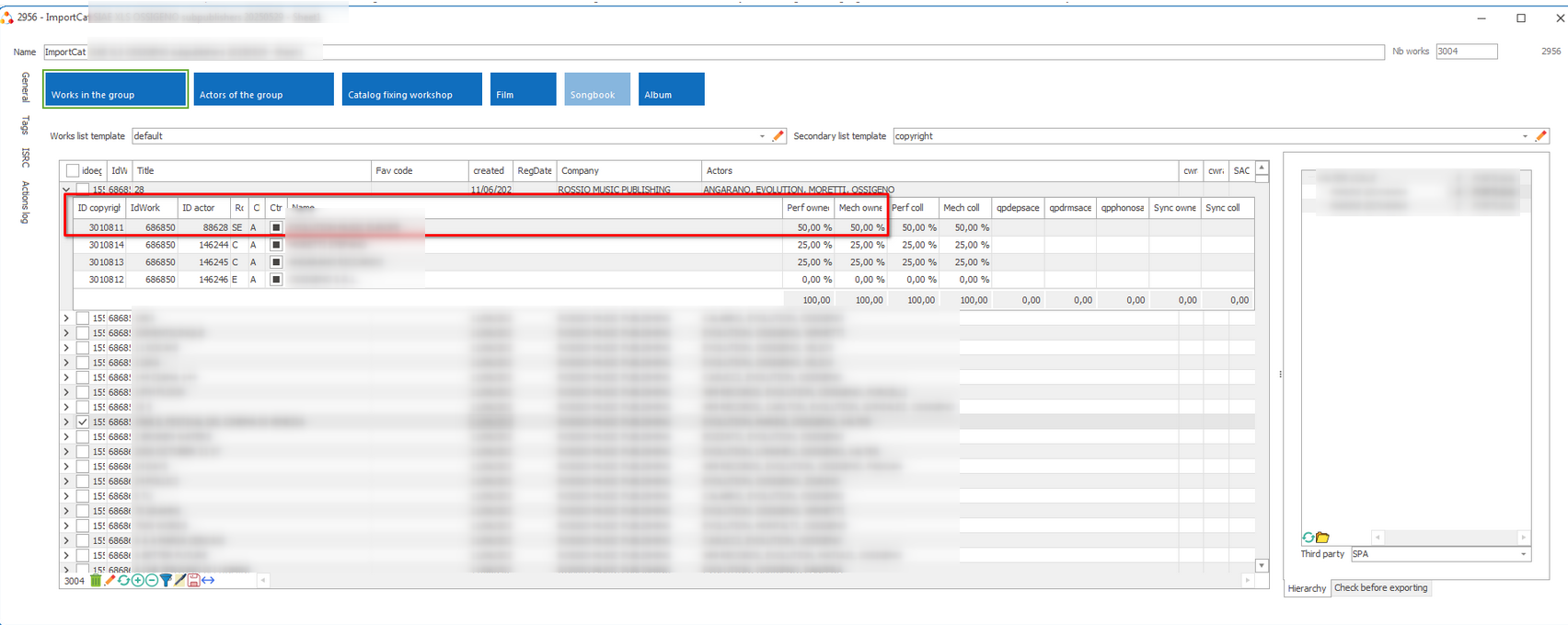
In this catalog the person has send the collection shares and not the owned shares, because the % are on the Subpublisher and not on the original publisher.
These works are also lacking of chain of rights, meaning that this catalogue isn't explaining which publisher represents which A/C/AR/AD.
In addition to what can be seen straight away we have a tool called "Check Before exorting" that looks at a series of mandatory requirements
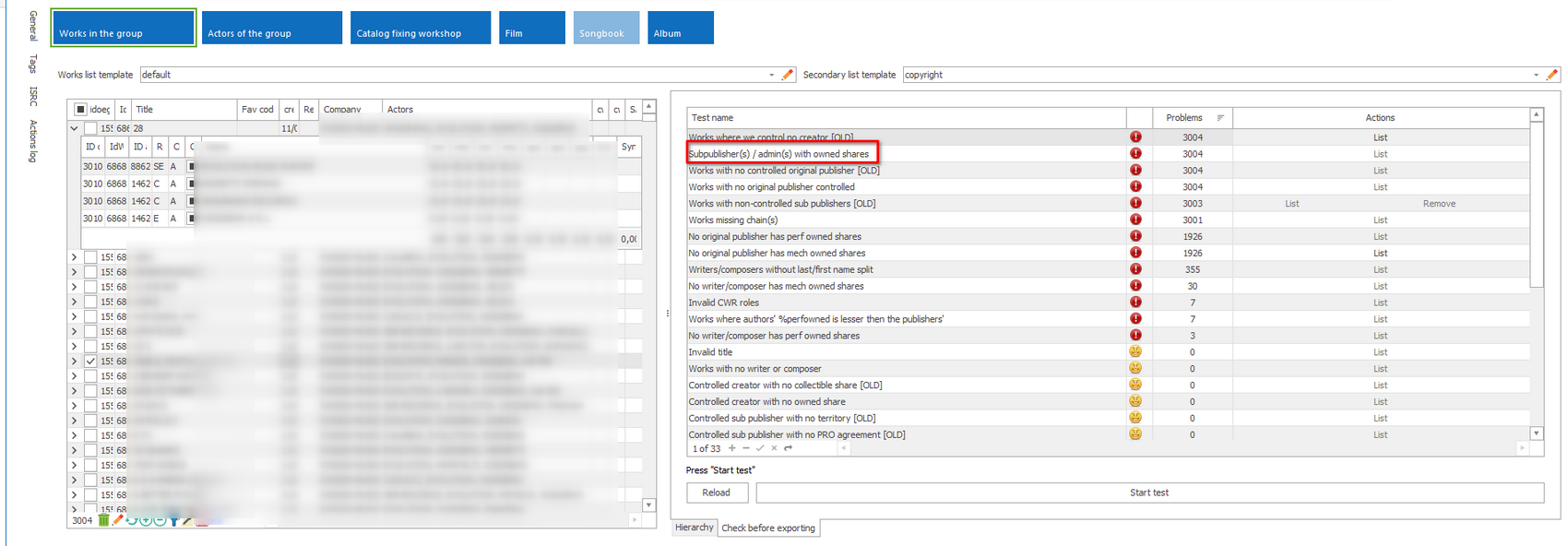
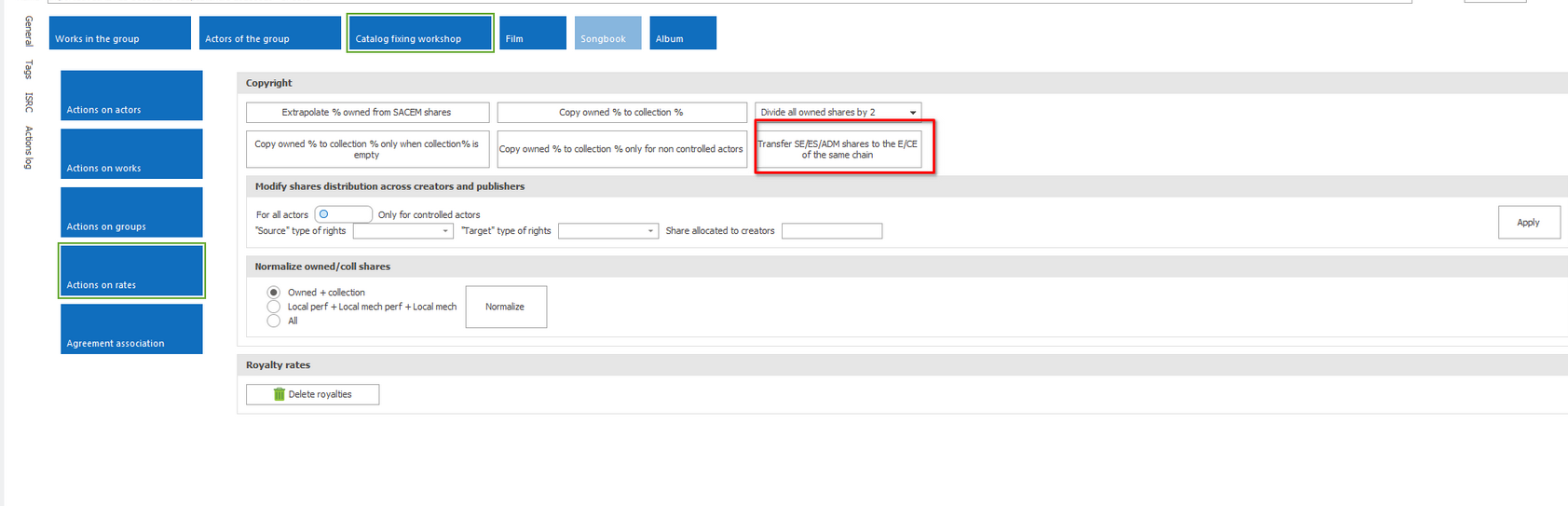
We will use the catalogue fixing workshop to give back the owned shares to the original publisher that is on the same chain than the subpublisher.
Catalogue fiwing workshop -> action on rates
There are remaining errors in the check before exporting menu
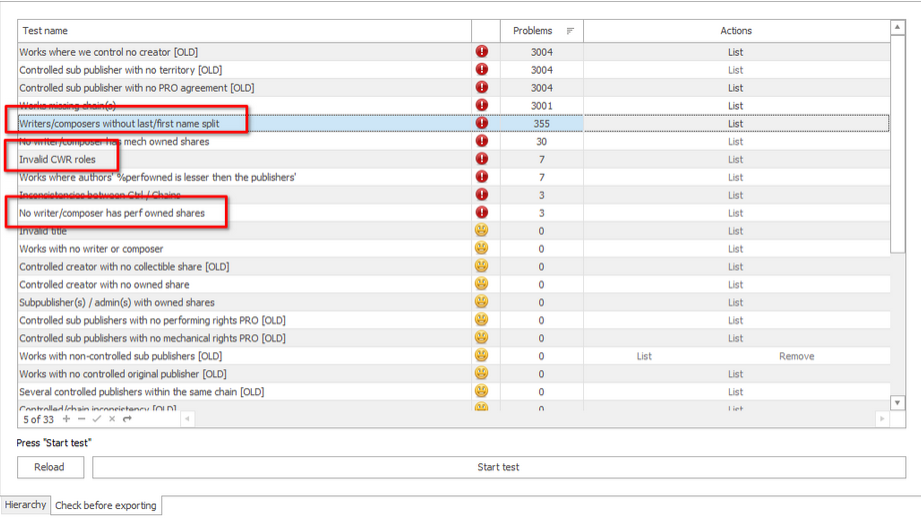
Eahc time you want to correct a problem you click on "List".
- -Writers/ composers without last/first name split
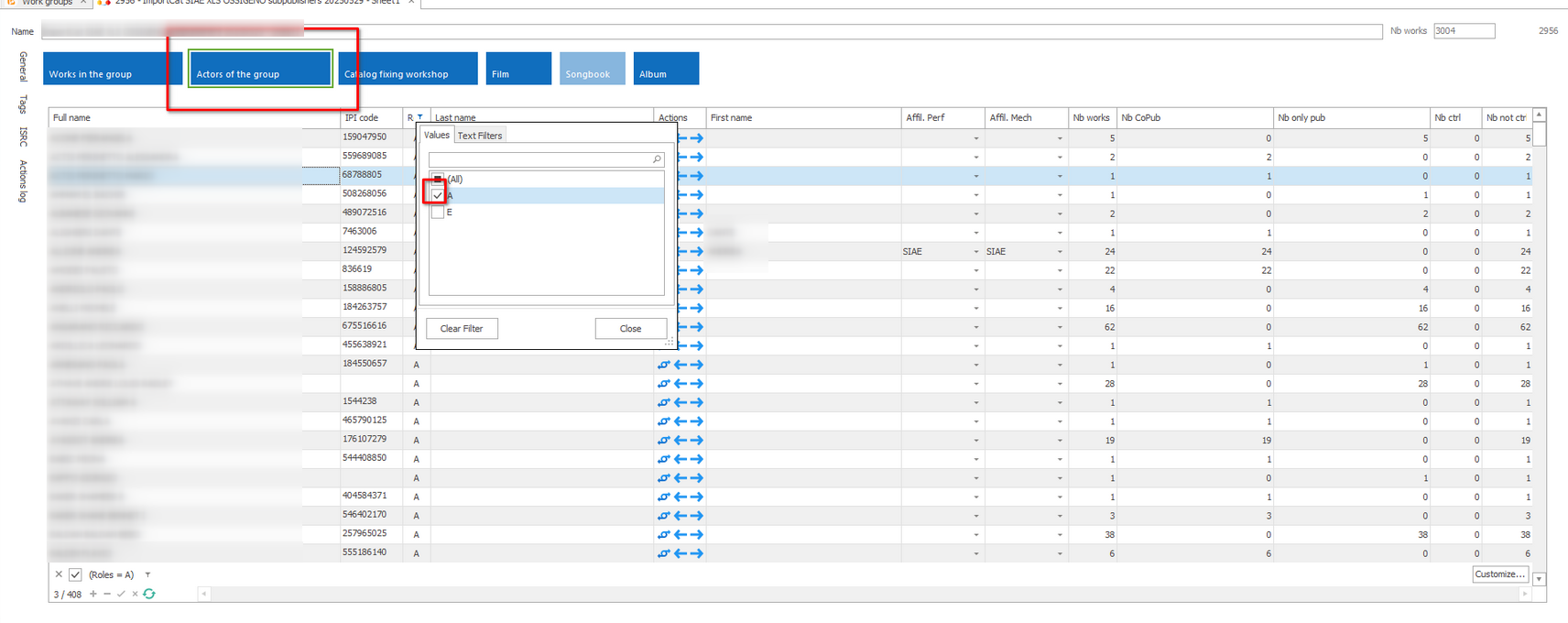
Select only the Authors/composers/arrangers/adaptators -> A
You can filter on only the one than havn't got their names split.
Then CTRL+A -> right click -> seperate first name/last name
- Invalid role
Go to the catalogue fixing workshop -> action on actors
All the invalid roles have question marks around them :
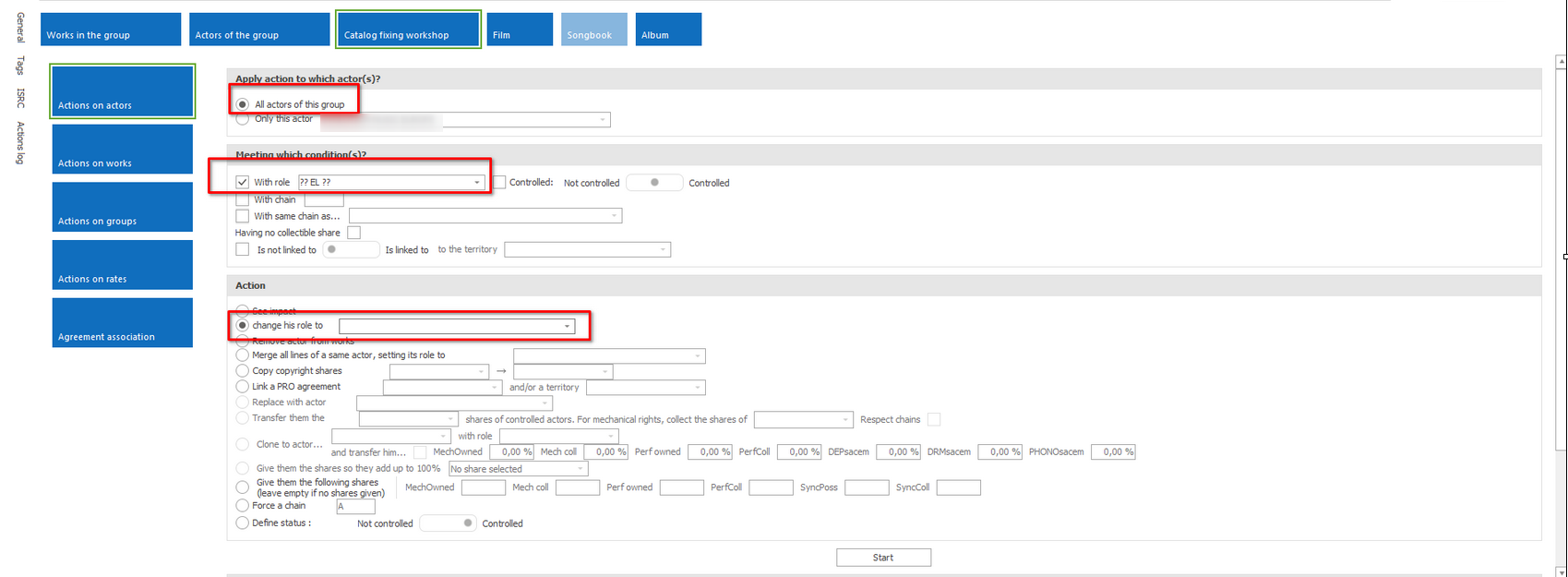
Replace the role with the adequate one.
- No writer/composer has perfomance shares
In this case the works have an actor names "Public Domain" with a role CA, that doesn't have any shares and arrangers.
This actor has to have the role "DP" so the system can add the Public Domain IPI when exporting the works and for the system to export this actor that has no %. to make a work with only arrangers with shares valid.
You have to then make sure that the system understands the copyright according to your agreements when you are sending it out to a third party.
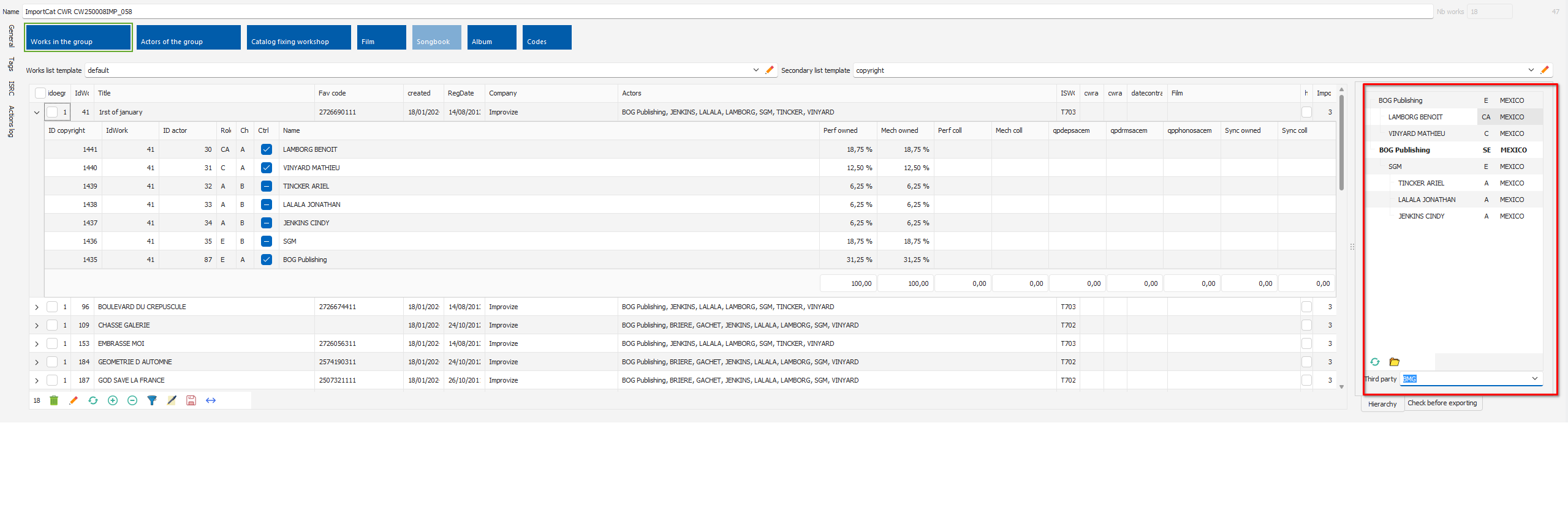
If you send it to BMG this is how the system understands the work
If I send it to SAYCE the system show that this work isn't represented
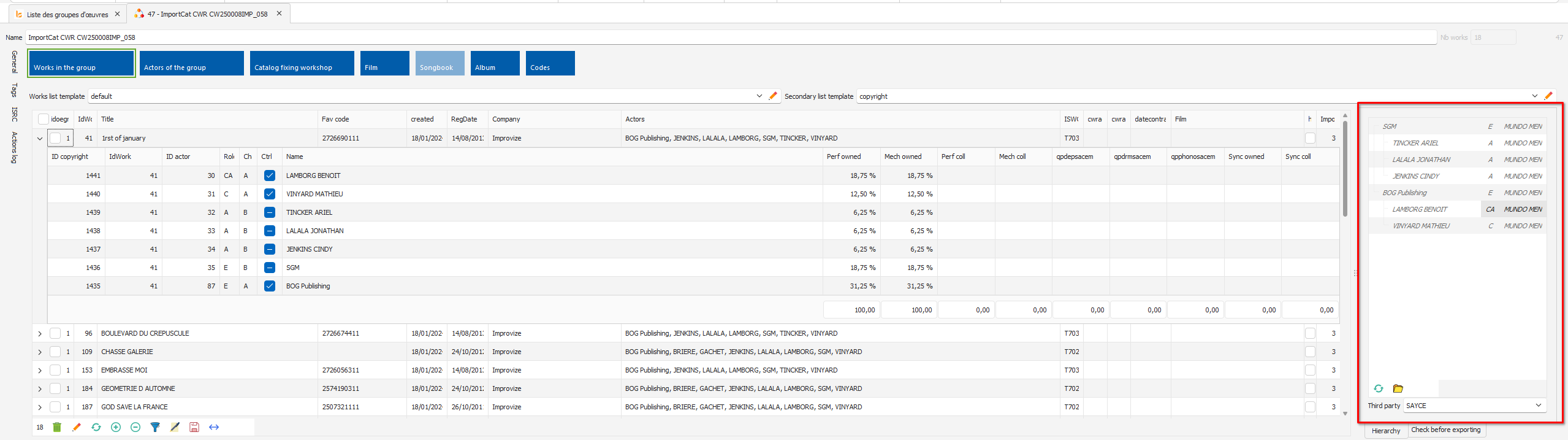
If the work is supposed to be seen by SAYCE then the idea is to look into why the original publisher.s in the work is.are not linked to an agreement that includes the territory of the third party.
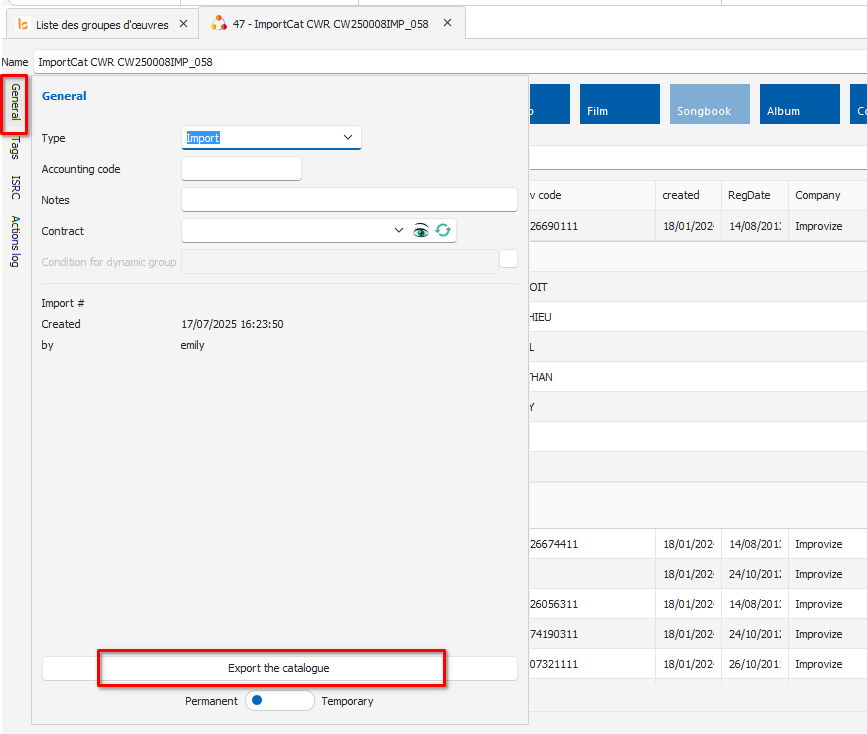
When the copyright is seen than you just have to export your group.
Type of Rights in Music Publishing
These are the four main royalties in music publishing:
1 - Performance Royalties
Performance rights refer to compositions (songs) being publicly performed ej : Live performances, airplay on radio or TV, and even streaming,...Performance royalties are managed by performance collection societies in each territory, also commonly referred to as Performing Rights Organisations (PROs). These organisations are government-mandated to manage the performance royalties within their borders, and reciprocal agreements between these PROs mean all catalogue is globally represented and royalties are collected and paid. PROs pay the publisher and the writers directly, essentially splitting the royalty due between these parties. The common split is 50/50, but some PROs have their own splits, which usually lean in favour of the writers.
2 - Mechanical Royalties
Mechanical royalties are due whenever a song is reproduced, whether that's on a vinyl, CD or even in a stream. Each territory has mandated mechanical collection societies that collect mechanical royalties on their members’ behalf. As a publisher, you might receive your royalties from different parties: in some territories, labels pay these royalties directly to the publishers, but in others, the labels pay the royalties to the collection society, which then pays the publisher. Each territory can have its own calculation basis and rate for mechanical royalties.
3 - Synch Royalties
Synch royalties are for the synchronisation of music and (moving) picture, such as film, TV shows, adverts and games. When music is used in any of these media, a synchronisation fee needs to be negotiated. These fees are decided between the producers of the images, often with the help of a music supervisor (internal or external) who will find the music, negotiate the fee, and the rightsholders. When music is used in a sync project, a deal will need to be made with both the master and publishing rights holders, and the resulting royalty is payable directly to them. Because these royalties are payable directly from the producers to the rightsholders, there often aren't any royalty files associated with the fee.
4 - Print Music Royalties
Print music royalties encompass any ‘print’ form of music. This can include traditional scores as well as modern digital reproductions. If you ever sing along to songs using Spotify's lyrics feature, for example, that's technically a print reproduction! Less obvious examples of print royalties include merchandise with lyrics on them or the use of lyrics in a book.
Closing : step by step
Catalog Import
This page allows you to upload external data files (catalogs, tracks lists, etc.) whatever the source and format (except PDFs) and apply a specific conversion filter tailor made to every version.
The screen is divided into two main sections:
-
Left Side (File(s) to import): The area where you select and manage the files you want to upload.
-
Right Side (Filter): The list of available import filters designed to properly parse the format of your files.
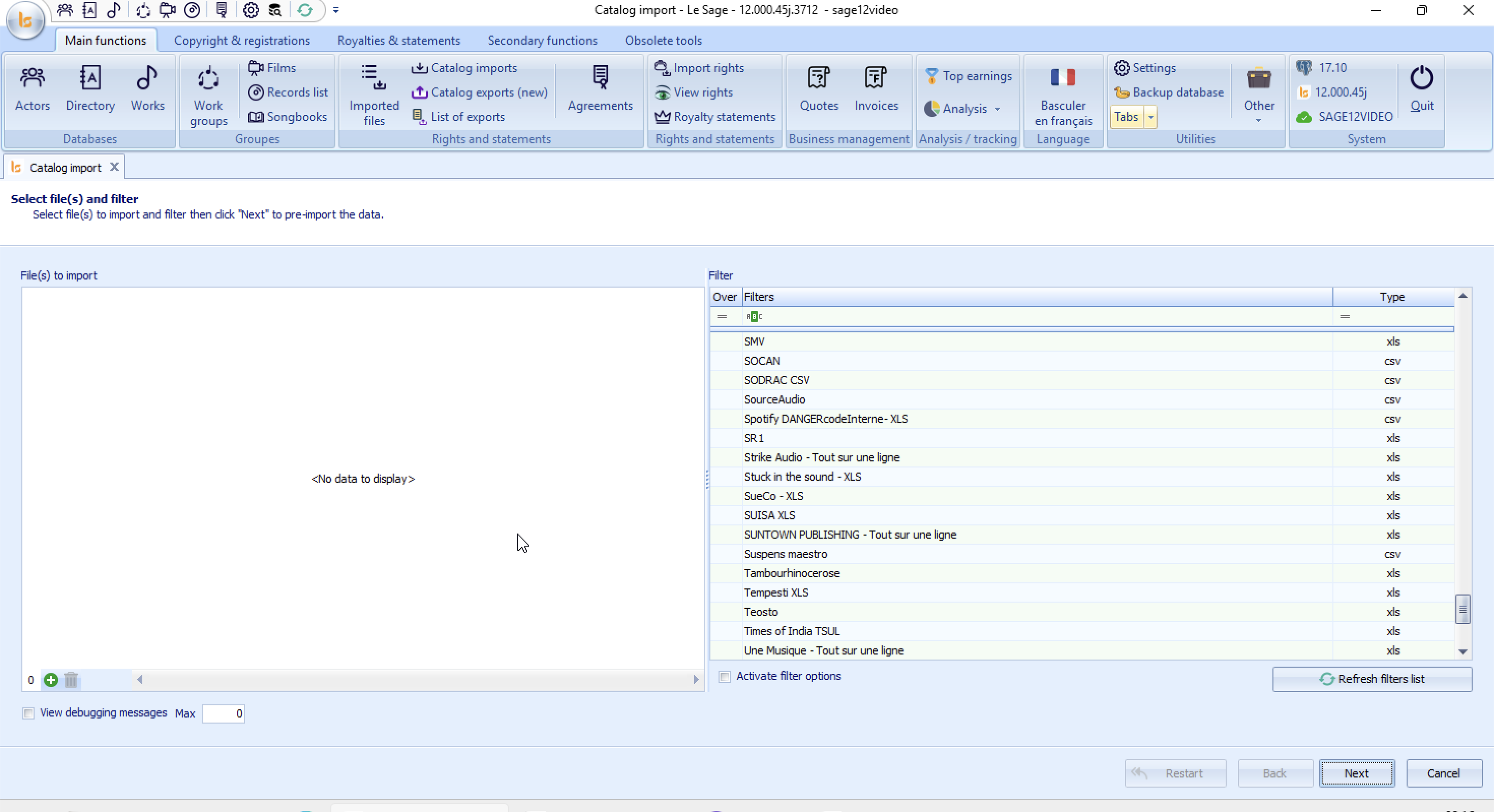
1. Step-by-Step Import Procedure
Step 1: Select the File(s) to Import
-
Add the File(s) to import in the zone on the left (currently showing
<No data to display>). -
Click the + icon at the bottom left of this area to browse your computer and add one or multiple files that have the same format.
-
Note: If you select the wrong file, highlight it and click the Trash bin icon right next to the plus button to remove it from the list.
Step 2: Choose the Correct Conversion Filter
The software needs to know how to read your file. You must match it with the correct profile in the Filter section (on the right).
-
Use the search/filter row or scroll through the list to find the filter that matches your provider or data structure (e.g., SOCAN, Spotify, SUISA XLS, etc.).
-
Check the Type column (xls, csv) to ensure your original file format matches the format expected by the filter.
-
Click on the filter to select it (it will be highlighted).
💡 Tip: If you have recently added or modified a filter and it does not appear in the list, click the "Refresh filters list" button at the bottom right of the filter section.
If you do not find the filter to import your file, send it to us with the name of the provider and we will - send you a new filter or an updated version that you will copy/paste/replace in c:/LeSage12/FIlters.
Step 3: Validate and Proceed to Pre-Import
-
Once your file is loaded and the correct filter is selected, click the "Next" button in the bottom right corner of the screen.
-
The software will then process the file and move to the pre-importation phase to analyze the data before final integration.
Action Buttons & Navigation
| Button | Action |
| Restart | Resets the entire page to start the operation over from scratch. |
| Back | Returns to the previous step (disabled by default on this initial screen). |
| Next | Validates current selections and proceeds to the next step of the import process. |
| Cancel | Aborts the current operation and closes the import window. |
💡 View debugging messages - only for us : Located at the bottom left. Checking this box displays technical debug messages. This is primarily used if you encounter an error during file analysis and technical support requests the application logs. You can limit the number of displayed messages using the "Max" field.
2. Import Preview
Once you click "Next" on the initial catalog import screen, the software processes your file and opens the Import preview tab. This page allows you to review the parsed data and ensure everything is correct before finalizing the integration into the database.
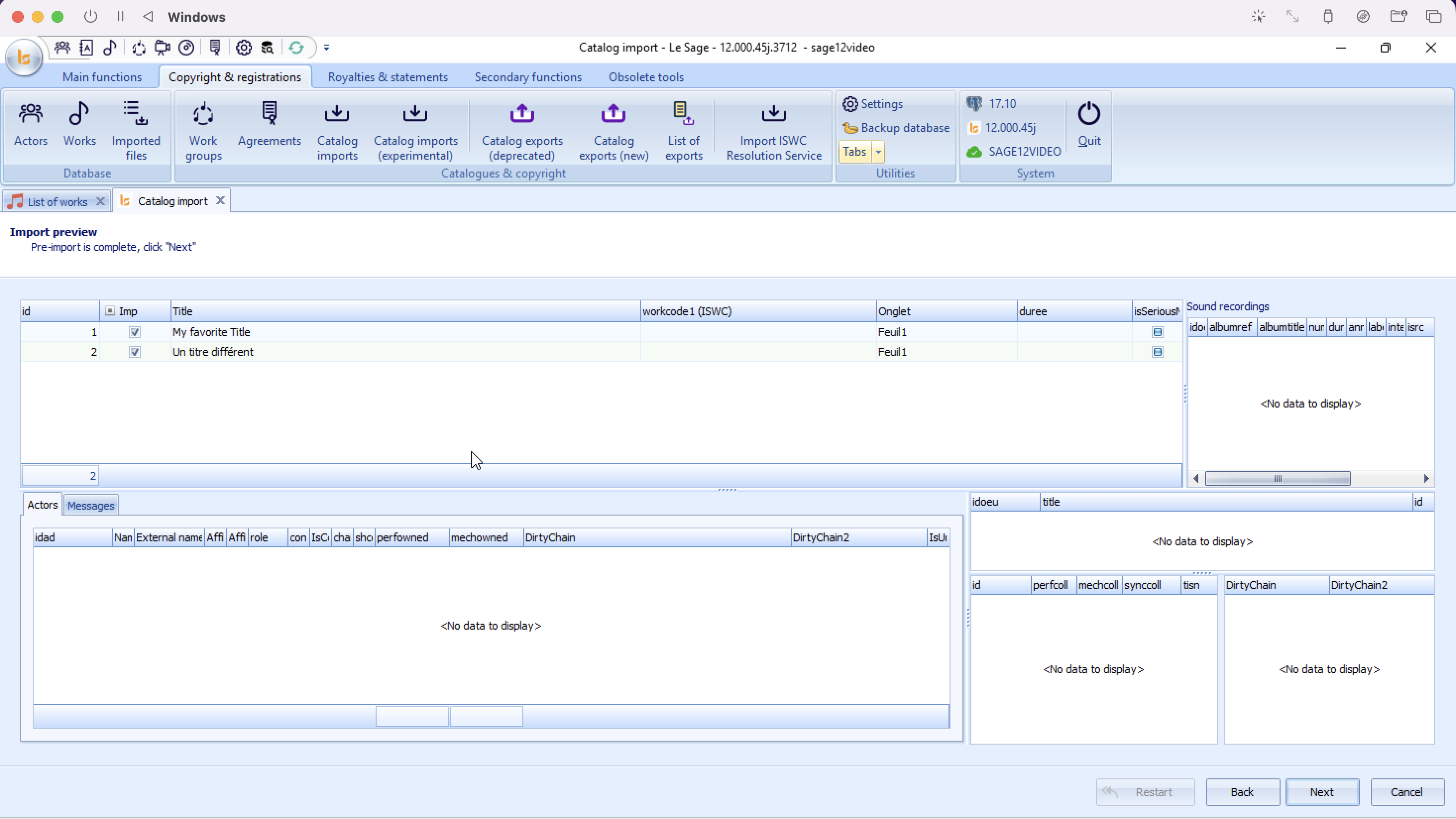
1. Interface Overview
The preview screen is divided into several analytical panes:
-
Main Data Grid (Top Center): Displays the primary records found in your file (e.g., work titles, codes, and durations).
-
Sound Recordings (Top Right): Shows any audio recordings information linked to the selected work.
-
Actors / Messages (Bottom Left): Displays copyright (composers, publishers, etc.) or validation errors/work numbers/status of the works after CWR registration submission.
-
Linked Data Panes (Bottom Right): Displays additional technical identifiers, collection metadata, or mechanical right breakdowns.
2. Reviewing and Filtering Data
Managing the Main Data Grid
The status text at the top confirms: "Pre-import is complete, click 'Next'". Before you do, verify the parsed items:
-
The 'Imp' (Import) Checkbox: By default, all successfully parsed rows are checked. If you notice a row you do not want to import, simply uncheck its box in the Imp column.
-
Data Inspection: Click on any row in the main grid (e.g., My favorite Title). Selecting a row will dynamically update all the other sub-panes on the screen with details specific to that entry.
Reading the Sub-Panes
-
Actors Tab: Displays the names, roles, and affiliation societies (e.g., ASCAP, BMI, SACEM) found for the selected work.
-
Messages Tab: If you are importing an ACK you can see the messages left by the CMO.
-
Sound Recordings: If your file includes ISRC codes or master recording data, they will populate here for the highlighted work.
3 - Validation Options
After reviewing your data in the preview tab and clicking "Next", the software opens the Validation options page. This step allows you to define how the imported data should interact with your existing database.
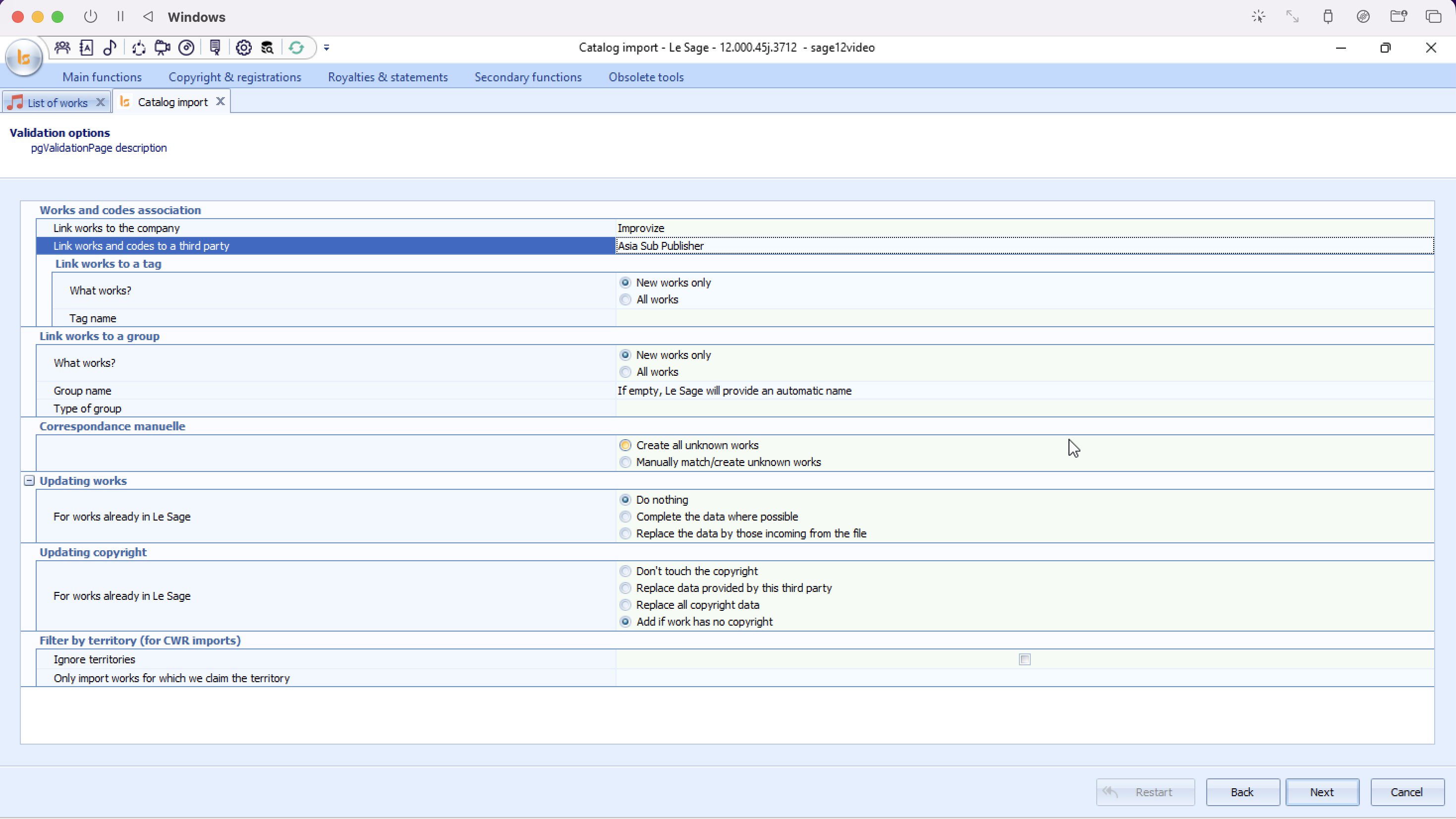
This page is structured into several operational blocks where you define how you data will be ingested.
1. Works and Codes Association
This section links the imported catalog items to your company or specific partners.
-
Link works to the company: Automatically associates the records with the correct company that will deal with royalties for these works.
-
Link works and codes to a third party: Links the works to the provider of the file (e.g., Asia Sub Publisher).
It is an important selection as the work codes will be linked to that source. The internal code n°1234567 from a Publisher A will not be the same work as the work code 1234567 of Publisher B. As the system matches on codes blindly you must make sure you link the information coming from the file to the correct provider.
-
Link works to a tag: Allows you to tag the incoming works for easy filtering later.
-
What works? Choose whether to apply the tag to New works only or All works that are in the file.
-
Tag name: Select a tag that you previously have created in "Settings".
-
2. Link Works to a Group
Use this to group the incoming batch of works together within Le Sage.
-
What works? Apply to New works only or All works.
-
Group name: If left blank, Le Sage will automatically generate a name based on the import session.
3. Manual Matching
Determines how the system handles works it cannot automatically identify with codes :
-
Create all unknown works: (Default) Automatically generates a new record for any work not currently recognized in the system.
-
Manually match/create unknown works: In a second matching phase you will be able to compare the works unmatched with the works in your database to make sure not to create duplicates.
4. Updating Works
Defines the behavior if a work being imported already exists in Le Sage (or because it has matches with code or because you will manually say that the work coming in in the same as one in your database) - it concerns the TITLEs and information you find in "Details" within the works :
-
Do nothing: Keeps your existing system data completely untouched.
-
Complete the data where possible: Fills in blanks in your existing database using information from the new file, but does not overwrite existing data.
-
Replace the data by those incoming from the file: Overwrites your current system data with the new file's details.
5. Updating Copyright
Specifies how the software updates the share splits and copyright administration for existing works:
-
Don't touch the copyright: Leaves existing shares exactly as they are.
-
Replace data provided by this third party: Only overwrites copyright information previously tied to this specific third party.
-
Replace all copyright data: Deletes old copyright records for the matching works and writes the new file's splits.
-
Add if work has no copyright: Only injects copyright splits if the work in Le Sage is currently blank.
6. Filter by Territory (for CWR imports)
-
Ignore territories: If checked, the system will not import the actors and collection shares - ADM and SE.
-
Only import works for which we claim the territory: Filters out any works in the file that do not fall under your contractual territories.
4. Finalizing the Import
Once all business rules and radio buttons are configured to your requirements:
-
Click the "Next" button in the bottom right corner.
-
Le Sage will execute the rules chosen above, write the records to the database, and complete the catalog import process.
4- Import Validation & Execution
After configuring your validation options and clicking "Next", the software enters the final phase: Import validation. This screen provides a real-time log window tracking the processing and server-side integration of your catalog data.
1. Interface Overview
This is a processing console displaying sequential timestamps and execution logs.
Understanding the Real-Time Process Log
The text box displays exactly what the software is performing under the hood step-by-step:
-
Data Transfer: e.g.,
Transferring data to server,Transferring works...,Transferring ISRCs...— indicates that the temporary files are being safely sent to the main database cluster. -
Record Generation: e.g.,
Creating imports...,Validating imports— confirms that Le Sage is creating internal database entities and ensuring they pass integrity checks based on the rules you set in the previous step.
Troubleshooting Error Messages
If an issue or ambiguity arises during processing, it will be flagged directly in this log window. For example:
⚠️ Log Warning Example:
column reference "fullname" is ambiguous
-
What this means: This is a database processing message indicating that a field (in this case, a writer or publisher's "fullname") matches multiple conflicting records or is formatted confusingly in the database.
-
Action to take: Send the file to us telling us which filter you used.
2. Finalizing the Process
Once the processing status reaches 100% or stops running updates "VALIDATION COMPLETE":
-
Click "Finish" in the bottom right corner to commit all valid entries, close the Catalog import tab, and return to your main dashboard.
-
If you need to immediately process another file using identical or modified settings, you can click "Restart" instead.
The import is over here if you have chosen to create all the works that didn't latch with the works in your database. The system will have created them and created a group.
If you have chosen manual matching you have to go in "Imports List".
Matching the catalogue : List of Imports
The List of imports window serves as the central log and management console for every import operation executed within Le Sage. From this dashboard, you can monitor the status of imports, undo operations, manage data locks, and look up details of processed files.
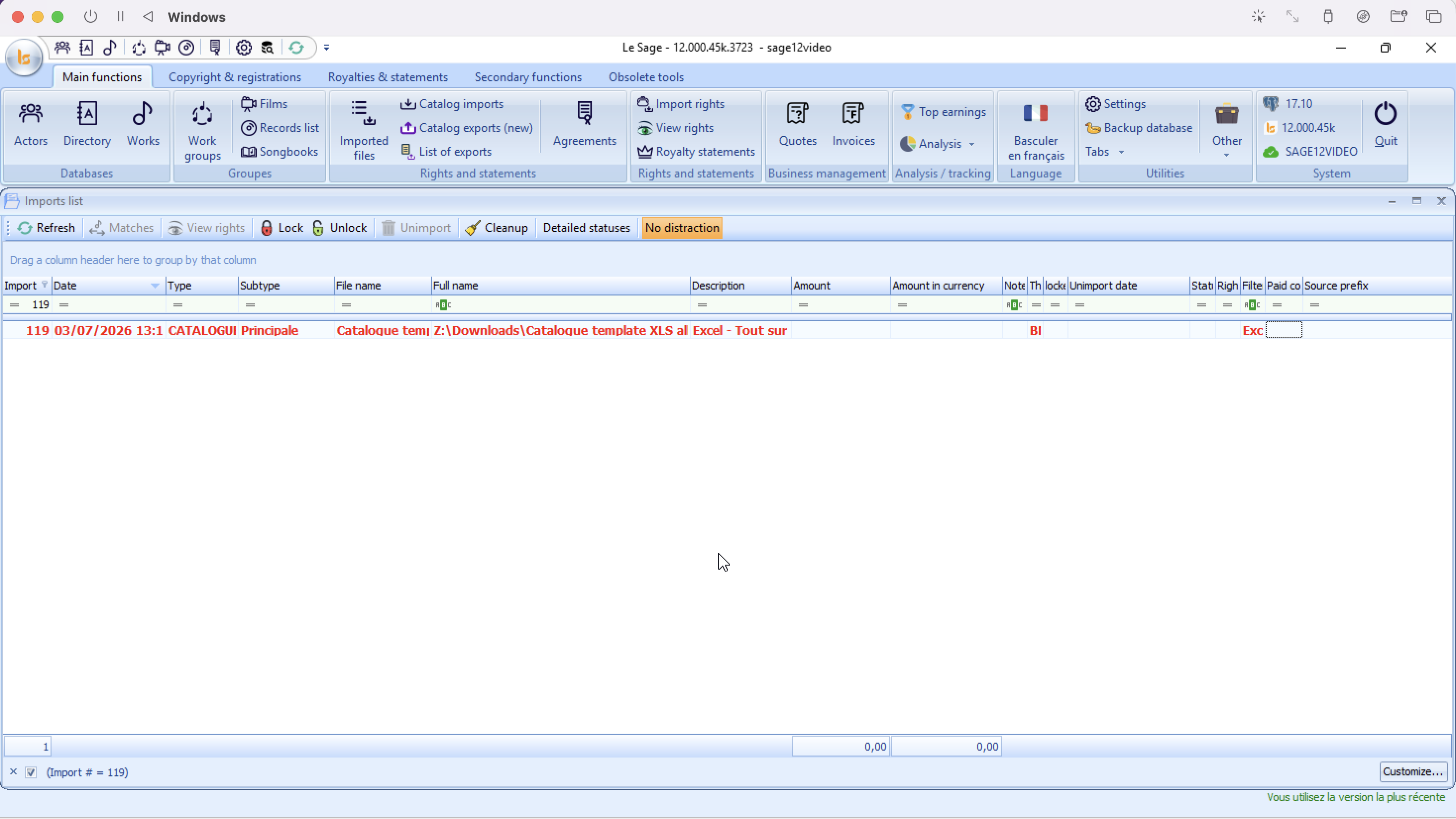
From this page double click on the Catalogue Import in red to proceed with matching.
Here is the manual entry for the manual reconciliation interface, titled Works manual match. This screen opens when you select an import from your list and click Correspondances, or when the system detects unknown data requiring human validation.
Works Manual Match
The Works manual match modal allows you to reconcile incoming titles from an imported file against entries already existing in your database. This prevents the creation of duplicate musical works and ensures that new data is attached to the correct historical records.
1. Interface Layout
The screen is divided down the center into a side-by-side comparison tool:
-
Left Side (Works from the imported file): Shows the titles found in your uploaded spreadsheet that need a decision.
-
Right Side (Existing works): Displays the complete database of musical works currently saved in Le Sage, allowing you to search and select a match.
Beneath both main lists are metadata tabs (Copyright, Codes, Subtitles, etc.) that dynamically update depending on which title you click, helping you compare writer splits, actors, and roles to confirm a correct match.
2. Step-by-Step Reconciliation Actions
For each row in the Works from the imported file grid, you must assign an action using the icons located on the right side of the item line:
Action A: Create as a New Work
If the work is entirely original and does not exist in your system database yet:
-
Highlight the work in the left-hand grid.
-
Click the + button on that item's row.
-
This marks the row to instruct Le Sage to generate a brand-new entry for this asset upon validation.
Action B: Link to an Existing Work (Matching)
If the work already exists in your database (even under a slightly different spelling):
-
Highlight the work in the left-hand grid (e.g., My favorite Title).
-
Go to the right-hand Existing works list and use the search bar filter to look up the correct asset title or ID number.
-
Compare the writers/creators in the bottom panels to make sure it is a true match.
-
Select the matching row on the right grid so it receives a green checkmark icon.
Action C: Ignore / Skip
All these actions can be done on several works. This assigns an action to the work giving it a status it does not directly apply.
3. Key Column Indicators
-
Bad ©: When checked, this box alerts you that the incoming file's copyright share percentages do not total $100\%$ or conflict with standard registration logic.
-
Nb possit (Possible Matches): Displays the number of close textual matches Le Sage automatically found in your database. If it shows a number greater than 0, check the right panel to see if the system has pre-suggested the match for you.
4. Finalizing Your Changes
Once you have processed the rows in your import queue:
-
Apply my actions: Click this button at the bottom center to confirm all associations, create the approved new entries, link matched titles, and push the records into your permanent database ledger.
-
Interrupt validation: Click this button to cancel your matching session, close the window, and preserve the import state with the statuses
Rights import
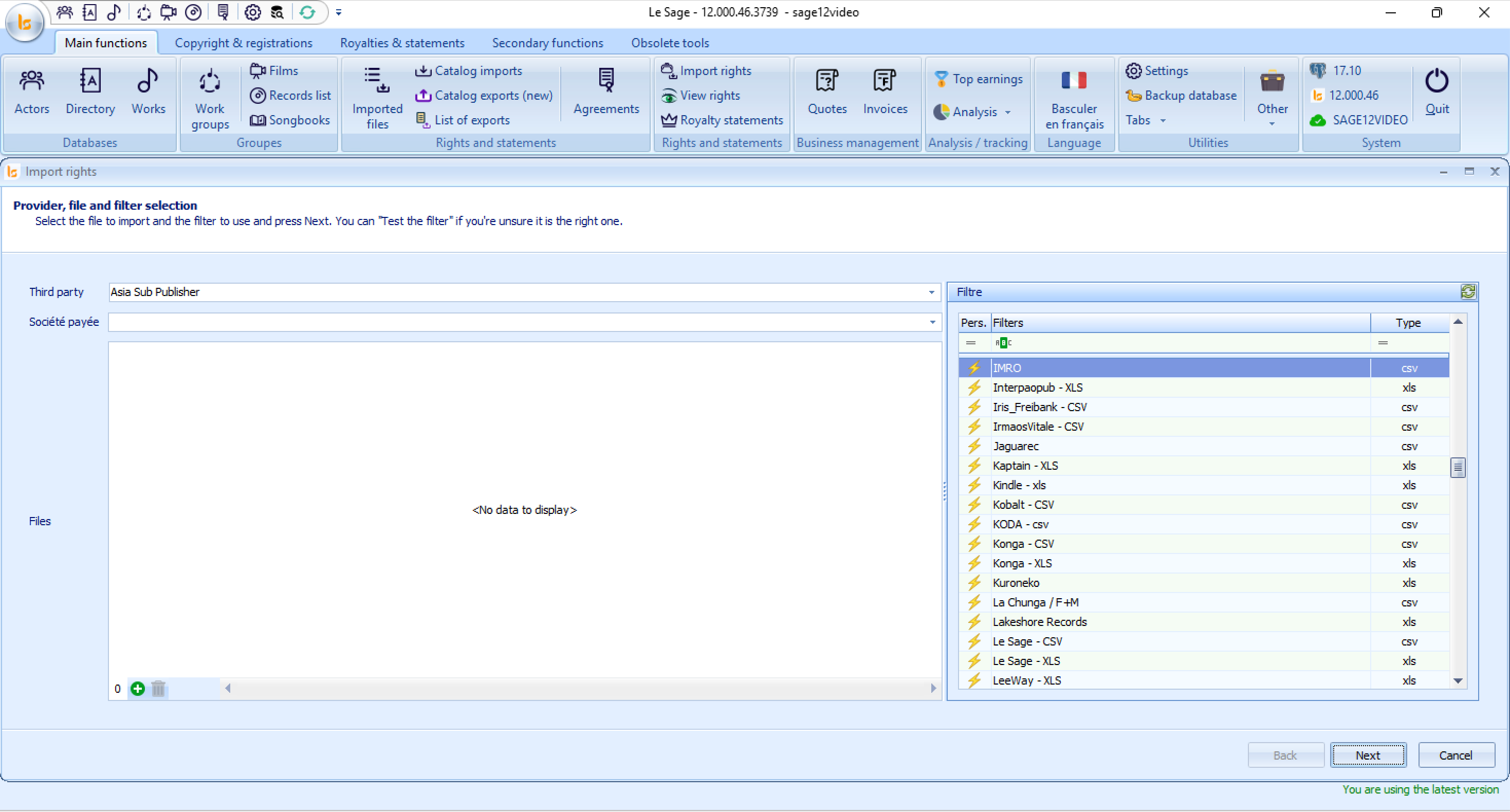
"Import rights" Menu
The Import rights module allows you to import royalty statements and sales reports (such as CSV or Excel files) into Le Sage to calculate and distribute royalties.
Step-by-Step Instructions
1. Select the Provider & Payee
-
Third party: Click the dropdown menu and select the entity or partner that sent you the rights/royalty report (e.g., Asia Sub Publisher). If it is a new provider you ust go to Settings - Third Party and add a new one.
-
Paid Company: Select the internal entity or sub-label in your system that has received the money.
2. Select the Data File(s)
-
At the bottom-left of the main central panel, click the green Plus (
+) icon. -
Browse your computer to locate and upload the raw statement/report file(s) provided by the third party.
3. Select the Matching Filter
-
In the Filter panel on the right side:
-
Browse or search for the matching parser filter corresponding to the report format you are importing (e.g., matching the third-party name, such as IMRO, Kobalt, KODA, etc.).
-
Pay close attention to the file format column (Type:
csv,xls, etc.) to ensure it matches your source file format.
-
This filter will be automatically selected if you add in the settings of the Third Party - in Settings - the filter.
4. Proceed
-
Click Next at the bottom-right corner to process the file mapping and proceed to the next stage of the import process.
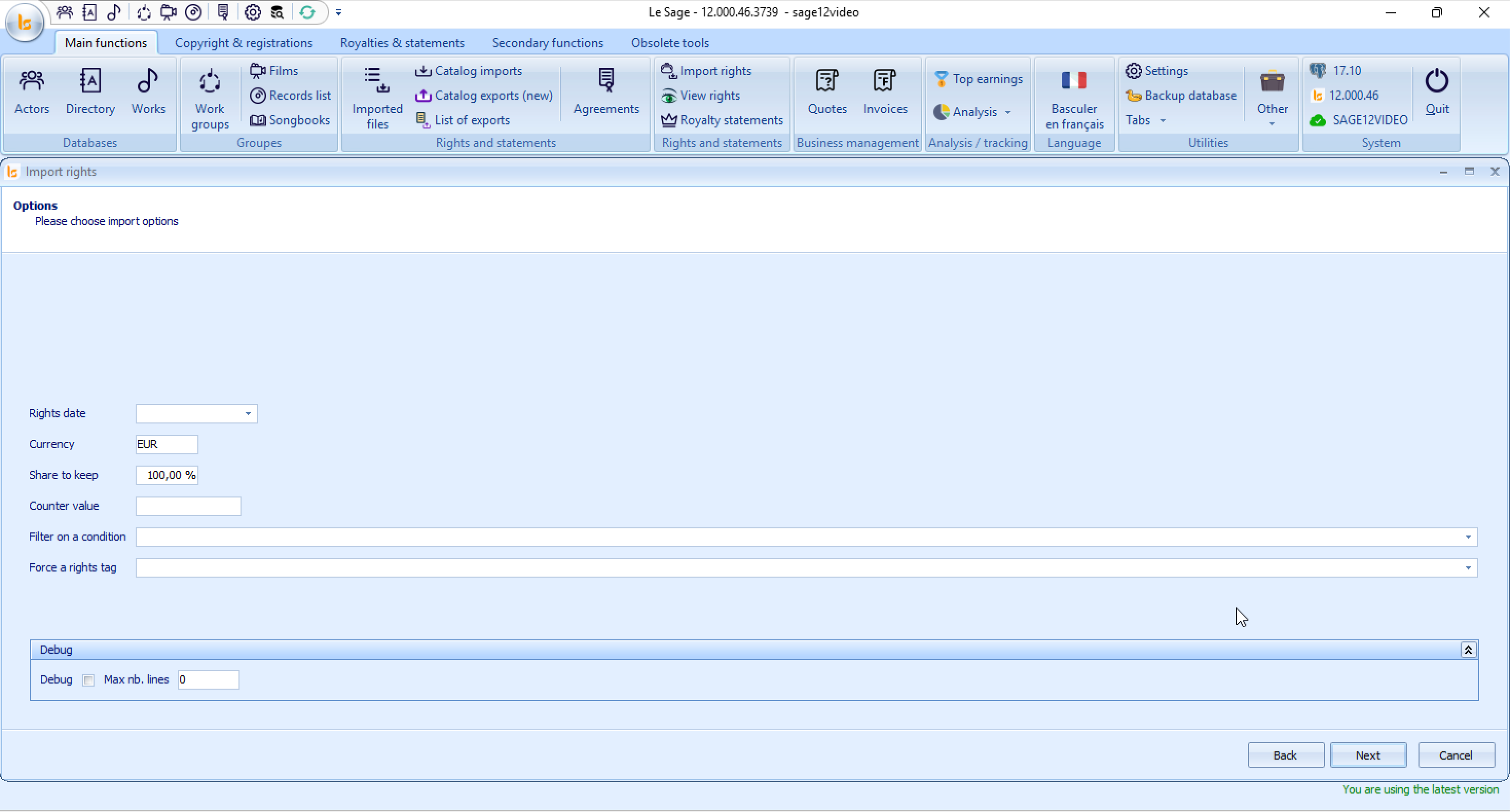
Step 2: Options
This screen allows you to configure specific parameters, exchange rates, and filters before processing the rights data.
Step-by-Step Instructions
1. Configure the Rights & Financial Settings
-
Rights date: Select or enter the effective period/date for the statement you are importing (e.g., the statement period or accounting date).
-
Currency: Specify the original currency of the incoming file (e.g.,
EUR,USD,GBP). By default it will be the one entered in Settings.
If the file has a currency information, the filter should add the information directly in the rights
2. Apply Optional Import Filters & Tags
-
Filter on a condition: Select a predefined condition from the dropdown to filter out specific lines from the file during import (e.g., importing only specific territory codes or work types).
-
Force a rights tag: Apply a global tag to all imported lines in this batch for paying out particularly, easier tracking, reporting, or grouping later.
3. Debug Section (Optional / Advanced) - For improvize team exclusively
-
Expand the Debug panel at the bottom only if you are testing a new import filter or troubleshooting file errors.
-
Check the Debug box and specify a Max nb. lines value (e.g.,
100) to process only a sample of the file instead of the entire dataset.
4. Proceed
-
Click Next in the bottom-right corner to run the file parsing and move to the final validation step.
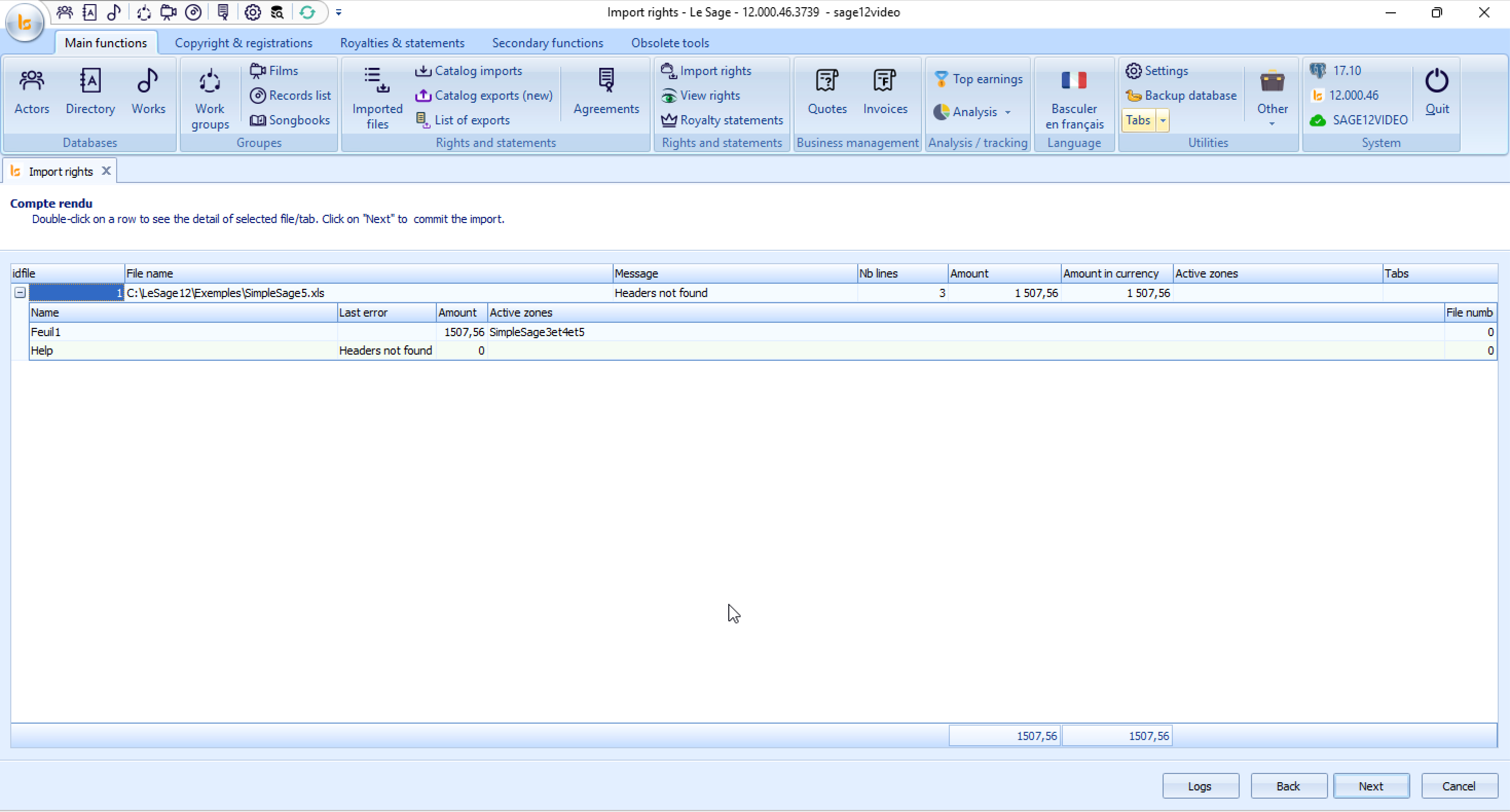
Step 3: Import Summary
This screen displays the pre-import results, summary metrics, and any warnings or errors detected in your input file before final database insertion.
Understanding the Summary View
-
Overview Table:
-
File name: Path to the imported file (e.g.,
C:\LeSage12\Exemples\SimpleSage5.xls). -
Message / Last error: Highlights issues found during parsing (e.g.,
"Headers not found"). -
Nb lines: Total number of parsed data rows (e.g.,
3). -
Amount / Amount in currency: Calculates the sum total of royalties parsed from the file (
1 507,56).
-
-
Detailed Sheet Breakdown:
-
Expanding the row reveals individual sheets (e.g.,
Feuil1,Help). -
In your example, sheet
Feuil1processed successfully with an amount of1 507,56, while the sheet namedHelpproduced the error "Headers not found" because it contains instructions rather than structured rights data.
-
Step-by-Step Instructions
1. Inspect File Details or Errors
-
Double-click on a row to open a detailed breakdown of the selected file or worksheet.
-
Click the Logs button at the bottom-right to open a full system log file for granular error tracking. - exclusively for Improvize Team.
2. Address Warnings (e.g., "Headers not found")
-
If the error is on a secondary sheet (like
Help): You can often click Next to proceed, as the main data sheet (Feuil1) was parsed correctly. -
If the error affects your main data: Click Back, fix the Excel column headers to match the expected filter format, or choose a different filter.
3 . Finalize the Import
-
Verify that the total Amount (
1 507,56) matches the expected balance from your partner's statement. -
Click Next to commit the imported rights into the Le Sage database.
Or you could want to see more details before completing the import.
Double click on the line
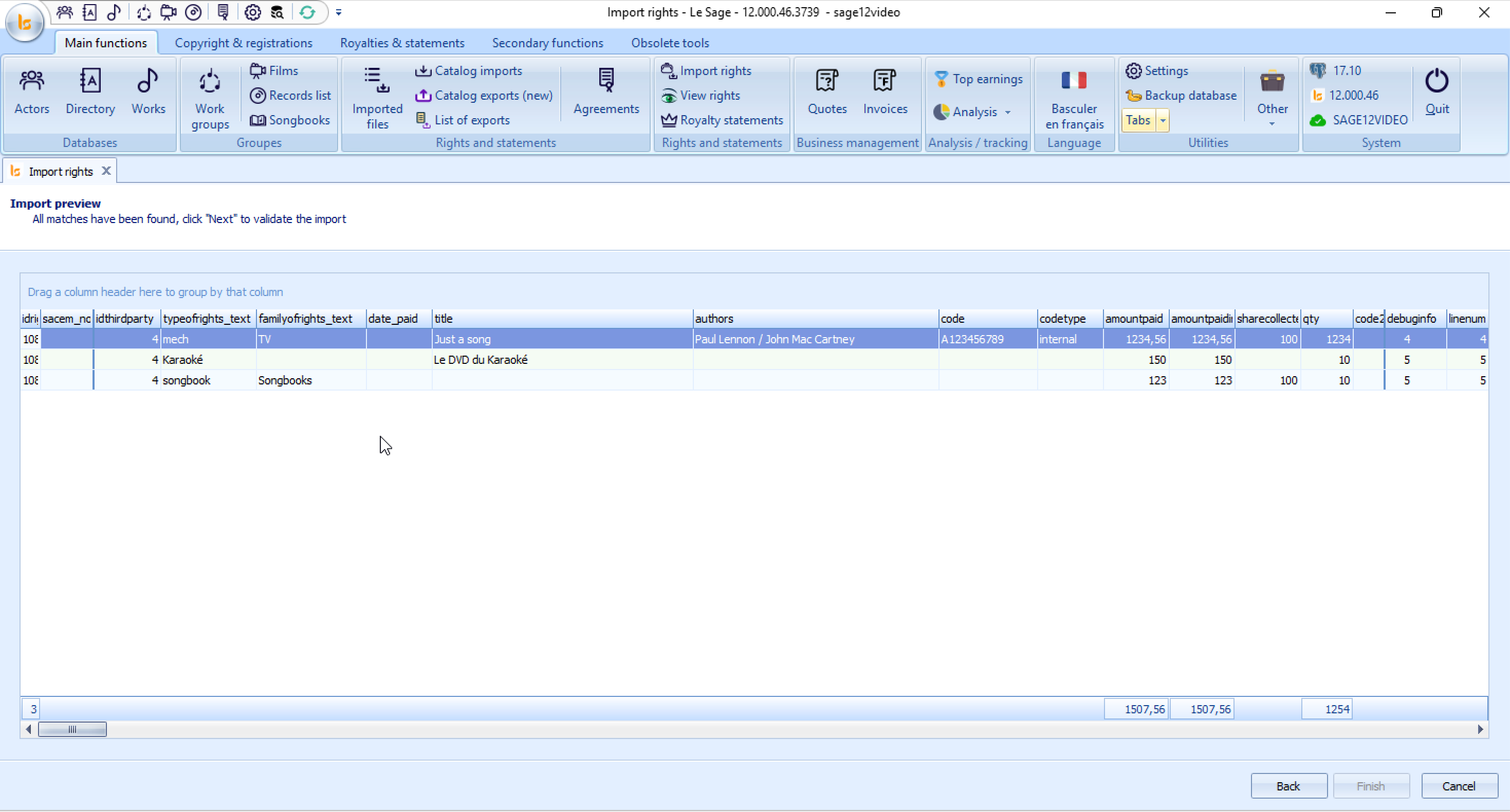
This screen provides a granular, line-by-line preview of all parsed royalty records before they are officially saved to the database.
Understanding the Preview Data Grid
The table displays every individual line item processed from your source file. Key columns include:
-
typeofrights_text / familyofrights_text: The categorization of rights (e.g., mech, Karaoké, songbook, TV, Songbooks).
-
title & authors: The work information mapped from the file (e.g., Just a song by Paul Lennon / John Mac Cartney, Le DVD du Karaoké).
-
code & codetype: The identifier mapped for catalog matching (e.g., A123456789, internal).
-
amountpaid / amountpaidin: Financial amounts mapped to each line item.
-
qty: Quantities or units reported for each line item.
- etc.
Step-by-Step Instructions
1. Review & Audit Lines
-
Scroll horizontally to verify that all column data aligns with the correct fields.
-
Check the bottom totals row to confirm that the aggregate amounts (
1 507,56) and unit totals (1254) match your expectations.
2. Grouping & Sorting Data (Optional)
-
You can drag a column header into the light blue banner above the table (labeled "Drag a column header here to group by that column") to temporarily group records by categories such as
typeofrights_textorfamilyofrights_textfor easier auditing.
3. Complete the Import
-
Look for the notification message at the top left: "All matches have been found, click 'Next' to validate the import" (or the Finish button at the bottom right).
-
Click Finish (or Next) to execute the final commit. Once clicked, the records will be permanently inserted into the Le Sage database under your selected third party.
Step 5: Confirmation & Completion
This final screen confirms that the data processing is complete and that all parsed records have been successfully added to your database.
Step-by-Step Instructions
1. Confirm Success Message
-
The screen displays the confirmation message: "Finished importing / Rights have been added".
-
This indicates that all line items from the preview screen have been successfully written to the system database under the specified Third Party.
2. Close
-
Click the Finish button in the bottom-right corner (or close the Import rights X tab at the top left) to exit the wizard.
Recommended Next Steps
Once closed, you can:
-
Verify Imported Records: Go to View rights under the Rights and statements tab in the main ribbon to inspect the newly imported entries.
-
Start the matching process going to Imports List.
ROYALTIES - ABR
AGREEMENTS
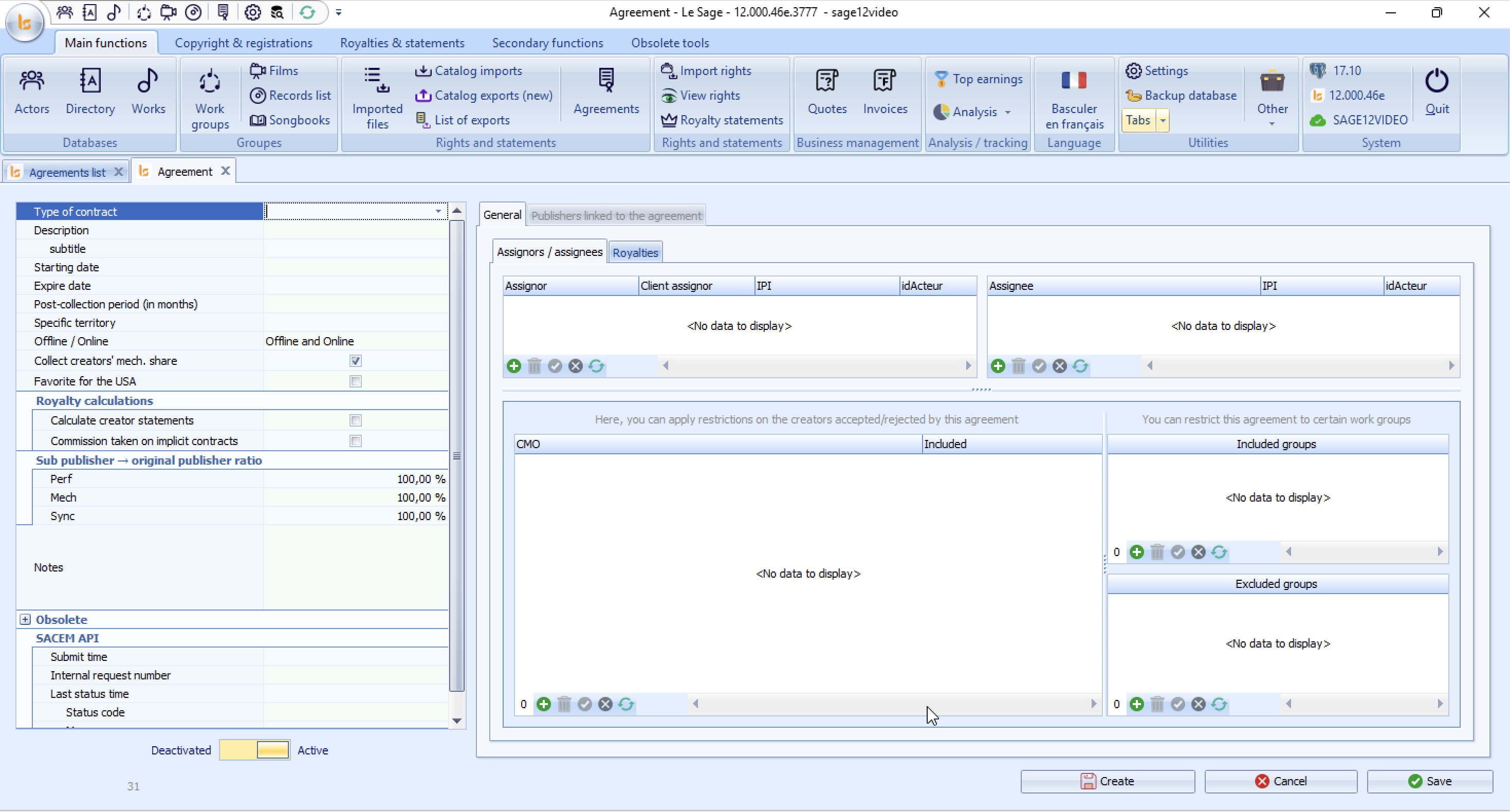
Left Panel: Contract Parameters & Terms
General Parameters
-
Type of contract: Dropdown menu to select the contract classification (e.g., Sub-publishing, Administration, Co-publishing).
-
Description & subtitle: Free text fields to define the title or reference description of the contract.
-
Starting date / Expire date: Effective dates for contract validity. Th expiring date will have for effect to stop applying this contract to send out catalogues.
-
Post-collection period (in months): Set the post-term collection duration (e.g., 6, 12, or 24 months). The contract will apply to royalty distribution until the post collection period is over.
-
Specific territory: Define groups of territories in settings for them to cover the exact territories signed with your client.
-
Offline / Online: Scope configuration (e.g., Offline and Online). Does this contract apply to online and or offline rights.
-
Collect creators' mech. share: Checkbox to include/exclude creator mechanical rights collection.
-
Favorite for the USA: Checkbox to set priority handling for US territories. This option concerns only the ASCAP or BMI representation contracts.
Royalty Calculations
-
Calculate creator statements: Enables automated statement generation for the authors/composers/adaptors/arrangers that will be linked to the publisher in this contract or the following subcontracts.
-
Commission taken on implicit contracts: Controls whether commissions apply automatically to implicit agreements, meaning the co-publishing agreements stated in the copyright.
Sub-publisher → Original Publisher Ratio
Set split percentages applied when transferring collection shares:
-
Perf (Performance rights): Default
100.00 % -
Mech (Mechanical rights): Default
100.00 % -
Sync (Synchronization rights): Default
100.00 %
SACEM API Integration
Module for Sub publishing agreements within SACEM - to get the agreement numbers.
Displays real-time transaction logs when syncing contract data with SACEM:
-
Submit time, Internal request number, Last status time, Status code.
Right Panel: Parties & Restrictions
The main section contains two primary tabs: General and Publishers linked to the agreement.
Assignors / Assignees Tab
Manage rights transfers between parties:
-
Assignor (Left Table): Add or edit transferring parties (
Assignor,Client assignor,IPI,idActeur). -
Assignee (Right Table): Add or edit receiving parties (
Assignee,IPI,idActeur).
Collective Management Organizations (CMO) Restrictions
-
CMO / Included: Define Collective Management Organizations (e.g., SACEM, ASCAP, BMI) of the authors and composers that will define the application or not of this contracts.
Mainly used in the case of ASACP and BMI, the file being sent to MusicMark you have to explain that each CMO deals with their members/ and excludes/includes other affiliations.
Work Group Restrictions
-
Included groups: Restrict this contract to apply strictly to selected work groups or catalogs.
-
Excluded groups: Exclude specific work groups from the agreement's scope.
Table Action Bar: Use the toolbar icons below each table (
+Add, Trash icon Delete,XCancel edit, Refresh) to update list items.
4. Action Buttons (Bottom Right)
-
Create: Initialize a new agreement entry and then save without closing.
-
Cancel: Revert unsaved edits on the active agreement.
-
Save: Save all changes to the database and close the contract.
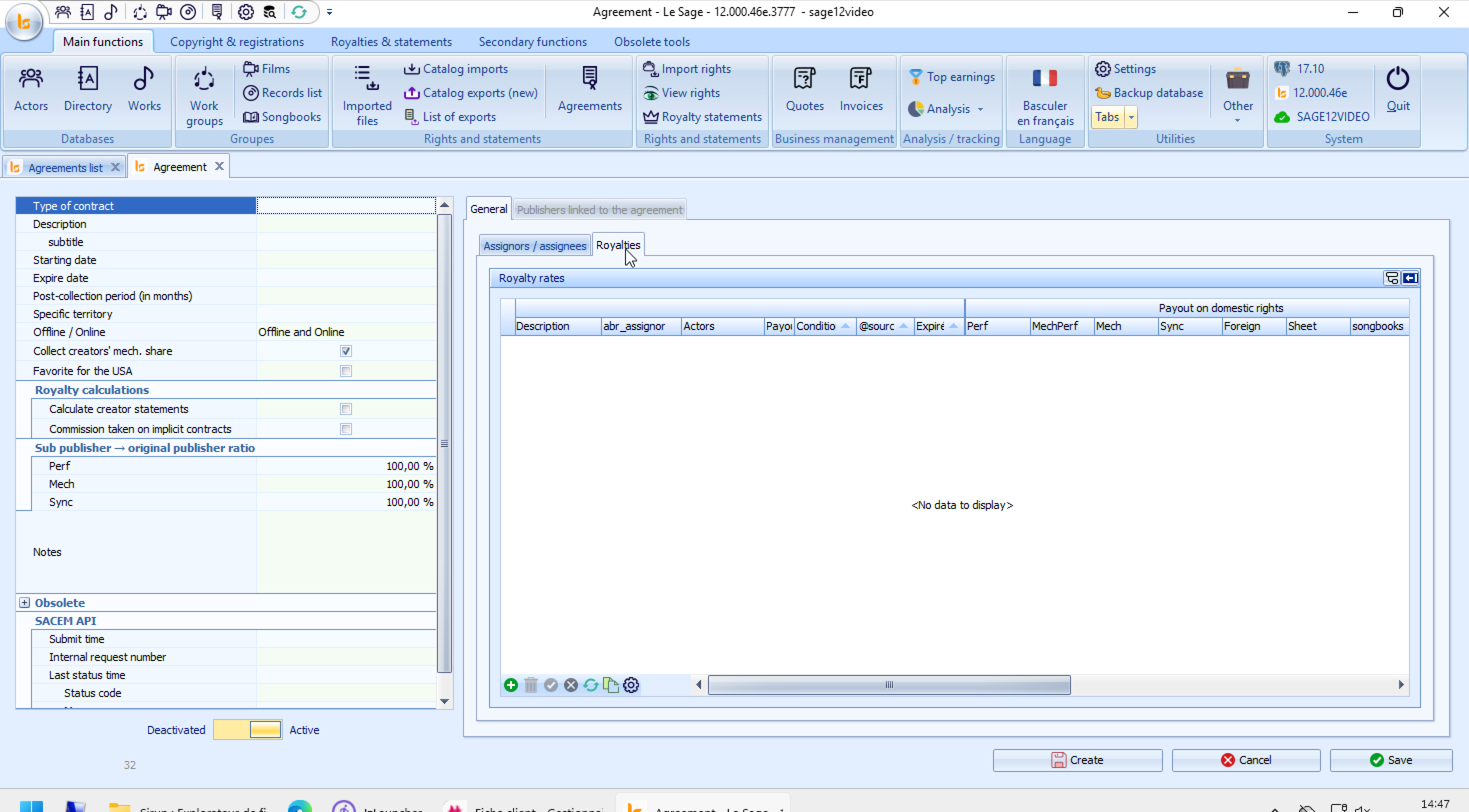
Royalties Tab: Displays the detailed Royalty rates matrix:
-
Key columns include Description, abr_assignor, Actors, Payout on domestic rights (Perf, MechPerf, Mech, Sync, Foreign, Sheet, Songbooks), and expiration criteria.
-
Action Toolbar (Bottom-Left of table):
-
+(Green Plus): Add a new royalty rate entry. -
Trash Can: Delete the selected row.
-
Checkmark: Confirm/Validate row entry.
-
Refresh / Edit Icons: Update or configure existing table parameters.
-